Lenovo ThinkPad T16 AMD is a business workhorse with AMD Ryzen processing and Mediatek Bluetooth. On Windows 11, Bluetooth audio to wireless headphones and earbuds stutters, cuts out every few seconds, or drops the connection entirely during calls and music playback. The issue is particularly noticeable when WiFi is active at the same time, as Bluetooth and WiFi share the 2.4GHz spectrum. I have fixed Bluetooth audio stuttering on ThinkPad T16 AMD units and this guide explains all verified solutions.
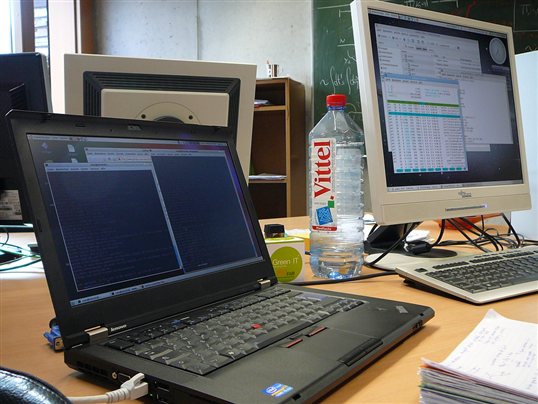
Why Lenovo ThinkPad T16 AMD Bluetooth Audio Stutters Windows 11
Bluetooth and WiFi 2.4GHz Band Interference on AMD Platform
ThinkPad T16 AMD uses a Mediatek WiFi and Bluetooth combo adapter. When WiFi connects to a 2.4GHz network at the same time as Bluetooth audio is active, both radios operate on overlapping frequency ranges. Mediatek’s coexistence management on some driver versions does not properly arbitrate spectrum access between WiFi and Bluetooth, causing Bluetooth audio dropout at intervals that correlate with WiFi data transfers. Switching WiFi to 5GHz eliminates the overlap and resolves the stutter completely in most cases.
AMD Power Management Reducing Bluetooth Controller Clock Speed
AMD Ryzen processor power management on ThinkPad T16 can reduce the clock speed of platform controllers during power-saving states. If the Bluetooth controller clock is reduced during audio streaming, the audio packet timing becomes inconsistent, producing perceptible stuttering in the audio output. This is more common on battery power where aggressive power management is active. Disabling power saving on the Bluetooth adapter prevents this clock reduction during audio streaming.
Outdated Mediatek Bluetooth Driver Without Audio Streaming Fix
Mediatek released driver updates specifically addressing Bluetooth audio streaming stability on AMD platforms with Windows 11. The Lenovo-validated Mediatek driver on the ThinkPad support page includes these fixes. The driver installed by Windows Update may be a generic Mediatek version predating these audio-specific fixes, causing persistent stuttering that does not improve with other troubleshooting steps until the correct driver version is installed.
How to Fix Lenovo ThinkPad T16 AMD Bluetooth Audio Stuttering Windows 11
Step 1 — Switch WiFi to 5GHz Band
On your router administration page, ensure the 5GHz network is enabled and has its own SSID separate from 2.4GHz. On ThinkPad T16 AMD, go to Windows Settings, Network and internet, WiFi, and connect to the 5GHz network instead of 2.4GHz. After connecting to 5GHz, test Bluetooth audio streaming immediately. If the stutter stops entirely, the 2.4GHz interference was the cause. Keep the WiFi connection on 5GHz for all Bluetooth audio use. If 5GHz is not available or the router only broadcasts on 2.4GHz, proceed to driver and power management fixes.
Step 2 — Disable Power Saving on Bluetooth Adapter
Open Device Manager and expand Bluetooth. Find the Mediatek Bluetooth adapter entry. Right-click and open Properties, go to the Power Management tab and uncheck Allow the computer to turn off this device to save power. Click OK. Also open Power Options in Control Panel and change the power plan to Balanced if it is set to Power saver. In the advanced power settings for the current plan, expand Wireless Adapter Settings and set Power Saving Mode to Maximum Performance. This prevents the AMD platform from reducing Bluetooth controller power during audio streaming.
Step 3 — Install Lenovo-Validated Mediatek Bluetooth Driver
Go to Lenovo support page and search for ThinkPad T16 AMD with your machine type. Under Drivers and Software, find the Bluetooth Driver in the Networking section. Download and install the Lenovo-validated Mediatek Bluetooth driver. Uninstall the existing Bluetooth driver in Device Manager first by right-clicking the Mediatek Bluetooth entry and selecting Uninstall device with driver removal. Run the downloaded package and reboot. After rebooting, pair your Bluetooth headphones again and test audio streaming during active WiFi use to verify the fix.
My T16 AMD Bluetooth audio stuttered constantly on my headphones. Switched the WiFi from 2.4GHz to 5GHz on my router and the stuttering stopped immediately. Such a simple fix for something that was driving me crazy for weeks. If your router supports 5GHz always connect on that band when using Bluetooth audio. — Chris K., ThinkPad Community
Frequently Asked Questions
Does Lenovo ThinkPad T16 AMD support Bluetooth 5.0 or higher?
Yes. ThinkPad T16 AMD includes Bluetooth 5.1 or 5.2 depending on the generation, via the Mediatek combo adapter. Bluetooth 5.x provides improved range up to 10 meters in open space, better interference handling with WiFi, and enhanced audio codec support including aptX and AAC for higher quality wireless audio. Pair Bluetooth 5.x headphones for the best audio quality and stability on T16 AMD.
Why does Lenovo ThinkPad T16 AMD Bluetooth audio stutter only on battery power?
AMD platform power management is more aggressive on battery, reducing Bluetooth controller power during quiet audio moments. This is the AMD power management clock reduction issue described above. Disabling Allow the computer to turn off this device in Bluetooth adapter Properties and setting Wireless Adapter Power Saving to Maximum Performance in Power Options resolves battery-specific stuttering.
Can Lenovo ThinkPad T16 AMD stream audio to two Bluetooth devices at the same time?
Windows 11 supports Bluetooth multi-point audio for headphones that have the multi-point feature. The ThinkPad T16 AMD Bluetooth adapter can maintain multiple simultaneous Bluetooth connections. However, audio routing to two headphones simultaneously requires the headphones themselves to support the simultaneous audio feature — not all Bluetooth headphones do. Check headphone specifications for multi-point support.
Does Lenovo ThinkPad T16 AMD Bluetooth audio support aptX or LDAC high-quality codecs?
Bluetooth audio codec support depends on both the adapter and the headphone. ThinkPad T16 AMD Mediatek adapter supports SBC and AAC natively. aptX and LDAC support depends on the Mediatek driver version and the codec negotiated with the headphone. SBC is the fallback and universally supported. For highest audio quality pair headphones that support AAC or aptX and ensure the Mediatek Bluetooth driver is at the latest Lenovo-validated version which includes codec updates.
Conclusion
Lenovo ThinkPad T16 AMD Bluetooth audio stuttering on Windows 11 is caused by 2.4GHz interference between simultaneous WiFi and Bluetooth operation, AMD power management reducing the Bluetooth controller clock during audio streaming, or an outdated Mediatek driver lacking audio streaming stability fixes. Switch WiFi to the 5GHz band to eliminate spectrum overlap, disable power saving on the Bluetooth adapter in Device Manager and set wireless power saving to Maximum Performance, and install the Lenovo-validated Mediatek Bluetooth driver from the ThinkPad support page. Switching to 5GHz WiFi alone resolves the majority of T16 AMD Bluetooth audio stutter cases instantly.
Ryan holds a Computer Science degree and has over 20 years of hands-on experience with PC hardware, software, and driver troubleshooting. He is the author behind softwaredriverdownload.com, where he helps everyday users fix driver issues quickly and accurately.
Leave a Reply