The Dell G15 5530 is a gaming laptop with NVIDIA GeForce RTX graphics and a high refresh rate display for competitive gaming. When the display driver throws an error or the screen flickers on Windows 11, the gaming experience is severely degraded. This guide covers every cause and fix for display driver errors on the Dell G15 5530.
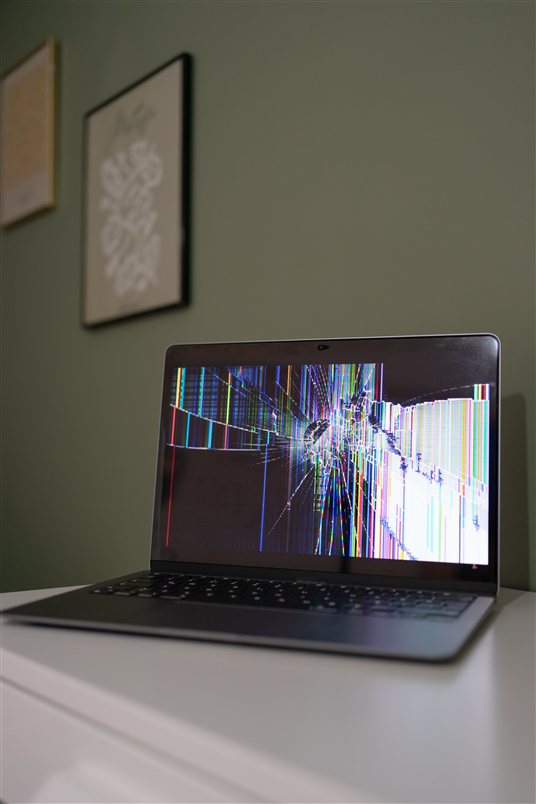
Why Dell G15 5530 Display Driver Shows an Error
NVIDIA Driver Version Incompatible with Dell BIOS Update
The Dell G15 5530 uses NVIDIA GeForce RTX graphics controlled by the NVIDIA driver. After a Dell BIOS update or NVIDIA driver change, the display driver may report a compatibility error if the NVIDIA driver version does not match the BIOS GPU memory allocation. When this happens, the display may flicker or the driver may reset repeatedly, causing momentary black screens during gameplay or work.
Dell Integrated Graphics Conflict with NVIDIA GPU Output
The Dell G15 5530 has both Intel integrated graphics and NVIDIA discrete GPU. When Windows Update changes the Intel graphics driver or power management settings, the display output routing can become ambiguous. Both GPUs may attempt to control the display simultaneously, causing display driver errors. Signs of this issue include:
- Display driver error appears only when playing games or under GPU load
- Flicker occurs at specific frame rates or in specific games
- Error message names Intel graphics driver or NVIDIA driver explicitly
- Display works fine for general desktop use but fails during gaming
Dell Thermal Management Throttling Display Driver Under Load
The G15 5530 includes aggressive thermal management that can reduce GPU clock speed under high temperatures. On some units, this throttling is too aggressive and causes the NVIDIA display driver to report stability errors instead of smoothly managing performance. The display may flicker during intensive gaming as the thermal limiter cycles the GPU speed rapidly.
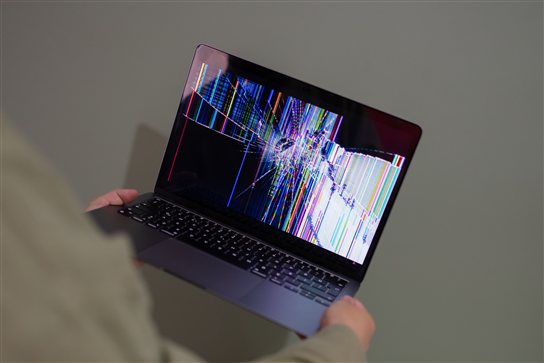
How to Fix Dell G15 5530 Display Driver Error
Step 1: Update Dell BIOS and NVIDIA Driver in Correct Order
- Go to the Dell support website and search for G15 5530.
- Download the latest BIOS update and install it. Restart when prompted.
- After BIOS update completes, download the latest NVIDIA Game Ready Driver for Windows 11 from NVIDIA official site (not Dell Support).
- Run NVIDIA driver installer and let it perform a clean installation.
- Restart the laptop and test display stability in a demanding game for at least 20 minutes.
Step 2: Disable Intel Integrated Graphics in BIOS to Prioritize NVIDIA
Restart the G15 5530 and press F2 at the Dell logo to enter BIOS Setup. Go to Integrated Devices or System Agents and disable Integrated Graphics. This forces the system to use only the NVIDIA discrete GPU for all display output, eliminating driver conflicts between Intel and NVIDIA components. Save and exit BIOS, then test display stability.
Step 3: Increase Thermal Headroom by Cleaning Vents and Adjusting Fan Curves
Power off and unplug the G15 5530. Use compressed air to clean the intake vents and remove dust buildup on the heatsink fins. Reinstall the battery. Boot normally and install Dell Power Manager from Microsoft Store. In Power Manager, set Fan Behavior to Performance or disable Thermal Optimization to prevent aggressive throttling that causes display driver errors. Test gaming again.
My G15 5530 display driver kept crashing during games. Updating BIOS first, then installing the latest NVIDIA driver, then disabling Intel graphics in BIOS fixed the error completely. The BIOS update was the critical step I was missing. — Cameron H., Dell G15 5530 user
Frequently Asked Questions
What display does the Dell G15 5530 have?
The Dell G15 5530 features a 15.6-inch FHD (1920×1080) or QHD (2560×1440) IPS display with up to 165Hz refresh rate depending on configuration. The FHD model is standard on most G15 5530 units and provides 165Hz gaming performance. The higher resolution QHD option trades some refresh rate for pixel density.
Can I replace the Dell G15 5530 display with a higher refresh rate panel?
The G15 5530 display is soldered and integrated into the lid assembly, so it cannot be easily replaced with a different panel. However, you can connect an external gaming monitor to the HDMI or USB-C port for higher refresh rate gaming while keeping the built-in display for secondary tasks. External monitors offer 240Hz or higher at QHD or FHD resolution.
Why does the Dell G15 5530 display driver crash only during heavy gaming?
The display driver crashes under load usually mean the GPU is exceeding thermal limits, power limits, or encountering stability issues at peak performance. Verify BIOS is updated to the version matching your NVIDIA driver. Check that integrated graphics is disabled in BIOS. Clean the cooling vents to ensure proper thermal performance. Reduce GPU overclocking if you have applied any.
Does Dell G15 5530 support external display over USB-C?
Yes on some G15 5530 configurations. Models with Thunderbolt 4 USB-C support video output for external displays. Connect a USB-C to HDMI or USB-C to DisplayPort adapter to extend or mirror the display to an external monitor. HDMI is also available on all G15 5530 units as a dedicated video output.
Conclusion
Dell G15 5530 display driver error on Windows 11 is most often caused by an NVIDIA driver incompatible with the Dell BIOS version, integrated graphics conflicting with the discrete GPU, or thermal throttling reducing GPU stability. Update BIOS then NVIDIA driver in order, disable integrated graphics in BIOS, and improve thermal performance by cleaning vents and adjusting fan settings. These steps resolve display driver errors on the G15 5530 in most cases.
Ryan holds a Computer Science degree and has over 20 years of hands-on experience with PC hardware, software, and driver troubleshooting. He is the author behind softwaredriverdownload.com, where he helps everyday users fix driver issues quickly and accurately.
Leave a Reply