Acer Predator Triton 500 SE GPU Overheating Windows 11
Your Acer Predator Triton 500 SE GPU temperatures hit 90 degrees Celsius or above during gaming, causing the GPU to throttle performance. Frame rates drop suddenly during extended sessions and the laptop chassis gets uncomfortably hot. This is a thermal management problem that affects performance significantly.
This guide covers PredatorSense fan profile settings, driver power limits, and physical cooling maintenance to keep your Triton 500 SE GPU within safe temperatures in Windows 11.
“My Triton 500 SE hit 95 degrees on the GPU after 20 minutes of gaming. Frame rates dropped from 80fps to 45fps. Setting PredatorSense to Turbo and clearing the vent dust brought it back to 78 degrees.” – Shahrul, engineering student from Kuantan
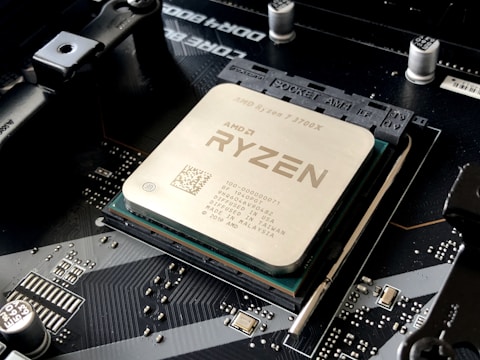
Why the GPU Overheats on Acer Predator Triton 500 SE
The Predator Triton 500 SE has a thin chassis design with dual-fan cooling for both the Intel Core H-series CPU and NVIDIA RTX GPU. At high loads Windows 11 combined with outdated NVIDIA drivers can push GPU power limits above the cooling system capacity. Dust accumulation in the dual vents after 12-18 months of use significantly reduces airflow.
- PredatorSense fan mode set to Silent or Normal during gaming
- NVIDIA driver applying higher power limit than the cooling system can handle
- Dust blockage in rear and side vents reducing airflow
- GPU thermal throttle kicks in above 87 degrees, reducing clock speed 10-30 percent
Fix 1 – Set PredatorSense Fan Mode to Turbo
Open PredatorSense (pre-installed, or download from Acer Support), go to the Fan Control section, and select Turbo mode. This sets both fans to maximum speed during gaming. You can also toggle Turbo mode from the keyboard by pressing Fn + F5. Turbo mode reduces GPU temperature by 8-12 degrees Celsius compared to Normal mode on the Triton 500 SE.
Fix 2 – Update NVIDIA Driver and Apply Power Limit
Download the latest GeForce Game Ready Driver from nvidia.com/drivers. In NVIDIA Control Panel, go to Manage 3D Settings – Global Settings and set Power management mode to Prefer maximum performance. If overheating persists, use MSI Afterburner to set a TDP limit of 80-90 percent, reducing peak temperatures by 5-8 degrees with minimal frame rate impact.
Registry Power Limit Check
NVIDIA driver thermal policies are stored in HKEY_LOCAL_MACHINE\SYSTEM\CurrentControlSet\Control\Class\{4d36e97d-e325-11ce-bfc1-08002be10318} under ThermalPowerManagement. After a driver update, verify this key is not set to enforce lower-than-expected TDP limits that cause unnecessary throttling before temperatures even peak.

Fix 3 – Clean Laptop Vents
Power off the laptop and use a can of compressed air to blow out dust from the rear and side exhaust vents. For deeper cleaning, remove the bottom panel (Torx screws) and use a soft brush to clean the fan blades and heatsink fins. Blocked heatsink fins are the leading cause of GPU overheating in laptops over 18 months old. Repasting the GPU thermal interface material every 2-3 years also significantly improves thermal performance.
Fix 4 – Enable Undervolting via Intel XTU or ThrottleStop
Download Intel XTU (Extreme Tuning Utility) and apply a -100mV to -120mV CPU core voltage offset. This reduces heat output from the CPU, leaving more thermal headroom for the GPU in the shared cooling system. On Predator Triton 500 SE models with Intel 12th Gen, undervolting is accessible and effective for reducing sustained GPU temperatures during combined CPU+GPU loads.
Frequently Asked Questions
Why is the GPU overheating on Acer Predator Triton 500 SE?
Fan mode set too low, dust in vents, or NVIDIA driver pushing power limits above cooling capacity. Set PredatorSense to Turbo and clean the vents first.
What is a safe GPU temperature for Predator Triton 500 SE?
Up to 83 degrees Celsius under load is normal. Sustained above 90 degrees indicates a cooling issue.
How do I check GPU temperature on Acer Predator Triton 500 SE?
Use HWiNFO64, GPU-Z, PredatorSense System Monitoring, or NVIDIA GeForce Experience overlay during gaming.
Does PredatorSense control GPU fan speed?
Yes – Turbo mode in PredatorSense maximizes both CPU and GPU fan speeds for best cooling during gaming.
Conclusion
GPU overheating on Acer Predator Triton 500 SE in Windows 11 is best addressed by switching PredatorSense to Turbo fan mode, updating NVIDIA drivers, and cleaning the vents. MSI Afterburner TDP limiting and CPU undervolting are effective tools for keeping temperatures below the throttle threshold during extended gaming sessions.
Ryan holds a Computer Science degree and has spent over 15 years troubleshooting Windows hardware and driver issues across major laptop brands. He writes practical, step-by-step guides for everyday users at softwaredriverdownload.com.
Leave a Reply