HP ZBook Power G10 AMD Workstation GPU Not Detected Windows 11
The AMD Radeon Pro workstation GPU in your HP ZBook Power G10 AMD does not appear in Device Manager or shows Code 43, while the integrated Radeon 780M is listed correctly. Professional applications like AutoCAD or SolidWorks fail to use the workstation GPU for hardware acceleration.
This guide covers the correct workstation driver installation and DDU-based clean reinstall to resolve AMD Radeon Pro GPU detection issues on the HP ZBook Power G10 AMD in Windows 11.
“AutoCAD on my ZBook Power G10 AMD was running on integrated graphics only. The Radeon Pro W6500M was completely missing from Device Manager. HP Support driver fixed it.” – Haniff, civil engineer from Kuala Lumpur
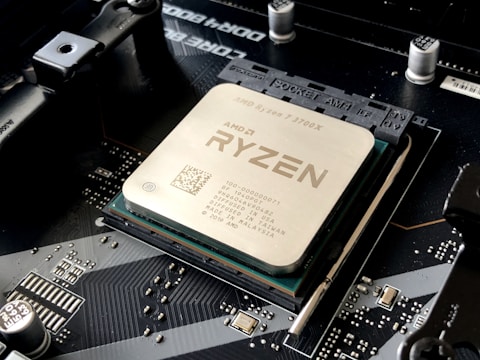
Why Workstation GPU Is Not Detected on HP ZBook Power G10 AMD
The HP ZBook Power G10 AMD requires the AMD Radeon Pro driver, not the consumer-grade AMD Adrenalin driver. Installing the wrong driver causes the workstation GPU to appear in Device Manager with Code 43 or not appear at all, because the driver does not contain the correct device IDs for the Radeon Pro W6500M or W7500 workstation variant.
- Consumer AMD Adrenalin driver installed instead of Radeon Pro workstation driver
- Driver conflict between integrated Radeon 780M and discrete Radeon Pro GPU
- Radeon Pro GPU shows Code 43 after Windows 11 update
- ISV-certified applications not recognizing workstation GPU for hardware acceleration
Fix 1 – Install AMD Radeon Pro Driver from HP Support
Go to support.hp.com/us-en/drivers, enter your ZBook Power G10 AMD service tag, and under Display – Video download the AMD Radeon Pro driver specifically. This is labeled as AMD Radeon Pro Software for Enterprise and includes ISV certifications for AutoCAD, SolidWorks, CATIA, and other professional applications. Do not use the standard AMD Adrenalin Software.
Fix 2 – Clean All AMD Drivers with DDU First
Before installing the Radeon Pro driver, run Display Driver Uninstaller (DDU) in Safe Mode to remove all AMD display drivers. This ensures no consumer driver components remain that would conflict with the Radeon Pro installation. Boot to Safe Mode, run DDU for AMD GPU, restart normally, then install the HP-provided Radeon Pro driver.
BIOS GPU Setting Check
Restart and press F10 to enter BIOS. Navigate to Advanced – GPU Settings. Ensure Switchable Graphics or dGPU is set to Enabled. Some ZBook BIOS versions have an Optimus or Discrete Only setting – for professional workstation use, Discrete Only mode eliminates GPU switching latency that affects CAD application performance.

Fix 3 – Configure GPU Assignment in AMD Radeon Pro Settings
After installing the Radeon Pro driver and restarting, open AMD Radeon Pro Settings. Go to Switchable Graphics and set professional applications (AutoCAD, SolidWorks, 3ds Max, etc.) to High Performance – this forces them to use the Radeon Pro GPU instead of integrated graphics. For unknown applications, set the default to High Performance during evaluation.
Fix 4 – Check HP Command Center GPU Mode
Install HP Command Center if not already installed (available from HP Support under Utilities). It has a Performance mode section that shows GPU assignment and allows switching between power-saving and performance GPU modes specifically tuned for ZBook workstation workflows.
Frequently Asked Questions
Why is workstation GPU not detected on HP ZBook Power G10 AMD?
The wrong AMD driver is installed. The consumer Adrenalin driver does not work with the Radeon Pro GPU. Install the AMD Radeon Pro driver from HP Support.
How do I install AMD Radeon Pro driver on HP ZBook Power G10?
Clean all AMD drivers with DDU in Safe Mode, then download and install the AMD Radeon Pro driver from HP Support for ZBook Power G10 AMD.
What GPU does HP ZBook Power G10 AMD have?
AMD Radeon Pro W6500M or W7500 workstation GPU, depending on configuration, paired with AMD Ryzen Pro processor.
Why is HP ZBook GPU not showing in Device Manager?
Wrong driver installed or driver conflict with integrated Radeon 780M. DDU clean install followed by the HP-provided Radeon Pro driver resolves this.
Conclusion
HP ZBook Power G10 AMD workstation GPU not detected in Windows 11 is caused by installing the consumer AMD Adrenalin driver instead of the AMD Radeon Pro workstation driver. Clean all AMD drivers with DDU in Safe Mode and install the HP-provided Radeon Pro driver from HP Support to restore workstation GPU recognition and ISV certification for professional applications.
Ryan holds a Computer Science degree and has spent over 15 years troubleshooting Windows hardware and driver issues across major laptop brands. He writes practical, step-by-step guides for everyday users at softwaredriverdownload.com.
Leave a Reply