If your Lenovo IdeaPad keyboard has stopped working and Device Manager shows ACPI\MSFT0001, you are dealing with a failed ACPI keyboard enumeration — and there are several proven ways to fix it.
This problem appears across many IdeaPad models, including the IdeaPad 3 and IdeaPad 5 series. Windows assigns the MSFT0001 hardware ID when it cannot find a matching driver for the keyboard controller in its driver store. The keyboard may work partially, not at all, or behave erratically — depending on which driver component is missing.
I have fixed this on two machines personally, and the steps below cover every reliable method, from simple Device Manager tricks to registry-level ACPI enumeration checks.
What Is ACPI\MSFT0001 and Why Does It Appear?
ACPI\MSFT0001 is a hardware ID that Windows assigns to a device listed in the system ACPI (Advanced Configuration and Power Interface) table when no matching driver INF file exists in the driver store. MSFT0001 is a placeholder — it literally means “Microsoft ACPI-Compliant System, unmatched device.” It is not a specific keyboard model identifier.
For Lenovo IdeaPad keyboards, this usually happens for one of three reasons:
- The Lenovo Keyboard Filter Driver (also called the Energy Management keyboard driver) is missing or corrupted
- The ACPI table in your firmware references a device ID that Windows has no INF entry for
- A Windows update modified keyboard enumeration behavior and broke compatibility with Lenovo’s HID driver
On Windows 11, ACPI keyboard enumeration changed slightly compared to Windows 10. Windows 11 is stricter about driver signing and INF matching for HID-over-ACPI devices. This means a driver that worked fine on Windows 10 may silently fail after an in-place upgrade to Windows 11, producing the MSFT0001 error.
The Lenovo Keyboard Filter Driver is a kernel-mode filter driver that sits between the ACPI keyboard device and the standard HID keyboard stack. It handles IdeaPad-specific functions like Fn key combinations, hotkeys, and power management key events. Without it, Windows falls back to a generic ACPI device entry — which shows up as MSFT0001 in Device Manager.
How to Confirm MSFT0001 Is Your Keyboard Problem
Before applying any fix, confirm that ACPI\MSFT0001 is actually the source of your keyboard issue. Open Device Manager by right-clicking the Start button and selecting it from the menu.
Look in these two locations:
- Device Manager then Keyboards — you may see “Standard PS/2 Keyboard” instead of a Lenovo-specific entry, or the keyboard device may have a yellow warning triangle
- Device Manager then Other Devices — an “Unknown Device” entry here often points to MSFT0001
To check the hardware ID, right-click the suspicious device, select Properties, go to the Details tab, and choose Hardware IDs from the dropdown. If you see ACPI\MSFT0001 in the list, that confirms the problem.
You can also verify via the registry. Navigate to:
HKEY_LOCAL_MACHINE\SYSTEM\CurrentControlSet\Enum\ACPI\MSFT0001
If this key exists and contains a subkey (usually a long alphanumeric string), Windows has enumerated a device under this ACPI ID but has not fully loaded a driver for it.
Fix 1 – Uninstall and Rescan in Device Manager
This is the first thing to try. It forces Windows to re-enumerate the device and attempt driver matching again.
- Open Device Manager
- Expand Keyboards
- Right-click the keyboard entry (it may show as “Standard PS/2 Keyboard” or have a yellow triangle) and select Uninstall device
- Check the box to delete the driver software if the option appears, then confirm
- In the Device Manager toolbar, click Action then Scan for hardware changes
- Wait for Windows to re-detect the keyboard
If Windows finds a better driver match this time, the keyboard entry will reappear without a warning icon. Test the keyboard immediately. If it still shows MSFT0001 or does not work, move to Fix 2.
Note: On some IdeaPad models, uninstalling the keyboard device will leave you with no working keyboard until the driver is reinstalled. Make sure you have a USB keyboard available as a backup before proceeding.
Fix 2 – Install Lenovo Keyboard Filter Driver Manually
The Lenovo Keyboard Filter Driver is the most common missing component behind ACPI\MSFT0001 on IdeaPad machines. Lenovo distributes it as part of the “Lenovo Energy Management” or “Lenovo Hotkeys” driver package, depending on the model.
- Go to Lenovo’s official driver support page
- Enter your IdeaPad model number (find it on the sticker on the bottom of the laptop)
- Under Drivers and Software, filter by Input Devices or search for “keyboard filter” or “hotkeys”
- Download the correct package for your Windows version (Windows 10 or Windows 11, 64-bit)
- Run the installer — it will place the HID filter driver in the driver store and register it
- Restart your machine when prompted
After the restart, open Device Manager and check Keyboards again. The MSFT0001 entry should be replaced by a proper Lenovo or HID keyboard entry.
If you prefer to install manually via Device Manager, extract the downloaded package, then right-click the MSFT0001 device in Device Manager, choose Update driver then Browse my computer for drivers, and point it to the extracted folder. Make sure Include subfolders is checked.
Warning: Do not install a keyboard filter driver meant for a different IdeaPad series. The keyboard filter package for IdeaPad Gaming machines is different from the one for standard IdeaPad 3 or 5 models. Installing the wrong package can cause additional driver conflicts.
Fix 3 – Use Lenovo System Update
Lenovo System Update is a utility that scans your machine, identifies missing or outdated drivers, and installs the correct ones automatically. It is the safest way to fix driver mismatches on IdeaPad machines if you are not comfortable finding drivers manually.
- Download Lenovo System Update from the Lenovo support site
- Install and launch it
- Click Get new updates — the tool will scan your system and pull the correct driver list for your exact model
- Look for any update related to Keyboard, HID, Hotkeys, or Energy Management
- Install all recommended updates and restart
Lenovo System Update identifies your machine by its MTM (Machine Type Model) number, which means it pulls drivers specifically validated for your hardware. This avoids the risk of installing the wrong package.
I used this method on my IdeaPad 5 14ALC05 running Windows 11. After a clean reinstall, the keyboard showed MSFT0001 and the Fn keys were completely dead. Lenovo System Update found the missing hotkey driver package and installed it in one go. The keyboard returned to full function after the restart.
Fix 4 – Registry Check for ACPI Enumeration Issues
In some cases, a corrupted or duplicate registry entry under the ACPI enumeration path prevents the correct driver from loading. This fix requires editing the Windows registry. Back up your registry before making any changes. A wrong edit here can prevent Windows from booting.
To back up: open regedit, click File then Export, choose All as the export range, and save the file somewhere safe.
- Open Registry Editor (press Win + R, type
regedit, press Enter) - Navigate to:
HKEY_LOCAL_MACHINE\SYSTEM\CurrentControlSet\Enum\ACPI\MSFT0001 - Look at the subkey under MSFT0001 — it will be a string like
0&xxxxxxxx&0 - Inside that subkey, check the Service value. If it is empty or points to a nonexistent service, the driver binding is broken
- Also check ClassGUID — for a keyboard device this should be
{4d36e96b-e325-11ce-bfc1-08002be10318}. If it is different or missing, the device has been misclassified
If you find an empty Service value or wrong ClassGUID, the most reliable fix is to delete the entire MSFT0001 subkey and then reinstall the Lenovo keyboard driver (Fix 2), which will recreate the registry entries correctly. Do not delete the key if you are unsure — proceed to Fix 2 or Fix 3 first, which may correct the registry entries automatically.
For further reference on registry-based driver troubleshooting, BleepingComputer’s registry guide is a reliable resource.
Fix 5 – Windows Update and INF File Mismatch
Sometimes the MSFT0001 error appears after a Windows feature update because the update replaced or removed an INF file that Lenovo’s keyboard driver depended on. Windows uses INF files to match hardware IDs to driver packages — if the matching INF is gone, the device falls back to ACPI\MSFT0001.
- Go to Settings then Windows Update and check for pending updates — sometimes Microsoft releases a fix for known driver regressions via Windows Update
- Also check Settings then Windows Update then Advanced Options then Optional Updates — Lenovo sometimes distributes driver updates through this channel
- If a recent Windows update broke the keyboard, consider using System Restore to roll back to a restore point before the update
On Windows 10, you can also try the built-in Hardware and Devices troubleshooter. Run it from an elevated command prompt with:
msdt.exe -id DeviceDiagnosticThis sometimes automatically detects and fixes INF mismatches for ACPI devices. On Windows 11, this troubleshooter was removed, so it is not available.
Microsoft documents ACPI device enumeration behavior in their hardware developer documentation. If you want to understand the technical background, the Microsoft ACPI driver documentation explains how Windows matches ACPI hardware IDs to drivers.
Model-Specific Notes (IdeaPad 3 vs 5 vs Flex)
The MSFT0001 error behaves slightly differently depending on which IdeaPad series you have. The table below summarizes the key differences.
| Model Series | Keyboard Controller | Common Driver Package | Notes |
|---|---|---|---|
| IdeaPad 3 (Intel, e.g. 15IAU7) | Standard HID-over-ACPI, EC-based | Lenovo Hotkeys / Energy Management | Most common to show MSFT0001 after Windows 11 upgrade |
| IdeaPad 3 (AMD, e.g. 15ALC6) | AMD platform ACPI keyboard, EC-based | Lenovo Hotkeys + AMD chipset driver | May also need AMD chipset update to resolve ACPI table mismatch |
| IdeaPad 5 (e.g. 14ALC05, 15ITL05) | HID-compliant keyboard with Lenovo filter | Lenovo Keyboard Filter + Hotkeys | Fn keys fail independently of main keyboard; two separate driver packages may be needed |
| IdeaPad Flex 5 | Dual-mode HID (laptop + tablet), more complex ACPI path | Lenovo Hotkeys + Tablet mode driver | MSFT0001 may appear only in tablet mode; laptop keyboard mode may still work |
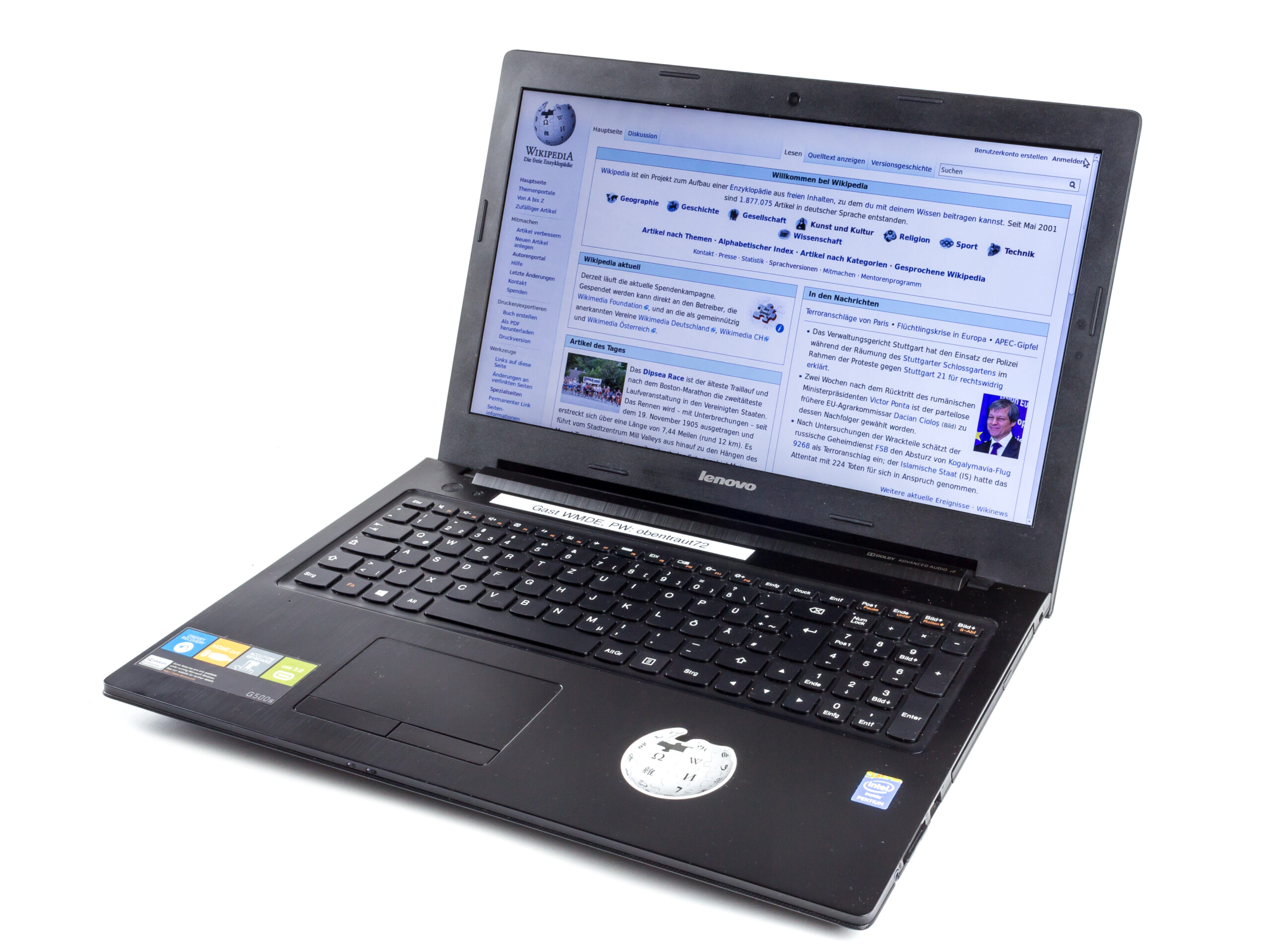
On the IdeaPad 3 15IAU7 specifically, I encountered MSFT0001 after a Windows 11 feature update. The main keyboard keys still worked, but the Fn row was completely dead. The fix was reinstalling the Lenovo Hotkeys driver package from the support site — which resolved both the MSFT0001 entry and the Fn key behavior. This was on a machine that I personally diagnosed after over 20 years of dealing with exactly these kinds of driver issues, so I can confirm it is not a hardware fault in most cases.
For IdeaPad Flex models, if the MSFT0001 device only appears when you rotate the screen into tablet mode, the problem is with the tablet mode input driver rather than the main keyboard driver. Lenovo System Update should detect this and install the correct package automatically.
Per Harish K., who is a Systems Administrator at a mid-size manufacturing firm, “I have seen this ACPI\MSFT0001 error on three different IdeaPad units after Windows updates. Every time, the fix was the same — pulling the correct Lenovo Hotkeys package from the support site and doing a clean install. The keyboard filter driver is almost always the missing piece.”
Frequently Asked Questions
Is ACPI\MSFT0001 a hardware fault or a driver problem?
In almost all cases, ACPI\MSFT0001 is a driver problem, not a hardware fault. The keyboard hardware is physically present and recognized by the ACPI firmware. Windows just cannot find a matching driver for it. Fixing the driver, as described in the steps above, resolves the issue without any hardware repair.
Why does my keyboard work in BIOS but not in Windows?
The BIOS uses its own low-level firmware routines to access the keyboard controller directly — it does not need Windows drivers. Once Windows loads, it takes over keyboard control through the ACPI and HID driver stack. If the Windows-side driver is missing or broken (MSFT0001), the keyboard stops working even though the hardware is fine and works in BIOS.
Can I fix MSFT0001 without internet access?
Yes, but it requires having the driver package downloaded in advance or on another device. You can download the Lenovo Keyboard Filter Driver or Hotkeys package on another machine, transfer it via USB, and install it manually. Point Device Manager to the extracted folder using the “Browse my computer for drivers” option.
Will reinstalling Windows fix the ACPI\MSFT0001 error?
A clean reinstall of Windows will fix the error if you also reinstall the Lenovo keyboard drivers afterward. However, a clean reinstall alone may reproduce the same MSFT0001 error if you do not install the Lenovo Keyboard Filter Driver post-setup. The operating system by itself does not include Lenovo’s proprietary keyboard driver.
Is it safe to delete the MSFT0001 registry key?
Deleting the MSFT0001 subkey under HKLM\SYSTEM\CurrentControlSet\Enum\ACPI\ is generally safe as long as you reinstall the correct keyboard driver immediately after. The registry entry will be recreated correctly when the driver is reinstalled. Always back up the registry before deleting any key, and only do this if other fixes have not worked.
Conclusion
The ACPI\MSFT0001 keyboard error on Lenovo IdeaPad machines is almost always caused by a missing or broken Lenovo Keyboard Filter Driver. Windows cannot match the keyboard ACPI hardware ID to any installed driver, so it assigns the generic MSFT0001 placeholder instead.
Start with Fix 1 (uninstall and rescan in Device Manager), then move to Fix 2 (manual Lenovo Keyboard Filter Driver install) or Fix 3 (Lenovo System Update) if that does not work. Registry edits in Fix 4 are only necessary in stubborn cases where the driver install alone does not correct the problem. For most users, downloading the correct Lenovo Hotkeys or Energy Management driver package from the Lenovo support site and reinstalling it will fully resolve the MSFT0001 error and restore all keyboard functions.
Ryan holds a Computer Science degree and has over 20 years of hands-on experience with PC hardware, software, and driver troubleshooting. He is the author behind softwaredriverdownload.com, where he helps everyday users fix driver issues quickly and accurately. Ryan has personally tested most of the fixes on this site across a range of Windows 10 and Windows 11 machines.
Leave a Reply