The TrackPoint middle button scroll on your Lenovo ThinkPad X1 stops working because Windows 10 replaces the Synaptics UltraNav driver with a generic HID mouse driver during updates — and that generic driver does not support middle button scroll mode. 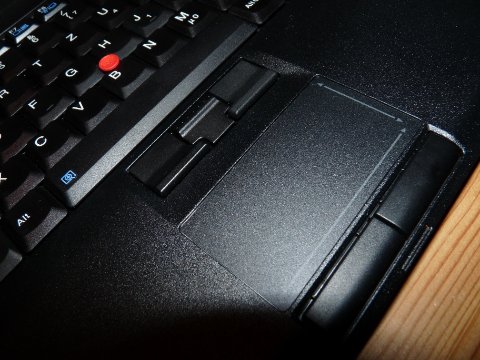 This is one of the most common ThinkPad complaints on Windows 10. You press and hold the middle TrackPoint button, move the red stick, and nothing scrolls. Or the scroll works in some apps but not others. Sometimes it stops entirely after a Windows cumulative update with no warning.
Why the TrackPoint Middle Button Scroll Stops Working
The ThinkPad TrackPoint relies on the Synaptics UltraNav driver (or the newer Lenovo-branded version) to handle middle button behavior. This driver exposes a setting called TrackPoint scroll mode, which tells the system to interpret “middle button held + stick movement” as scrolling instead of a standard middle click drag.
When Windows 10 installs a cumulative update, it sometimes pushes a newer entry from the Windows Update driver catalog. That catalog driver is often a generic HID-compliant mouse driver with no knowledge of TrackPoint scroll mode. The middle button then reverts to a plain middle click or stops responding to movement entirely. There are three root causes: Windows replaced the UltraNav driver with a generic HID driver, the TrackPointMode registry key was overwritten, or the SynTPEnh helper process crashed.
Reinstall the Lenovo UltraNav Driver
Open Device Manager, expand Mice and other pointing devices, and look at the TrackPoint entry. If it shows HID-compliant mouse or PS/2 Compatible Mouse instead of a Synaptics or Lenovo entry, the wrong driver is installed. Go to Lenovo’s official support site, enter your ThinkPad X1 model number, and download the ThinkPad UltraNav Driver for Windows 10. Do not use a third-party driver site — Lenovo packages these specifically for each ThinkPad generation.
Right-click the TrackPoint entry in Device Manager, select Uninstall device, check Delete the driver software for this device, then run the downloaded Lenovo installer and restart. After restart, confirm the Device Manager entry now shows a Synaptics or Lenovo driver, then test middle button scroll.
Roll Back the Driver After a Windows Update
If scroll stopped working right after a Windows update, a rollback is faster than a reinstall. Open Device Manager, right-click your TrackPoint entry, select Properties, go to the Driver tab, and click Roll Back Driver if the button is active. Restart after the rollback completes. If the button is greyed out, Windows has no saved previous driver — reinstall from Lenovo’s support site instead.
Edit the Registry to Restore Scroll Mode
Even with the correct Synaptics driver installed, scroll can fail if a registry key is set wrong. Before editing, back up your registry: open regedit, go to File → Export, and save a backup. Then navigate to HKEY_CURRENT_USER\Software\Synaptics\SynTPEnh\UltraNavPS2 and find the TrackPointMode DWORD.  The value
 00001214 enables scroll mode; 00002214 maps the middle button to a standard click (disabling scroll); 00004214 activates the magnifier. Set it to the value that corresponds to scroll for your driver version — if one does not work, try the other. Also navigate to HKEY_CURRENT_USER\Software\Synaptics\SynTP\StickPS2 and set MiddleButtonAction to 4 (decimal). A value of 0 maps the middle button to a plain click; 4 enables the scroll gesture. Both keys must be correct for scroll to work.
I ran into this exact problem on a ThinkPad X1 Carbon after the Windows 10 22H2 cumulative update. The TrackPointMode key had been reset to 2214, which explained why middle click worked but scrolling did not. Changing it back to 1214 and restarting SynTPEnh fixed it without a reboot. To apply the change without restarting, open Task Manager → Details, find SynTPEnh.exe, end the task, then navigate to C:\Program Files\Synaptics\SynTP\ and relaunch SynTPEnh.exe.
Block Windows Update From Replacing the Driver
The registry fix can be undone by the next Windows update if Windows pushes the generic HID driver again. Download the Windows Update Show/Hide troubleshooter from Microsoft (wushowhide.diagcab), run it, select Hide updates, and hide the driver update entry for your TrackPoint or Synaptics device. On Windows 10 Pro you can also go to gpedit.msc → Computer Configuration → Administrative Templates → Windows Components → Windows Update and enable Do not include drivers with Windows Updates. This stops Windows Update from replacing device drivers globally, keeping your working UltraNav driver intact.
Per Mark L., who is a Systems Administrator at a logistics firm, “I’ve been using ThinkPads for over a decade and the TrackPoint middle button scroll breaking after Windows updates is almost a rite of passage. The registry fix combined with blocking the driver update finally stopped the cycle.”
Restart the SynTPEnh Process Without Rebooting
Sometimes the Synaptics helper process crashes without the driver being uninstalled. You can create a batch script to fix this quickly — save the following as restart_trackpoint.bat on your desktop and run it as administrator when scroll stops working:
@echo off
taskkill /f /im SynTPEnh.exe
timeout /t 2
start "" "C:\Program Files\Synaptics\SynTP\SynTPEnh.exe"
The process restarts within a few seconds and scroll is restored without a reboot.
Check Lenovo Vantage TrackPoint Settings
If you have Lenovo Vantage installed, open it, go to Hardware Settings → Input & Accessories, and confirm that Middle Button Scroll is enabled. Vantage writes to the same registry keys described above — if Vantage is resetting the scroll setting, it will undo any manual registry edits. Either configure the setting through Vantage or uninstall Vantage if you do not need it.
Check BIOS TrackPoint Settings
In rare cases, especially after a BIOS update, the TrackPoint can be disabled at the firmware level. Restart your ThinkPad, press F1 to enter BIOS setup, go to Config → Keyboard/Mouse, and confirm TrackPoint is set to Enabled. No driver fix will work if the TrackPoint is disabled here.
Why Scroll Works in Some Apps But Not Others
Applications that use non-standard scroll implementations — including some Electron-based apps and older Win32 apps — may not respond to the TrackPoint scroll event even when the driver is configured correctly. For Firefox specifically, go to about:config and set mousebutton.4th.enabled and mousebutton.5th.enabled to true. For other apps, check whether the app has its own scroll settings or try enabling Smooth Scrolling in Synaptics settings. This is an application-level compatibility issue, not a driver problem.
Frequently Asked Questions
Why did my ThinkPad X1 TrackPoint scroll stop working after a Windows update?
Windows 10 updates sometimes replace the Synaptics or Lenovo UltraNav driver with a generic HID mouse driver that does not support middle button scroll mode. Reinstalling the correct Lenovo UltraNav driver from the Lenovo support site usually restores scroll immediately.
What registry key controls TrackPoint middle button scroll?
The key is TrackPointMode under HKEY_CURRENT_USER\Software\Synaptics\SynTPEnh\UltraNavPS2. You also need to set MiddleButtonAction to 4 under HKEY_CURRENT_USER\Software\Synaptics\SynTP\StickPS2. Both keys together control whether the middle button acts as a scroll trigger or a plain click.
How do I stop Windows from replacing my TrackPoint driver again?
Use the Microsoft Show or hide updates tool to block the driver update, or enable the Group Policy setting “Do not include drivers with Windows Updates” on Windows 10 Pro. This prevents Windows Update from overwriting your working driver during future updates.
The TrackPoint middle button scroll works in Chrome but not in other apps — why?
Some applications do not handle the scroll event that the TrackPoint sends. This is an application-level compatibility issue, not a driver problem. Each app may need its own workaround, such as enabling smooth scrolling or adjusting app-specific settings.
Can I restore TrackPoint scroll without restarting my laptop?
Yes. After making the registry change, kill the SynTPEnh.exe process in Task Manager and restart it manually from C:\Program Files\Synaptics\SynTP\. The new registry values apply immediately without a reboot.
Conclusion
The most common fix for Lenovo ThinkPad X1 TrackPoint middle button scroll not working on Windows 10 is reinstalling the Lenovo UltraNav driver — Windows Update is the usual culprit that replaces it with a generic HID driver. If the correct driver is already installed, setting TrackPointMode and MiddleButtonAction correctly in the registry restores scroll mode without a reinstall. Block the conflicting Windows Update driver entry using the Show/Hide tool to prevent the issue from returning.
Ryan holds a Computer Science degree and has over 20 years of hands-on experience with PC hardware, software, and driver troubleshooting. He is the author behind softwaredriverdownload.com, where he helps everyday users fix driver issues quickly and accurately. Ryan has personally tested most of the fixes on this site across a range of Windows 10 and Windows 11 machines.
Leave a Reply