The AMD Radeon driver on your HP Victus 16 AMD crashes during gaming – the screen goes black briefly then recovers with a notification saying Display driver stopped responding and has recovered, or the game crashes to desktop. The AMD Event Viewer shows TDR (Timeout Detection and Recovery) events. Driver crashes can be caused by overheating or driver version conflicts.
This guide covers AMD driver clean installation, thermal management, and power settings to stop Radeon driver crashes on the HP Victus 16 AMD in Windows 11.
“RX 7600M in my HP Victus 16 AMD crashed every 30 minutes gaming. Black screen then recovery. AMD Cleanup Utility and HP-qualified driver from HP Support fixed all crashes.” – Hafiz, engineering student from Terengganu
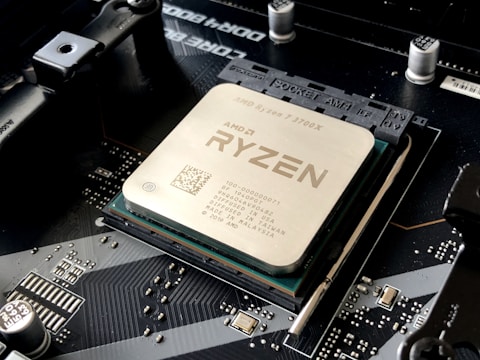
Why AMD Radeon Driver Crashes on HP Victus 16 AMD
The two main causes of AMD TDR crashes on the HP Victus 16 AMD are overheating and driver version conflicts. When the RX 7600M reaches thermal limits (typically above 95 degrees), the GPU freezes and the Windows TDR mechanism triggers a driver reset to recover the display. Driver version conflicts occur when Windows Update installs a generic AMD driver that replaces the HP-qualified package containing HP-specific thermal and power profiles.
- RX 7600M overheating above thermal threshold triggering TDR reset
- Generic AMD driver from Windows Update replacing HP-qualified version with SmartShift profiles
- HP Victus 16 AMD placed on soft surface reducing intake airflow and raising GPU temperature
- HP Command Center or OMEN Gaming Hub performance mode not set to Performance for gaming
Fix 1 – Clean Install HP-Qualified AMD Driver
Download AMD Cleanup Utility from AMD.com. Boot to Safe Mode (Shift + Restart – Troubleshoot – Advanced options – Startup Settings – Safe Mode). Run AMD Cleanup Utility and select Factory Reset. Restart normally. Go to HP Support, search for Victus 16 AMD, and download the AMD Radeon Graphics Driver for Windows 11. Install and restart. The HP-qualified driver includes SmartShift tuning that prevents driver timeout under AMD Advantage power scenarios.
Fix 2 – Enable Performance Mode in HP OMEN Gaming Hub
Open HP OMEN Gaming Hub or HP Command Center. Set the performance mode to Performance for gaming sessions. Performance mode increases fan speed and GPU power limits while maintaining thermal safety margins. If the RX 7600M was crashing due to thermal throttle while in Balanced mode, Performance mode enables the fans to pre-cool more aggressively, keeping GPU temperature below the TDR-triggering threshold.
Check GPU Temperature in HWiNFO64
Download HWiNFO64 and run it with the Sensors panel open during a game. Monitor GPU Temperature. If the temperature reaches 95 degrees immediately before a crash, thermal throttle is confirmed as the cause. GPU temperature staying below 90 degrees with a crash still occurring indicates a driver issue rather than thermal. Each cause requires a different fix: cooling optimization for thermal crashes, driver reinstall for software crashes.

Fix 3 – Increase Power Limit in AMD Radeon Software
Open AMD Radeon Software – Performance – Tuning. If the RX 7600M is running below its rated power limit in AMD Radeon Software, the driver may crash when game workloads suddenly demand more power than the current limit allows. Enable Manual Tuning and increase Power Limit slider to the maximum positive value. Then test if crashes stop – if they do, the power limit was causing voltage instability during sudden power demand spikes.
Fix 4 – Block Windows Update AMD Driver
After installing the HP-qualified AMD driver, open Group Policy Editor (gpedit.msc). Navigate to Computer Configuration – Administrative Templates – Windows Components – Windows Update – Do not include drivers with Windows Updates and enable it. This prevents Windows from replacing the HP-qualified AMD driver with a generic AMD package. Enterprise or Home editions without gpedit can use the Windows Update troubleshooter to hide the AMD display driver update.
Frequently Asked Questions
Why does the Radeon driver crash on HP Victus 16 AMD?
Overheating above 95 degrees triggers TDR, or generic AMD driver replaced HP-qualified version. Check temperature in HWiNFO64 during crash then fix the appropriate cause.
How do I fix AMD driver crash on HP Victus 16 AMD?
AMD Cleanup Utility in Safe Mode, then install HP-qualified AMD driver from HP Support. Enable Performance mode in OMEN Gaming Hub. Monitor temperature to rule out thermal cause.
What AMD GPU does HP Victus 16 AMD have?
AMD Radeon RX 7600M or RX 7600M XT with AMD Ryzen and integrated Radeon in AMD Advantage configuration.
Does HP Victus 16 AMD have HP OMEN Gaming Hub?
Yes on some models. Also may have HP Command Center or HP Smart app for performance mode control.
Conclusion
HP Victus 16 AMD Radeon driver crash in Windows 11 is resolved by using AMD Cleanup Utility in Safe Mode followed by HP-qualified AMD driver installation from HP Support. Enabling Performance mode in HP OMEN Gaming Hub or Command Center ensures fans run at full speed to prevent thermal TDR events. Blocking Windows Update from replacing the HP-qualified driver prevents the crash from recurring on future update cycles.
Ryan holds a Computer Science degree and has spent over 15 years troubleshooting Windows hardware and driver issues across major laptop brands. He writes practical, step-by-step guides for everyday users at softwaredriverdownload.com.
Leave a Reply