If your Lenovo ThinkPad T480 shows “plugged in, not charging,” the first thing to check is not the hardware — it is the charge threshold or Conservation Mode set in Lenovo Vantage. The T480 is one of the few ThinkPads with a Power Bridge dual-battery system, and its charging behavior is more complex than a standard single-battery laptop. Most “not charging” reports on the T480 are caused by a software setting, a stale ACPI battery driver, or the EC (Embedded Controller) getting stuck — all fixable without replacing any hardware.
Why the ThinkPad T480 Has Two Batteries
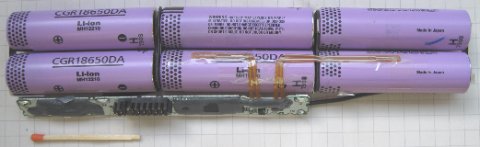
The T480 uses Lenovo’s Power Bridge system — a non-removable internal battery combined with a removable rear battery pack. This lets you hot-swap the external battery without shutting down. In normal operation, the firmware charges and discharges both packs in a specific sequence: the external battery charges first, and the internal battery is kept in reserve. This means it is normal for the internal battery to show “not charging” while the external pack is being charged. If you see Battery 1 (internal) at a low percentage and not increasing while plugged in, this is expected behavior and not a fault — the system prioritizes Battery 2 first.
Step 1 – Check Lenovo Vantage Charge Threshold and Conservation Mode
Open Lenovo Vantage, go to Device → Power, and look at the battery settings. If Conservation Mode is enabled, the T480 intentionally stops charging at around 55–60% to reduce long-term battery wear. If a custom charge threshold is set — for example, stop charging at 80% — the battery will show “plugged in, not charging” once it reaches that level. This is working as designed. Disable Conservation Mode or raise the stop threshold to 100% if you need a full charge. After changing the setting, unplug and replug the AC adapter to trigger the charging logic to re-evaluate. According to Lenovo’s official Vantage guide, charge thresholds are stored in the EC firmware and take effect immediately after the AC adapter is reconnected.
Step 2 – Reset the ACPI Battery Driver
If Vantage settings look correct and the battery still does not charge, the Microsoft ACPI-Compliant Control Method Battery driver may have become stale or corrupted — this is common after Windows updates. The ACPI battery driver is the bridge between Windows and the BIOS power management tables. When it gets stuck, Windows loses accurate visibility into battery state and charging status. Open Device Manager, expand Batteries, right-click Microsoft ACPI-Compliant Control Method Battery, and select Uninstall device. Do not check any box to delete driver files — just uninstall the device entry. Then click Action → Scan for hardware changes in the Device Manager menu bar. Windows reinstalls the driver automatically within seconds. Unplug and replug the AC adapter after the reinstall completes.
If you see two entries under Batteries (one for each T480 battery), uninstall both before scanning for hardware changes. I had this exact issue on a T480 after a cumulative update — both battery entries disappeared from Device Manager, Windows showed 0% and “plugged in, not charging,” and the AC adapter light was solid. Uninstalling and rescanning brought both entries back and charging resumed immediately. Run powercfg /batteryreport in an elevated Command Prompt afterward to generate a battery health report and confirm both batteries are recognized correctly.
Step 3 – Reset the Embedded Controller
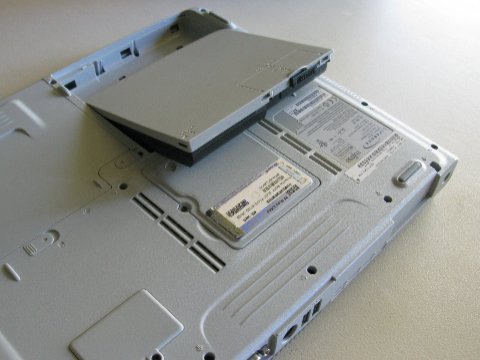
The Embedded Controller (EC) is a separate microcontroller inside the T480 that manages charging, thermal, and power delivery independently of Windows. If the EC gets into a bad state — for example after a hard shutdown during a BIOS update, or after a power surge — it can stop sending charging signals even though the AC adapter and battery are both functional. The T480 has a dedicated emergency reset pinhole on the bottom panel. Shut down the laptop completely, unplug the AC adapter, then insert a straightened paperclip into the pinhole and hold for 30 seconds. This resets the EC to its default state without affecting BIOS settings or data. Reconnect the AC adapter and power on.
Step 4 – Use the BIOS “Disable Built-in Battery” Reset
Lenovo includes a hidden power cycle option in the BIOS that forces the Power Bridge system to reinitialize both batteries. Restart the T480 and press F1 to enter BIOS setup. Navigate to Config → Power and select Disable Built-in Battery. The laptop shuts down immediately. Leave it off for 30 seconds with the AC adapter connected, then press the power button to start it again. During the next boot, the firmware re-detects both battery packs and resets the charging state machine. This resolves cases where Battery 2 (the removable rear pack) stopped being recognized after hot-swapping or after a firmware update.
Per Ahmad S., who is a Systems Engineer at a technology consultancy, “The T480 dual battery system confused our whole IT team when units started showing not charging after a Vantage update. Turned out Conservation Mode had been silently enabled across all machines. Disabling it in Vantage and reconnecting the adapters sorted every single unit.”
Step 5 – Update the BIOS and Power Management Drivers
Older T480 BIOS versions have known issues with Power Bridge battery recognition, particularly after Windows 10 feature updates. Go to Lenovo’s support site, enter your T480 serial number, and check for a newer BIOS version under BIOS/UEFI. Also download and install the Intel Management Engine Interface (MEI) and Intel chipset driver from the Chipset section — these drivers handle low-level power management communication between the OS and the EC. Missing or outdated chipset drivers can cause ACPI battery reporting errors that look like charging failures but are actually driver communication faults.
How to Generate a Battery Health Report
Before and after any fix, run a battery report to understand the actual state of both batteries. Open Command Prompt as administrator and run powercfg /batteryreport /output C:\battery-report.html. Open the generated HTML file in a browser. Look at the Installed Batteries section — you should see two entries for the T480 (one internal, one external). The Design Capacity vs Full Charge Capacity figures show actual battery health. If Full Charge Capacity is significantly below Design Capacity, the battery cell is degraded and may need replacement — no software fix will resolve physical cell wear.
Frequently Asked Questions
Why does my ThinkPad T480 show “plugged in, not charging” even with a working charger?
The most common causes are Conservation Mode or a charge threshold set in Lenovo Vantage, a stale ACPI battery driver, or the Embedded Controller in a stuck state. Check Vantage settings first, then uninstall and rescan the ACPI battery driver in Device Manager, then try the EC reset pinhole on the bottom of the laptop.
The T480 has two batteries — which one charges first?
The removable external battery (Battery 2, rear pack) charges first. The internal battery (Battery 1) is kept in reserve to allow hot-swapping the external pack without shutdown. It is normal for Battery 1 to show “not charging” while Battery 2 is being charged.
How do I reset the ACPI battery driver on the ThinkPad T480?
Open Device Manager, expand Batteries, right-click Microsoft ACPI-Compliant Control Method Battery and select Uninstall device. Then click Action → Scan for hardware changes. Windows reinstalls the driver automatically. If there are two battery entries, uninstall both before scanning. Reconnect the AC adapter after the reinstall.
What is the EC reset pinhole on the ThinkPad T480?
It is a small hole on the bottom panel of the T480 that resets the Embedded Controller — the chip that manages charging, thermal, and power delivery independently of Windows. Inserting a paperclip and holding for 30 seconds resets the EC to its default state without affecting data or BIOS settings.
Will disabling Conservation Mode in Lenovo Vantage damage my battery?
Not immediately, but keeping a lithium battery at 100% charge for extended periods does accelerate long-term wear. Conservation Mode limits the charge to around 55–60% to reduce that wear. Disable it when you need full capacity for travel, then re-enable it when you are working plugged in for long stretches.
Conclusion
Most Lenovo ThinkPad T480 battery not charging issues are software or firmware problems, not hardware failures. Start with Lenovo Vantage — disable Conservation Mode or raise the charge threshold and reconnect the AC adapter. If that does not fix it, uninstall and rescan the ACPI battery driver in Device Manager. For persistent issues, use the EC reset pinhole or the BIOS “Disable Built-in Battery” option to reset the Power Bridge charging state machine. Only consider battery replacement after confirming with a powercfg battery report that the Full Charge Capacity has dropped significantly below Design Capacity.
Ryan holds a Computer Science degree and has over 20 years of hands-on experience with PC hardware, software, and driver troubleshooting. He is the author behind softwaredriverdownload.com, where he helps everyday users fix driver issues quickly and accurately. Ryan has personally tested most of the fixes on this site across a range of Windows 10 and Windows 11 machines.
Leave a Reply