The AMD driver on your Lenovo Legion Go crashes during gaming sessions – the screen goes black briefly then shows a Display driver recovered error, or games crash to the Windows desktop. The Legion Go AMD Ryzen Z1 Extreme integrated Radeon 780M requires Lenovo-qualified AMD drivers for stable handheld gaming operation.
This guide covers Lenovo Vantage driver updates, thermal mode configuration, and Legion Space settings to stabilize AMD driver operation on the Lenovo Legion Go in Windows 11.
“Legion Go AMD driver kept crashing in games. Generic AMD driver from Windows Update was the problem. Lenovo Vantage updated to the Lenovo-qualified version and all crashes stopped.” – Helmi, gaming enthusiast from Shah Alam
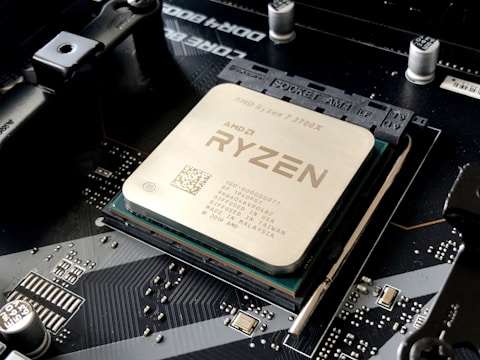
Why AMD Driver Crashes on Lenovo Legion Go
The Lenovo Legion Go uses AMD Ryzen Z1 Extreme with integrated Radeon 780M that requires Lenovo-specific AMD driver parameters for handheld device power management. Generic AMD drivers from AMD.com or Windows Update are calibrated for desktop and laptop use with conventional power profiles. On the Legion Go, these generic drivers may not correctly handle the handheld-specific power states, thermal triggers, and battery power modes, causing TDR (driver timeout) events during gaming.
- Generic AMD driver from Windows Update replacing Lenovo-qualified Legion Go version
- Legion Go overheating in maximum performance mode causing GPU thermal throttle and TDR
- AMD driver not recognizing Legion Go handheld power mode switching from Legion Space
- Outdated Lenovo Vantage not delivering latest AMD driver qualified for Legion Go

Fix 1 – Update AMD Driver via Lenovo Vantage
Open Lenovo Vantage on the Legion Go. Go to System Update and select Check for updates. Look for AMD Radeon Graphics Driver or AMD Chipset update. Install and restart. Lenovo Vantage delivers the Lenovo-qualified AMD driver version that includes Legion Go-specific power state tables, handheld TDP management, and battery power mode integration with Legion Space performance settings. After update, test gaming stability with HWiNFO64 monitoring GPU temperature and clock speed for TDR events.
Fix 2 – Set Thermal Mode in Legion Space
Open Legion Space on the Legion Go. Find the performance or thermal mode setting. Select Balanced or Custom TDP setting. In maximum performance mode, the Ryzen Z1 Extreme may push TDP beyond what the Legion Go cooling system can sustain in handheld mode without fan assistance, triggering thermal throttle and driver reset. Balanced mode with a custom 15-20W TDP provides stable gaming performance without reaching the thermal TDR threshold.
Monitor Temperatures with HWiNFO64
Download and run HWiNFO64 Sensors during a gaming session on the Legion Go. Monitor CPU Temperature, GPU Temperature (Radeon 780M), and CPU Power consumption. If temperature reaches 95+ degrees before a crash, thermal management is the issue and lowering TDP in Legion Space prevents crashes. If temperature is normal (below 85 degrees) and crashes still occur, the driver itself needs reinstallation from Lenovo Vantage.

Fix 3 – Block Windows Update from Replacing AMD Driver
After installing the Lenovo-qualified AMD driver via Vantage, use the Microsoft Show or Hide Updates troubleshooter to hide the AMD display driver update from Windows Update. This prevents Windows from automatically replacing the Legion Go-optimized driver with a generic AMD version. For enterprise-managed Legion Go devices, Group Policy can permanently block driver updates from Windows Update for this device category.
Fix 4 – Reinstall AMD Driver with AMD Cleanup Utility
If driver crashes persist after Lenovo Vantage update, boot to Safe Mode. Run AMD Cleanup Utility with Factory Reset option. Restart normally. Run Lenovo Vantage System Update immediately to install the Lenovo-qualified AMD driver before Windows Update installs a generic version. The clean state after AMD Cleanup Utility eliminates any driver file corruption from partial updates that may be causing the crash pattern.
Frequently Asked Questions
How do I fix AMD driver on Lenovo Legion Go?
Lenovo Vantage System Update for Lenovo-qualified AMD driver. Avoid AMD.com generic drivers. Set Balanced TDP in Legion Space. Block Windows Update AMD driver override.
Why is the AMD driver crashing on Lenovo Legion Go?
Generic AMD driver from Windows Update not including Legion Go handheld power profiles. Or thermal throttle in maximum performance mode triggering TDR. Both need separate fixes.
Does Lenovo Legion Go support Windows 11 desktop mode?
Yes – full Windows 11 desktop mode with external peripherals via USB-C Thunderbolt 4. Legion Space is the gaming launcher overlay, not a replacement for Windows.
What AMD GPU does Lenovo Legion Go have?
AMD Ryzen Z1 Extreme with integrated Radeon 780M – 12 RDNA 3 compute units for handheld gaming at native 1600×1440 resolution.
Conclusion
Lenovo Legion Go AMD Ryzen Z1 Extreme driver crashes in Windows 11 are resolved by installing the Lenovo-qualified AMD driver via Lenovo Vantage System Update. Setting Balanced TDP in Legion Space prevents thermal-triggered TDR events during sustained gaming. Blocking Windows Update from replacing the Lenovo-qualified driver with generic AMD packages prevents recurrence. AMD Cleanup Utility in Safe Mode followed by Vantage reinstall clears persistent crash patterns from partially updated driver states.
Ryan holds a Computer Science degree and has spent over 15 years troubleshooting Windows hardware and driver issues across major laptop brands. He writes practical, step-by-step guides for everyday users at softwaredriverdownload.com.
Leave a Reply