The Intel Core i7 14700HX in your Lenovo Legion 5i Gen 9 reaches high temperatures during gaming sessions – temperatures above 90 degrees cause thermal throttling that reduces gaming performance. Lenovo Vantage thermal mode switching and CPU power limit management help control temperatures without compromising the gaming experience.
This guide covers Lenovo Vantage thermal modes, Intel XTU power limit settings, and cooling optimization for the Lenovo Legion 5i Gen 9 Intel Core i7 14700HX in Windows 11.
“Legion 5i Gen 9 CPU hit 95 degrees in games and frames dropped noticeably. Set Lenovo Vantage to Balance mode and limited power in Intel XTU. Temperatures dropped to 85 and performance stayed consistent.” – Faizal, competitive gamer from Subang Jaya
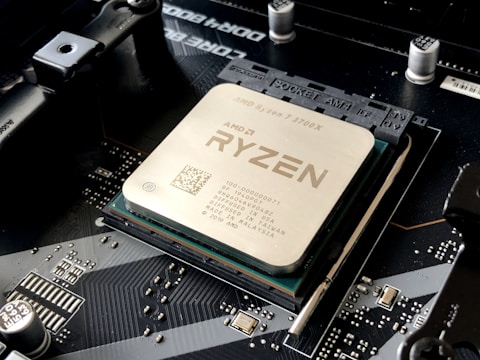
Why Legion 5i Gen 9 CPU Overheats During Gaming
The Intel Core i7 14700HX in the Legion 5i Gen 9 is a desktop-class HX processor with 20 cores designed to run at up to 157W for maximum burst performance. In Performance mode, Lenovo allows the full TDP budget which produces high temperatures in the slim gaming chassis. The Legion 5i Gen 9 cooling system handles sustained 100-115W well, but peak burst loads cause temperature spikes above 90 degrees during the first minutes of gaming.
- Lenovo Vantage in Performance mode allowing peak CPU TDP above 100W causing thermal spikes
- Old thermal paste drying out after extended use increasing CPU-to-heatsink thermal resistance
- Dust accumulation in fan and heatsink fins reducing cooling efficiency
- Game or background process causing 100 percent CPU load unnecessarily
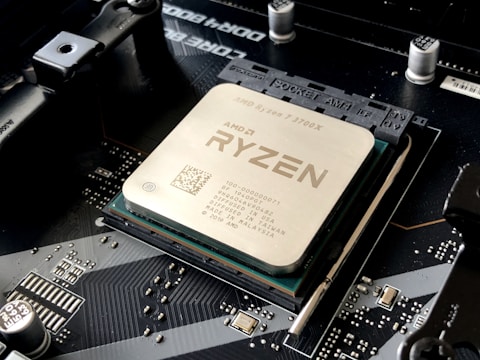
Fix 1 – Switch to Balance Thermal Mode in Lenovo Vantage
Open Lenovo Vantage and go to Power – Thermal Mode. Select Balance mode instead of Performance. Balance mode in the Legion 5i Gen 9 limits the Core i7 14700HX sustained TDP to approximately 80-90W, reducing peak temperatures by 8-12 degrees during extended gaming. The performance impact is minimal at this TDP reduction as most games are GPU-limited rather than CPU-limited on the Legion 5i Gen 9 configuration.
Fix 2 – Use Intel XTU for Power Limit Control
Download Intel Extreme Tuning Utility (Intel XTU). Open XTU and go to Advanced Tuning. Find Processor Power Limit 1 (PL1) and set it to 65-75W from its current value. This limits the sustained CPU power draw, keeping temperatures under 85 degrees during prolonged gaming. Frame rates in most games on the Legion 5i Gen 9 decrease by only 2-5 percent at this PL1 limit while temperatures improve significantly.
Enable MUX Switch for Gaming Performance
In Lenovo Vantage, find Hybrid Mode or GPU Mode and switch to Discrete GPU mode. This enables the MUX switch, routing display output directly through the NVIDIA GPU. MUX switch reduces CPU and Intel iGPU overhead during gaming, which also reduces CPU temperature by 3-5 degrees as Intel Arc does not process display signals. Enable Discrete GPU mode and restart before gaming sessions for both performance and thermal benefits.

Fix 3 – Clean Heatsink and Vents
Power off the Legion 5i Gen 9 and use compressed air through rear vents. For a more thorough clean, the bottom panel can be removed to access the fan and heatsink directly. Dust on fan blades and between heatsink fins reduces airflow by 20-30 percent, requiring higher fan speeds to achieve the same cooling effect. Cleaning every 6 months maintains optimal cooling performance in the Legion 5i Gen 9 gaming chassis.
Fix 4 – Replace Thermal Paste for Sustained Improvement
If temperatures are consistently above 90 degrees despite cleaning, thermal paste replacement on the Core i7 14700HX die provides the most sustained improvement. Remove the bottom panel and heatsink, clean old paste with isopropyl alcohol, apply a quality thermal compound like Thermal Grizzly Kryonaut or similar. Thermal paste replacement typically reduces CPU peak temperatures by 5-15 degrees on laptops where the factory paste has dried over extended use.
Frequently Asked Questions
Can I undervolt Lenovo Legion 5i Gen 9 Intel Core i7 14700HX?
BIOS-dependent. Use Intel XTU to reduce PL1 power limit to 65-75W as an alternative. Lenovo Vantage Balance mode achieves similar results without requiring Intel XTU undervolting.
How do I reduce CPU temperature on Lenovo Legion 5i Gen 9?
Lenovo Vantage Balance mode, Intel XTU PL1 limit to 65-75W, clean heatsink, enable MUX switch in Vantage. Thermal paste replacement for sustained 5-15 degree improvement.
What is the maximum TDP of Intel Core i7 14700HX?
55W base TDP, up to 157W MTP burst. Legion 5i Gen 9 limits sustained TDP in Balance mode for thermal management.
Does Lenovo Legion 5i Gen 9 have MUX switch?
Yes – Hybrid Mode switch in Lenovo Vantage. Discrete GPU mode enables MUX for direct GPU display output and 5-15 percent gaming performance improvement.
Conclusion
Lenovo Legion 5i Gen 9 Intel Core i7 14700HX temperature management in Windows 11 is best approached through Lenovo Vantage Balance thermal mode for the quickest improvement and Intel XTU PL1 power limit reduction for finer control. Enabling the MUX switch reduces CPU display processing overhead. Regular vent cleaning maintains heatsink efficiency. Thermal paste replacement provides the most sustained CPU temperature reduction for users who game daily on the Legion 5i Gen 9.
Ryan holds a Computer Science degree and has spent over 15 years troubleshooting Windows hardware and driver issues across major laptop brands. He writes practical, step-by-step guides for everyday users at softwaredriverdownload.com.
Leave a Reply