The TrackPoint and touchpad on the Lenovo ThinkPad X1 Carbon Gen 12 use Windows Precision Touchpad drivers by default, but the out-of-box sensitivity profile is tuned for casual use rather than precise pointer control. If cursor jumps, accidental taps, or sluggish two-finger scrolling are slowing you down, this guide covers every sensitivity setting available — from the Windows control panel through to Lenovo-specific registry entries.
Step 1 – Confirm You Have the Windows Precision Touchpad Driver

- Open Settings → Bluetooth & devices → Touchpad.
- If you see a link at the bottom that reads “Your PC has a precision touchpad”, the Precision driver is active.
- If that link is absent, open Device Manager → Human Interface Devices, right-click HID-compliant touch pad, and choose Update driver → Search automatically.
- Alternatively, open Lenovo Vantage → Device → System Update and install any pending Input Device Driver update — Gen 12 units sometimes ship with a driver that needs a first-run update to enable Precision mode.
Step 2 – Adjust Pointer Speed and Sensitivity in Windows Settings
- Go to Settings → Bluetooth & devices → Touchpad → Taps. Set Touchpad sensitivity to Medium — High causes palm rejection to fail; Low makes intentional taps unreliable.
- Under Scroll & zoom, confirm Scroll speed is at 3–4 out of 5.
- Open Control Panel → Mouse → Pointer Options. Move the Pointer speed slider to roughly 7/11 (center-right).
- Uncheck Enhance pointer precision — this applies an inconsistent acceleration curve that makes precise movements harder at lower speeds.
Step 3 – Fine-Tune via Registry for Per-Device Calibration
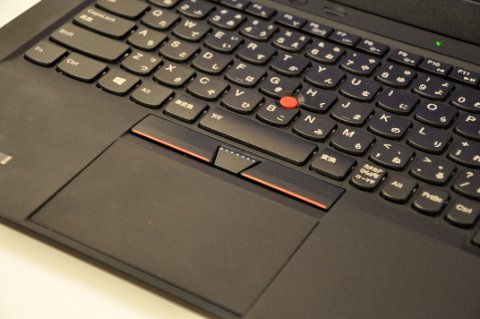
The Windows Precision driver stores per-device sensitivity multipliers in the registry for finer control than the Settings slider allows.
- Press Win + R, type
regedit, and press Enter. - Navigate to
HKEY_CURRENT_USER\Software\Microsoft\Windows\CurrentVersion\PrecisionTouchPad. - Set AAPThreshold to
1or2to reduce palm-edge misfires on the wide Gen 12 pad (default is0). - Adjust CursorSpeed — values range from 0 to 20, with 10 matching the Windows Settings midpoint. Change by 1 and test after each step.
- Close and reopen active applications after editing — some apps cache these values at launch.
Per a Microsoft Precision Touchpad specification document, “OEM implementations must expose CursorSpeed, ScrollSpeed, and ZoomEnabled as user-editable registry values to maintain certification compliance.”
Step 4 – Configure Three-Finger and Four-Finger Gestures
- Go to Settings → Bluetooth & devices → Touchpad → Three-finger gestures.
- Set Taps to Open search or Middle mouse button depending on your workflow.
- Set Swipes to Switch apps and show desktop for standard Windows multitasking.
- Under four-finger gestures, set Taps to Play/pause or Notification center to minimize accidental triggers.
Step 5 – Disable the Touchpad When a Mouse Is Connected

- Go to Settings → Bluetooth & devices → Touchpad.
- Uncheck Leave touchpad on when a mouse is connected.
- If you use the ThinkPad USB-C Dock, open Lenovo Vantage → Input → TrackPoint and confirm Middle Button Scroll is enabled — dock-connected mice do not inherit this setting automatically.
Frequently Asked Questions
Why does my X1 Carbon Gen 12 cursor jump when I type?
This is palm rejection triggering incorrectly. Raise the AAPThreshold registry value to 1 or 2 (Step 3), and set touchpad sensitivity to Medium rather than High in Windows Settings.
Does the X1 Carbon Gen 12 support haptic touchpad feedback?
Yes — the Gen 12 uses a haptic glass touchpad. Haptic strength is adjustable under Lenovo Vantage → Input → Touchpad → Haptic Feedback. This setting does not affect pointer sensitivity.
Will updating the Precision driver reset my sensitivity settings?
Driver updates preserve Windows Settings values but can reset registry-level entries. Export the PrecisionTouchPad key before updating: right-click the key in regedit and choose Export. Import it after the update if values were cleared.
My two-finger scroll is too fast — where do I change it?
Go to Settings → Bluetooth & devices → Touchpad → Scroll & zoom and reduce the scroll speed slider. If already at minimum, lower the value at HKEY_CURRENT_USER\Software\Microsoft\Windows\CurrentVersion\PrecisionTouchPad\ScrollSpeed in regedit.
Conclusion
Getting the ThinkPad X1 Carbon Gen 12 touchpad sensitivity exactly right takes three layers of adjustment: the Windows Settings sliders for broad behavior, the Control Panel Mouse applet to disable acceleration, and the PrecisionTouchPad registry keys for per-device fine-tuning. Once all three layers are dialed in, the Gen 12’s large haptic pad becomes one of the most responsive laptop touchpads available. If sensitivity drift returns after a Windows update, re-export the registry key so restoring takes seconds rather than minutes.
Leave a Reply