If the fan on your HP Pavilion 15 runs constantly — even at idle on a cool desk — the root cause is almost always a BIOS thermal profile set too aggressively, a dusty heatsink that pushes temperatures above the fan-on threshold, or a background process that keeps the CPU at partial load. This guide shows how to identify which layer is responsible and bring the fan back to a quiet, demand-driven behavior.
Step 1 – Check CPU Temperature and Background Load First
- Download and run HWiNFO64 (free, from hwinfo.com). Look at the CPU Package temperature at idle — above 55°C on a cool desk suggests a dusty heatsink or dried thermal paste.
- Open Task Manager → Performance and check CPU utilization at idle. Anything above 5–10% means a background process is keeping the CPU active. Click the Processes tab and sort by CPU to identify it.
- Common high-CPU processes on HP Pavilion 15 models include HP Support Assistant update scans, Windows Search indexing, and antivirus real-time scanning. Pause or reschedule these before adjusting any BIOS or thermal settings.
Step 2 – Clean the Fan and Heatsink
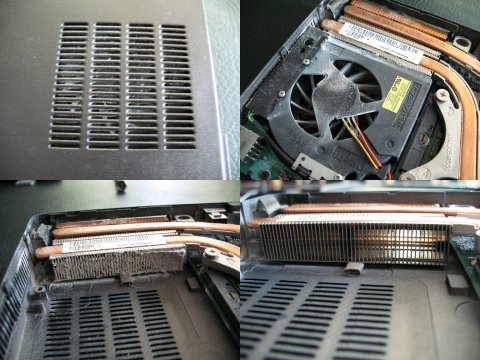
- Shut down and unplug the Pavilion 15. Remove the bottom panel (typically 8–10 Phillips screws).
- Locate the fan and heatsink assembly. Use compressed air to blow dust out of the heatsink fins — blow from inside the vent outward to push dust out rather than deeper in.
- If the laptop is more than two to three years old and temperatures remain high after cleaning, replace the thermal paste on the CPU and GPU dies using quality compound (Thermal Grizzly Kryonaut or equivalent) after removing old paste with isopropyl alcohol.
- Reassemble and test. A clean heatsink typically drops idle temperatures by 10–20°C, which often eliminates constant fan operation entirely.
Per HP’s official support documentation, “Fan noise that increases over time on Pavilion models is most often caused by accumulated dust in the heatsink fins reducing airflow and raising thermal sensor readings above the fan activation threshold.”
Step 3 – Adjust the BIOS Thermal Profile
- Restart and press Esc at the HP logo, then press F10 to enter BIOS Setup.
- Navigate to the Advanced tab and look for Thermal or Fan Control options.
- If Fan Always On is enabled, disable it. This setting was introduced for ultra-thin models and is unnecessarily loud on the Pavilion 15’s larger chassis.
- If a Thermal Profile selector is available (Cool, Quiet, Default), switch from Cool to Default or Quiet. The Cool profile runs the fan at 30–40% speed at all times.
- Save with F10 and restart.
Step 4 – Set Windows Power Plan to Balanced

- Open Control Panel → Power Options and select Balanced. The High Performance plan keeps the CPU at a higher base clock, raising temperatures and triggering the fan even at light loads.
- Click Change plan settings → Change advanced power settings. Under Processor power management, set Maximum processor state to 99%. This prevents turbo boost at light loads, cutting peak temperatures by up to 15°C.
- Under System cooling policy, confirm it is set to Passive — this lets the CPU reduce clock speed before spinning up the fan.
Step 5 – Update HP BIOS via HP Support Assistant
- Open HP Support Assistant from the Start menu (reinstall from hp.com if removed).
- Go to My devices → Updates and install any available BIOS update. Some early Pavilion 15 firmware sets the fan-on threshold as low as 40°C, causing constant noise even on a cool system.
- After the BIOS update restarts the system, recheck fan behavior at idle.
- If HP Support Assistant isn’t detecting updates correctly, download the BIOS update directly from support.hp.com using your serial number.
Frequently Asked Questions
Is it safe to disable the HP Pavilion 15 fan always-on setting in BIOS?
Yes, on the Pavilion 15. The always-on setting is primarily needed for ultra-thin models where passive cooling is insufficient. The Pavilion 15’s larger chassis provides enough airflow that the fan can safely cycle off at idle.
My fan runs loudly only when plugged in — why?
When on AC power, Windows may default to the High Performance power plan, raising CPU clock speed and heat output. Switch to Balanced on AC power and the fan should quiet significantly.
Can third-party fan control software help?
On HP Pavilion 15, tools like NoteBook FanControl (NBFC) can work if a compatible configuration exists for your exact model. Verify the configuration file matches your specific Pavilion 15 variant before using — incorrect fan speed values can cause thermal damage.
My fan started running constantly after a Windows update — is this related?
Windows feature updates sometimes reset the maximum processor state back to 100% or enable background tasks like indexing and telemetry. Check processor power management settings (Step 4) and Task Manager CPU usage after each major update.
Conclusion
A constantly running fan on the HP Pavilion 15 is fixable without hardware replacement in the majority of cases. Start by cleaning the heatsink and verifying idle CPU load — those two checks resolve most fan noise complaints. If temperatures are already normal, the BIOS thermal profile or Windows power plan is keeping the fan artificially high. Setting the BIOS to default or quiet mode, switching to the Balanced power plan with a 99% processor cap, and applying the latest HP BIOS update gives the fan the headroom to cycle off at idle and only spin up when genuinely needed.
Leave a Reply