The fan on your ASUS Zenbook Pro 14 OLED Intel Core Ultra 9 185H runs continuously and loudly even during light tasks like web browsing or document editing, producing noticeable noise in quiet environments. Performance mode settings, background process CPU load, and thermal configuration control fan behavior on the Zenbook Pro 14 OLED.
This guide covers power mode settings, background process management, and fan curve configuration for the ASUS Zenbook Pro 14 OLED Intel Core Ultra 9 185H in Windows 11.
“Zenbook Pro 14 OLED fans were running loudly for document work. MyASUS was in Performance mode. Switched to Standard mode and fans became nearly silent for Office tasks. Keeps Performance for heavy video editing.” – Nurliyana, video producer from Bangsar
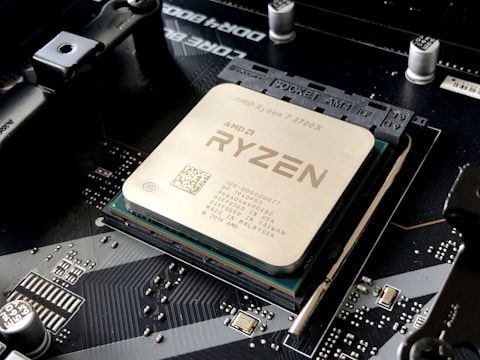
Why Fan Runs Continuously on Zenbook Pro 14 OLED
The ASUS Zenbook Pro 14 OLED Intel Core Ultra 9 185H fan runs based on CPU and GPU temperature. In Performance or Turbo mode in MyASUS, the fan spin threshold is lower – fans start spinning at around 45 degrees Celsius to maintain maximum CPU boost headroom. In Standard mode, the fan threshold is higher and the fan stays off until approximately 60 degrees Celsius. If the system is in Performance mode and any background process (antivirus, indexing, Windows Update) keeps the CPU at 50-60 degrees, the fan runs continuously even for tasks that feel light because the Performance mode thermal curve keeps the fan active.
- Performance or Turbo power mode selected in MyASUS – fan threshold lower than Standard mode
- Background processes (antivirus, Windows Update, Adobe CC) causing CPU temperature to stay high
- Thermal paste dried or degraded after extended use – increased thermal resistance causes higher temperatures
- Zenbook Pro 14 OLED sitting on soft surface blocking bottom air intake reducing cooling efficiency

Fix 1 – Switch to Standard Mode in MyASUS
Open MyASUS app (preinstalled on Zenbook Pro 14 OLED). Go to Customization – Fan Profile or Power settings. Switch from Performance or Turbo to Standard or Balanced mode. In Standard mode, the Zenbook Pro 14 OLED fan threshold increases so the fan does not spin until the CPU reaches a higher temperature threshold during normal use. For document editing and web browsing where the Core Ultra 9 185H operates at a fraction of its TDP, Standard mode keeps the system nearly silent while maintaining adequate performance for light workloads. Switch back to Performance for video editing or 3D rendering when higher performance and fan noise are acceptable.
Fix 2 – Close CPU-Intensive Background Processes
Press Ctrl+Shift+Esc to open Task Manager. Click CPU column to sort by CPU usage. Identify processes using significant CPU percentage while the laptop appears idle. Common background processes that keep the fan running: Microsoft Defender antivirus scheduled scan (runs at low priority but consumes CPU for hours), Windows Update download and installation, Adobe Creative Cloud auto-sync, OneDrive indexing large photo libraries, and NVIDIA Share game recording. End or reschedule resource-intensive background tasks for times when fan noise is not a concern, reducing CPU temperature to below the fan activation threshold in Standard mode.
Use Silent Mode for Maximum Quiet
If fan noise during all tasks is a concern, switch MyASUS to Silent mode. Silent mode reduces the Intel Core Ultra 9 185H to a lower TDP limit (approximately 20-25W PL2) that keeps the CPU cool enough for the fan to remain off during typical office workloads. Performance in Silent mode is adequate for word processing, email, and web browsing. Avoid Silent mode for video playback above 1080p or graphics work as thermal throttling can cause dropped frames when the CPU is restricted below its design TDP for content decoding tasks.
Fix 3 – Ensure Adequate Airflow
Place the Zenbook Pro 14 OLED on a hard flat surface – desk, table, or laptop stand – not on pillows, blankets, or lap fabric that blocks the bottom air intake vents. The Zenbook Pro 14 OLED draws cooling air through bottom panel intake vents. Soft surfaces conform to the bottom panel and block these intakes, forcing the fan to run faster and longer to compensate for the reduced airflow. A laptop stand that elevates the rear of the device 2-3 centimeters above the desk surface provides improved intake airflow and can reduce fan spin time by 20-30 percent during typical workloads.
Fix 4 – Clean Intake Vents
Use compressed air to blow through the Zenbook Pro 14 OLED exhaust vents (rear and side) to remove dust accumulation from the fan blades and heatsink fins. After 12-18 months of use, dust accumulation on the heatsink fins reduces thermal conductivity, causing the CPU to reach higher temperatures under the same workload – which the fan must compensate for with higher RPM and longer spin time. Quarterly compressed air cleaning maintains the Zenbook Pro 14 OLED thermal performance close to the factory state, keeping fan behavior consistent with original design expectations.
Frequently Asked Questions
Why is the fan always running on ASUS Zenbook Pro 14 OLED Intel Core Ultra 9 185H?
Performance mode in MyASUS sets low fan threshold. Switch to Standard mode for higher temperature threshold before fan activates. Close background CPU tasks that keep temperature elevated.
How do I stop the fan noise on ASUS Zenbook Pro 14 OLED?
MyASUS – Standard or Silent mode. Close background processes in Task Manager sorted by CPU. Place on hard flat surface for unrestricted bottom airflow.
Does ASUS Zenbook Pro 14 OLED Intel Core Ultra 9 185H run hot?
75-90 degrees Celsius under sustained load is normal for the thin chassis. Fan noise is the thermal design trade-off for sustained CPU performance in compact form factor.
Why does ASUS Zenbook Pro 14 OLED fan run even when idle?
Background process keeping CPU above threshold. Task Manager – sort by CPU – identify and close high-CPU background processes like antivirus scan or Windows Update.
Conclusion
ASUS Zenbook Pro 14 OLED Intel Core Ultra 9 185H fan always running in Windows 11 is resolved by switching MyASUS power mode from Performance to Standard for a higher fan activation temperature threshold during light workloads. Background process management via Task Manager identifies CPU-intensive tasks that keep CPU temperature above the fan threshold. Hard flat surface placement ensures unobstructed bottom air intake flow. Quarterly compressed air cleaning maintains heatsink thermal conductivity to prevent fan RPM increase from dust accumulation on the Zenbook Pro 14 OLED thermal system.
Ryan holds a Computer Science degree and has spent over 15 years troubleshooting Windows hardware and driver issues across major laptop brands. He writes practical, step-by-step guides for everyday users at softwaredriverdownload.com.
Leave a Reply