Upgrading the M.2 SSD in an HP Pavilion 15 is one of the highest-impact hardware changes you can make, but choosing the wrong drive type causes the system to either not recognize the drive at all or deliver no speed improvement over the original. The key variable is whether your specific Pavilion 15 M.2 slot supports SATA, PCIe NVMe, or both — and that answer varies by model year and sub-model even within the same product line. This guide shows how to identify your slot type and select a compatible drive before purchasing.
Step 1 – Identify Your Exact HP Pavilion 15 Model Number
- Turn the laptop over and locate the product label. The model number is printed as HP Pavilion 15-XXXXXX. Write down the full alphanumeric suffix — the letters after the dash determine the hardware generation and slot type.
- Alternatively, open Command Prompt and run:
wmic csproduct get name. - Go to support.hp.com, enter your model number, and download the Maintenance and Service Guide PDF. The Storage chapter explicitly lists whether the M.2 slot supports SATA, NVMe (PCIe Gen 3 or Gen 4), or both.
Step 2 – Understand SATA vs PCIe NVMe Compatibility
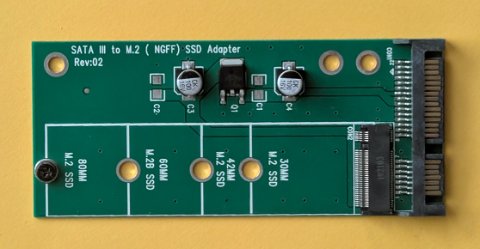
- SATA M.2 drives use the same protocol as 2.5-inch SATA SSDs. Maximum sequential read is approximately 560 MB/s. These use the B+M key notch.
- PCIe NVMe Gen 3 drives reach 3,500 MB/s. These use the M key notch only.
- PCIe NVMe Gen 4 drives reach 7,000 MB/s but require a Gen 4 slot — most Pavilion 15 models before 2022 only support Gen 3. A Gen 4 drive in a Gen 3 slot works at Gen 3 speeds.
- A SATA-only slot will not detect an NVMe drive at all. An NVMe-capable slot detects both NVMe and SATA M.2, though performance differs greatly.
Per HP’s Maintenance and Service Guide for Pavilion 15 series, “The M.2 2280 slot supports PCIe NVMe on units equipped with AMD Ryzen 5000 or Intel 11th Gen processors and above. Units with Intel 10th Gen use a SATA-only M.2 slot.”
Step 3 – Check the Slot Type Without Disassembling
- Download and run CrystalDiskInfo (free). The current drive’s interface shows Serial ATA for SATA or NVM Express for NVMe — confirming your slot type.
- Open Device Manager → Disk drives. Right-click your SSD and choose Properties → Details → Hardware IDs. NVMe shows a string containing NVMe; SATA M.2 shows a SATA-style identifier.
Step 4 – Select the Right Replacement Drive
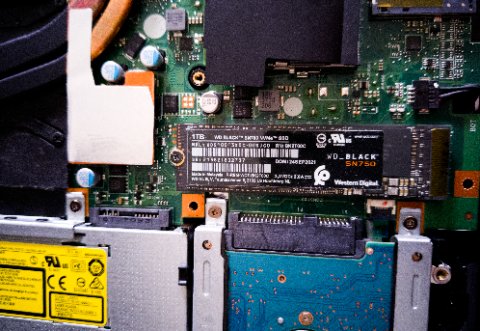
- Confirm the physical size: virtually all HP Pavilion 15 M.2 slots accept the 2280 form factor (22mm wide, 80mm long).
- For a SATA-only slot: choose any M.2 2280 SATA SSD. Do not purchase an NVMe drive — it will not be detected.
- For an NVMe slot: choose a PCIe Gen 3 x4 NVMe drive (e.g. Samsung 970 EVO Plus, WD Black SN770). Gen 4 drives work at Gen 3 speeds if the slot is Gen 3.
- Clone the original drive using Macrium Reflect Free before physically swapping to preserve Windows and all data.
Step 5 – Install the New M.2 Drive
- Shut down and unplug the Pavilion 15. Remove the bottom panel screws and lift the panel off.
- Locate the M.2 slot near the center of the motherboard. Remove the single retention screw at the far end.
- Insert the new M.2 drive at a 30-degree angle into the slot, press flat, and replace the retention screw (finger-tight plus a quarter turn).
- Reassemble, boot, and verify the drive appears in BIOS → Storage before booting Windows.
Frequently Asked Questions
Can I install an NVMe drive in a SATA-only HP Pavilion 15 slot?
Physically yes — the M key notch fits. But the system will not detect or boot from the drive. NVMe requires PCIe lanes that a SATA-only controller does not provide.
My HP Pavilion 15 only has one M.2 slot — can I add a second drive?
Only if the model also has a 2.5-inch SATA bay. Check the Service Guide for your specific variant. A USB 3.0 external SSD enclosure is the alternative if no internal bay is available.
Will upgrading the SSD void my HP Pavilion 15 warranty?
RAM and storage upgrades performed without damaging other components are generally not warranty-voiding. Check your specific warranty terms or contact HP support to confirm before opening the unit.
After installing the new SSD, Windows asks me to activate — why?
If you installed a fresh copy of Windows rather than cloning, Windows detects new hardware and may require re-activation. Your digital license is tied to the motherboard, so online activation should succeed automatically.
Conclusion
The most important step in an HP Pavilion 15 SSD upgrade is confirming the M.2 slot type before purchasing a drive. SATA-only slots are common on Intel 10th Gen Pavilion 15 models, while AMD Ryzen 5000 and Intel 11th Gen and newer typically support NVMe. The Service Guide for your exact model number is the authoritative source. Once slot type is confirmed, the physical installation takes under 15 minutes and the performance gain — especially from an NVMe drive replacing an original SATA SSD or HDD — is one of the most noticeable laptop upgrades available.
Leave a Reply