The keyboard on your Dell Inspiron 15 3520 Intel Core i5 1235U is not working – all keys are unresponsive, some keys produce no input, or the keyboard randomly stops working during use. Keyboard driver updates and Windows accessibility settings resolve most keyboard issues on the Dell Inspiron 15 3520.
This guide covers keyboard driver troubleshooting, Filter Keys disable, and hardware diagnosis for the Dell Inspiron 15 3520 Intel Core i5 1235U in Windows 11.
“Inspiron 15 3520 keyboard felt broken – had to press keys multiple times. Found Filter Keys was turned on by accident (held Shift for 8 seconds). Disabled Filter Keys in Ease of Access and keyboard responded normally again.” – Siti Nurhayati, office administrator from Klang
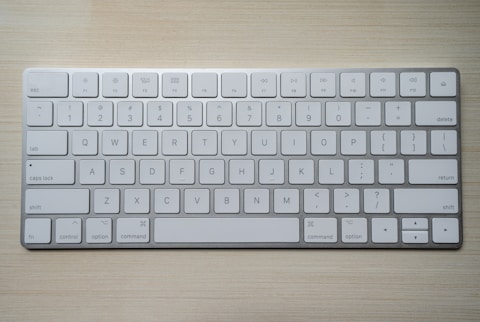
Why Keyboard Does Not Work on Dell Inspiron 15 3520
The most common software cause of keyboard appearing broken on the Inspiron 15 3520 is Filter Keys accessibility feature accidentally enabled. Filter Keys makes Windows ignore brief key presses, requiring each key to be held for 0.5-1 second before input registers – this makes normal typing feel as if the keyboard is broken or extremely unresponsive. Filter Keys activates by holding the right Shift key for 8 seconds, an action that happens accidentally during certain typing patterns. Hardware causes include specific key caps with debris underneath and liquid damage affecting individual key row circuits.
- Filter Keys accessibility feature enabled – requires prolonged key press before input registers
- HID keyboard driver missing or error in Device Manager after Windows Update
- Physical debris under specific key caps preventing contact
- Liquid damage affecting keyboard circuit rows requiring hardware replacement

Fix 1 – Disable Filter Keys in Accessibility Settings
Go to Settings – Accessibility – Keyboard. Find Filter Keys and toggle it Off if it shows On. Also toggle off Sticky Keys and Toggle Keys if these were accidentally enabled. After disabling Filter Keys, test keyboard input immediately – keys should respond on first press without holding down. Also verify in the Filter Keys settings that the shortcut (Hold Right Shift for 8 seconds) is disabled to prevent accidental re-activation. Filter Keys is the single most common cause of keyboard appearing non-functional on Dell Inspiron 15 3520 after a user accidentally triggers it during typing sessions.
Fix 2 – Update Keyboard Driver in Device Manager
Open Device Manager and expand Keyboards. If Standard PS/2 Keyboard or HID Keyboard Device shows with a warning icon, right-click and select Update driver – Search automatically. If no Keyboard device appears, click Action – Scan for hardware changes. After the keyboard device enumerates, right-click and select Update driver. If driver update from Device Manager finds nothing new, open Dell SupportAssist and run a full driver scan. Dell SupportAssist may find a Dell-specific keyboard or HID keyboard driver that corrects keyboard device enumeration errors not addressable through standard Device Manager update.
Test with External USB Keyboard
Connect an external USB keyboard and test if it types correctly. If the USB keyboard works while the built-in keyboard does not, the issue is isolated to the built-in keyboard hardware or its specific HID device enumeration. If neither keyboard works, the issue is a system-level HID or USB driver problem affecting all keyboard input. External USB keyboard working confirms the operating system keyboard input stack is functional, narrowing the cause to the physical built-in keyboard, its flat ribbon cable connection to the motherboard, or the embedded controller keyboard matrix scan firmware on the Inspiron 15 3520.

Fix 3 – Clean Keyboard with Compressed Air
With the Inspiron 15 3520 powered off and tilted at 75 degrees, use compressed air to blow under the keyboard keys in short bursts while gently tapping the bottom of the laptop. Debris (crumbs, dust, particles) lodged under key caps can prevent key contact from registering by holding the key cap slightly above the contact membrane. This appears as specific keys not working rather than all keys failing. After compressed air cleaning, test all keys in a text editor to identify any remaining non-responsive keys. If specific keys still fail after cleaning, liquid damage or mechanical key contact failure requires Dell service for the Inspiron 15 3520 keyboard assembly replacement.
Fix 4 – Check Embedded Controller Reset
Power off the Inspiron 15 3520 completely. Disconnect the AC adapter. Press and hold the power button for 20-30 seconds (drains embedded controller capacitors). Reconnect AC adapter. Power on. The embedded controller manages keyboard matrix scanning and Fn key functions on the Inspiron 15 3520. Resetting the embedded controller clears transient firmware state that can cause keyboard matrix scanning to stop responding after certain suspend/resume cycles or BIOS update events. This reset often resolves full keyboard non-response that persists across Windows restarts but resolves after a complete power cycle with EC drain.
Frequently Asked Questions
Why is keyboard not working on Dell Inspiron 15 3520 Intel Core i5 1235U?
Filter Keys accidentally enabled (most common) – disable in Settings – Accessibility – Keyboard. Or HID keyboard driver error in Device Manager – update via Dell SupportAssist.
How do I fix keyboard on Dell Inspiron 15 3520?
Disable Filter Keys in Accessibility settings. Update keyboard driver via Dell SupportAssist. EC reset with power button hold 30 seconds with AC disconnected. Test with external USB keyboard to isolate hardware vs software.
Does Dell Inspiron 15 3520 Intel Core i5 1235U keyboard have backlight?
Optional – depends on purchased configuration. Backlight-equipped models use Fn+F10. Check product label or invoice for backlight specification.
Why do some keys not work on Dell Inspiron 15 3520?
Debris under key caps – clean with compressed air. If liquid damage caused multiple adjacent key failures, keyboard assembly hardware replacement required from Dell service.
Conclusion
Dell Inspiron 15 3520 Intel Core i5 1235U keyboard not working in Windows 11 is most commonly resolved by disabling Filter Keys in Settings – Accessibility – Keyboard, which makes typing feel broken by requiring prolonged key presses. HID keyboard driver update via Dell SupportAssist resolves Device Manager keyboard enumeration errors. External USB keyboard test isolates software from hardware keyboard failure. Embedded controller reset with 30-second power button hold clears transient EC state causing full keyboard matrix scan failure after suspend events or BIOS updates.
Ryan holds a Computer Science degree and has spent over 15 years troubleshooting Windows hardware and driver issues across major laptop brands. He writes practical, step-by-step guides for everyday users at softwaredriverdownload.com.
Leave a Reply