The Intel Wireless-AC 3165 (also listed as Intel Dual Band Wireless-AC 3165) is a common Wi-Fi adapter found in Dell Inspiron 15 models. When it stops working after a Windows update or driver conflict, the adapter may disappear from Device Manager entirely, show a yellow exclamation mark, or connect but deliver no internet. This guide covers the complete reinstallation procedure using Intel’s driver package and Dell’s OEM driver as the backup path.
Step 1 – Confirm the Adapter Is the Issue
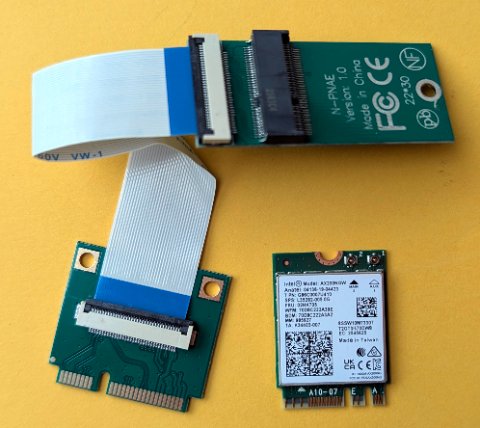
- Right-click Start → Device Manager. Expand Network adapters. Look for Intel(R) Dual Band Wireless-AC 3165. A yellow exclamation mark indicates a driver error; absence indicates the adapter is not detected at all.
- Check the physical Wi-Fi switch: on some Inspiron 15 models, pressing Fn + F2 toggles the wireless radio. Ensure the wireless radio is enabled.
- Open Settings → Network & Internet → Wi-Fi and confirm Wi-Fi is toggled On. If the toggle is missing entirely, the driver is not loaded.
- Run the Windows Network troubleshooter: right-click the network icon in the taskbar → Troubleshoot problems. If it reports Wi-Fi adapter not found, the driver is the confirmed issue.
Step 2 – Uninstall the Current Driver
- In Device Manager, right-click Intel(R) Dual Band Wireless-AC 3165.
- Select Uninstall device. Check Delete the driver software for this device.
- If the adapter is not listed under Network adapters, check Other devices for an unrecognized Network Controller entry — uninstall that entry instead.
- Do not restart yet.
Step 3 – Download the Intel Wireless-AC 3165 Driver
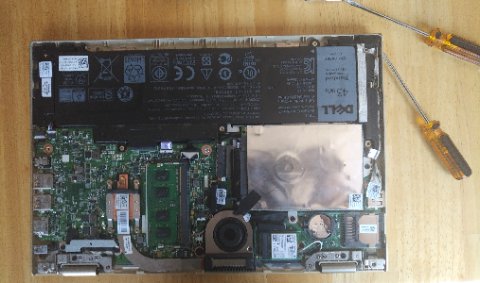
- On a second device (or via ethernet connection on the Inspiron), go to dell.com/support, enter your Inspiron 15 service tag, and navigate to Drivers → Network → Wireless. Download the driver listed for Intel Wireless-AC 3165.
- Alternatively, download directly from Intel: search for Intel PROSet/Wireless Software and Drivers on intel.com and download the package that includes the 3165 adapter.
- The Dell OEM driver is preferred as it includes Dell-specific antenna configuration. Use the Intel package only if the Dell page does not list a 3165 driver for your model.
Per Intel’s support documentation, “The Intel Wireless-AC 3165 uses a 1×1 antenna configuration and supports 802.11ac on the 5 GHz band and 802.11n on the 2.4 GHz band. Ensure the driver version is 20.70 or later for full Windows 11 compatibility.”
Step 4 – Install the Driver and Verify
- Run the downloaded installer. Accept the UAC prompt and follow the installation wizard.
- Restart the laptop when prompted.
- After restart, open Device Manager and confirm Intel(R) Dual Band Wireless-AC 3165 appears under Network adapters without any warning icon.
- Open Settings → Network & Internet → Wi-Fi, enable Wi-Fi, and scan for networks. The adapter should detect available networks within 10 seconds.
Step 5 – Fix Persistent Issues with Intel PROSet Utility
| Symptom After Reinstall | Likely Cause | Fix |
|---|---|---|
| Connects but no internet | DNS or TCP/IP stack corruption | Run netsh winsock reset and netsh int ip reset in admin Command Prompt, then restart |
| Drops connection every few minutes | Power management turning off adapter | Device Manager → right-click adapter → Properties → Power Management → uncheck Allow the computer to turn off this device to save power |
| Only sees 2.4 GHz networks, not 5 GHz | Driver not fully loaded or antenna fault | Reinstall driver; if 5 GHz still absent, check Intel PROSet Adapter Settings for band preference |
| Adapter missing after sleep/wake | Driver entering incorrect power state | Set adapter power management to Maximum Performance in Intel PROSet Settings |
Frequently Asked Questions
The Intel 3165 adapter disappears from Device Manager after every restart.
This typically indicates a BIOS or PCI power management conflict. Enter BIOS (F2 at Dell logo), navigate to Power Management, and disable PCIe ASPM. Save and restart. If unavailable in BIOS, add a Windows registry value: HKEY_LOCAL_MACHINE\SYSTEM\CurrentControlSet\Control\Power → set CsEnabled DWORD to 0 to disable Connected Standby which can cause the adapter to drop.
Windows Update keeps reverting to an older Intel 3165 driver.
After installing the correct driver, open Settings → Windows Update → Advanced options → Optional updates → Driver updates and opt out of automatic driver updates for the Intel wireless adapter. Alternatively, use the Show or Hide Updates Microsoft tool to block the specific driver version Windows Update is pushing.
Can I replace the Intel 3165 with a faster Wi-Fi card in the Dell Inspiron 15?
The 3165 uses an M.2 2230 slot (key E). Compatible replacements include the Intel AX200 or AX201 for Wi-Fi 6 support. Verify your Inspiron 15 model’s M.2 E-key slot is present in the Service Manual before purchasing. BIOS whitelist restrictions on older Inspiron models may block non-OEM cards — check Dell community forums for your specific model.
Conclusion
Reinstalling the Intel Dual Band Wireless-AC 3165 driver on a Dell Inspiron 15 resolves most Wi-Fi failures when the adapter disappears or shows an error in Device Manager. Use the Dell OEM driver package from dell.com/support as the first choice — it includes antenna configuration specific to the Inspiron’s hardware. For post-install issues like dropped connections or missing 5 GHz bands, the power management setting in Device Manager and Intel PROSet’s adapter settings provide the targeted fixes.
Leave a Reply