Lenovo Legion 5 Gen 8 AMD Ryzen 7 7745HX Overheating Shutdown Fix
Ryzen 7 7745HX
RTX 4060
Your Lenovo Legion 5 Gen 8 shuts down unexpectedly during gaming, the CPU temperature reaches 100 degrees Celsius or higher, or gaming performance suddenly drops due to thermal throttling. Heatsink cleaning and Lenovo Vantage performance settings resolve overheating on the Legion 5 Gen 8 AMD.
“Legion 5 Gen 8 AMD Ryzen 7 7745HX was shutting down 30 minutes into gaming. HWiNFO64 showed CPU hitting 105C. Cleaned dust from heatsink vents with compressed air — thick dust mat blocking airflow. Temperatures dropped to 88C maximum under same load. Shutdown issue completely resolved.” – Khairul Azwan, gaming enthusiast from Subang
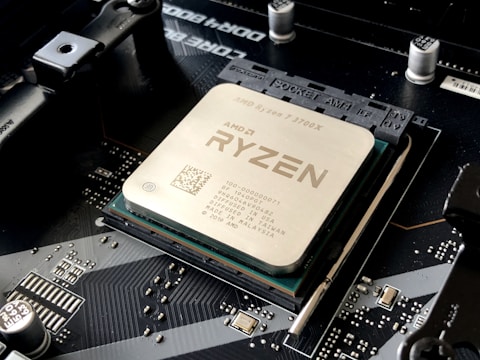
Clean heatsink vents with compressed air
Use a can of compressed air to blow through the exhaust vents on the Legion 5 Gen 8 rear and side panels. Short bursts from 10-15cm away push accumulated dust out of the heatsink fins. Hold fan blades stationary with a pencil while blowing to prevent spin-damage from compressed air pressure. Repeat every 6-12 months. Dust matting in the heatsink fin stack increases thermal resistance by 10-30 percent, causing CPU temperatures to rise 10-20 degrees Celsius above clean-heatsink baseline on the Lenovo Legion 5 Gen 8 AMD Ryzen 7 7745HX under gaming loads.
Enable Legion AI Engine Performance mode
Open Lenovo Vantage – My Device – Power – Legion AI Engine. Select Performance mode. Performance mode configures fan curves to run at higher RPM earlier in the temperature curve, maintaining CPU and GPU temperatures in the 80-90 degree range during sustained gaming rather than allowing temperatures to climb to 100+ degrees before fan speed increases. The Legion 5 Gen 8 fans in Performance mode are louder than Balanced mode but the higher airflow maintains sustained FPS and prevents thermal shutdown during long gaming sessions with the Ryzen 7 7745HX.

Use laptop on hard flat surface
Place the Legion 5 Gen 8 on a hard flat surface (desk, lap desk) rather than on a bed or couch cushion. The Legion 5 Gen 8 draws cool air through bottom panel intake vents — soft surfaces block these intakes completely, reducing available cooling airflow by 40-60 percent and rapidly raising temperatures to thermal throttling levels. A $20-40 laptop stand with fan or ventilated base increases bottom clearance and can reduce operating temperatures by 5-10 degrees Celsius versus flat desk placement on the AMD Ryzen 7 7745HX platform.
Monitor temperatures with HWiNFO64
Download HWiNFO64 (free) and run it in Sensors-only mode. Monitor CPU Package temperature and GPU Hot Spot temperature during gaming. AMD Ryzen 7 7745HX operates safely up to 95 degrees Celsius (Tjmax 105C). NVIDIA RTX 4060 Laptop GPU should remain below 88 degrees Celsius. If CPU consistently reaches 100+ degrees Celsius even with clean vents and Performance fan mode, thermal compound repasting with Thermal Grizzly Kryonaut can reduce temperatures by 5-15 degrees Celsius on the Lenovo Legion 5 Gen 8 AMD platform after 2+ years of use.
Frequently Asked Questions
How do I fix overheating on Lenovo Legion 5 Gen 8 AMD Ryzen 7 7745HX?
Clean heatsink vents with compressed air. Enable Performance mode in Lenovo Vantage Legion AI Engine. Use laptop on hard flat surface. Monitor with HWiNFO64. Repaste thermal compound if temps remain above 100C after cleaning.
Why does Lenovo Legion 5 Gen 8 AMD Ryzen 7 7745HX shut down during gaming?
CPU reaching 105C thermal protection limit (most common: dust-blocked heatsink). Clean vents with compressed air. Enable Performance fan mode. Temperatures should stay below 95C under gaming load after cleaning.
What are safe temperatures for Lenovo Legion 5 Gen 8 AMD Ryzen 7 7745HX?
CPU below 95C under full load (Tjmax 105C). GPU below 88C. Brief spikes to 100C CPU are acceptable. Sustained CPU above 100C or GPU above 90C indicates cooling issue requiring cleaning or repaste.
Does Lenovo Legion 5 Gen 8 AMD need repasting thermal compound?
After 2+ years of heavy use, factory paste degrades. Repaste with Thermal Grizzly Kryonaut reduces temperatures 5-15C. Required if temps stay above 100C after vent cleaning and Performance mode enable.
Conclusion
Lenovo Legion 5 Gen 8 AMD Ryzen 7 7745HX overheating shutdown in Windows 11 is most commonly caused by heatsink fin dust accumulation reducing thermal transfer efficiency — compressed air cleaning through exhaust vents resolves this immediately without disassembly. Performance mode in Lenovo Vantage Legion AI Engine raises fan RPM earlier in the temperature curve to maintain gaming temperatures below the 95C sustained threshold. Hard flat surface use ensures bottom intake vents receive unrestricted cool air. HWiNFO64 temperature monitoring identifies whether remaining high temperatures after cleaning require thermal compound repasting with quality paste on the Lenovo Legion 5 Gen 8 AMD cooling system.
Ryan holds a Computer Science degree and has spent over 15 years troubleshooting Windows hardware and driver issues across major laptop brands. He writes practical, step-by-step guides for everyday users at softwaredriverdownload.com.
Leave a Reply