The Dell Inspiron 5000 series supports RAM upgrades on most variants, but the maximum capacity and whether all slots are user-accessible varies by generation. Some models ship with 8 GB or 16 GB and have room to reach 32 GB with the right modules. This guide identifies your exact slot configuration and confirms DDR4 compatibility before purchase.
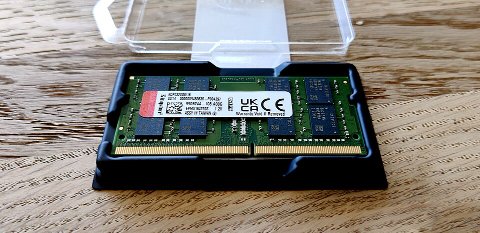
Step 1 – Find Your Exact Inspiron 5000 Model and Generation
- Check the underside label for the full model number (e.g., Inspiron 5515, 5520, 5625). The four-digit suffix indicates the screen size and generation — the third digit often identifies the processor generation year.
- Run
wmic csproduct get namein Command Prompt to confirm the model string Windows reports. - Go to dell.com/support, enter your service tag, and download the Service Manual for your exact model. The Memory section states slot count, maximum per slot, and whether any RAM is soldered.
Step 2 – Check Current Slot Usage
- Press Ctrl + Shift + Esc → Performance → Memory. The bottom of the panel shows Slots used: X of Y.
- If it shows 1 of 2 with 8 GB installed, you can add a second 8 GB or 16 GB stick without removing anything.
- If it shows 2 of 2 at 16 GB (2×8 GB), you must replace both sticks with 2×16 GB to reach 32 GB.
Step 3 – Confirm 32 GB DDR4 Compatibility by Generation
| Inspiron 5000 Generation | Processor | Max RAM | Slots |
|---|---|---|---|
| 5000 (2019–2020) | Intel 10th Gen | 32 GB | 2× SODIMM DDR4-2666 |
| 5000 (2021) | Intel 11th Gen / Ryzen 5000 | 32 GB | 2× SODIMM DDR4-3200 |
| 5000 (2022–2023) | Intel 12th/13th Gen | 32 GB | 2× SODIMM DDR4-3200 |
| 5000 (2022 AMD) | Ryzen 6000 (Rembrandt) | 32 GB | 2× SODIMM DDR5-4800* |
*AMD Ryzen 6000-based Inspiron 5000 variants use DDR5, not DDR4. Verify with the Service Manual before purchasing DDR4 modules.
- Purchase only DDR4 SODIMM modules if your model uses DDR4. Mixing DDR4 and DDR5 is physically and electronically incompatible.
- For 32 GB, purchase two 16 GB DDR4-3200 SODIMM sticks. Matched pairs enable dual-channel operation for better performance.
Per Dell’s service documentation for Inspiron 5000 series, “Supported memory types are listed per SKU in the Service Manual. Installing unsupported memory types or exceeding per-slot maximums may cause POST failure or system instability.”
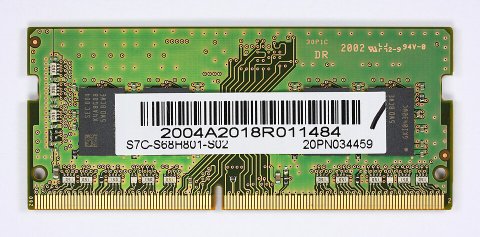
Step 4 – Install the New RAM Modules
- Power off the Inspiron 5000 and disconnect AC power.
- Remove all bottom panel screws. Use a plastic pry tool to release the panel clips starting from a rear corner.
- Locate the SODIMM slots near the center of the motherboard. Each slot has two metal retaining clips.
- To remove an existing module: push both clips outward simultaneously — the module springs up to 30 degrees. Pull it straight out.
- Insert each new module at 30 degrees, notch aligned to the slot key. Press flat until both retaining clips click.
- Reassemble and power on.
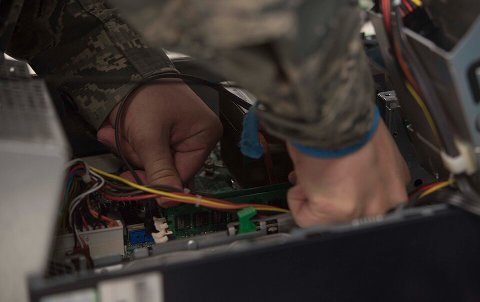
Step 5 – Verify 32 GB Is Recognized
- On boot, press F2 to enter BIOS. The memory summary on the main screen should show 32768 MB (32 GB).
- Boot into Windows and open Task Manager → Performance → Memory. Confirm total = 32 GB and Speed matches your module spec (e.g., 3200 MHz).
- Run CPU-Z → Memory tab to confirm Channel #: Dual — this confirms both slots are active in dual-channel mode.
- Run Windows Memory Diagnostic (search in Start) to test module integrity. A pass on both extended tests confirms the sticks are functioning correctly.
Frequently Asked Questions
BIOS shows 32 GB but Windows only reports 16 GB — what is wrong?
Open System Configuration (msconfig) → Boot → Advanced options and check whether Maximum memory is checked and set to a lower value. Uncheck it, click OK, and restart. This setting caps the RAM Windows is allowed to use and is occasionally left enabled after troubleshooting sessions.
Can I use 32 GB single-stick in one slot of my Dell Inspiron 5000?
Most Inspiron 5000 models cap each slot at 16 GB. A 32 GB single stick will not be recognized. Two 16 GB sticks in both slots is the correct path to 32 GB total.
My Inspiron 5000 will not POST after installing the new RAM.
Re-seat both modules — the most common POST failure cause is a module not fully clicked into the slot. If POST still fails, test each new module individually in slot 1 to isolate a potentially faulty stick. Also confirm the modules are DDR4, not DDR5.
Conclusion
Reaching 32 GB on a Dell Inspiron 5000 requires two matched 16 GB DDR4-3200 SODIMM sticks in both slots. Confirm your specific model uses DDR4 (not DDR5, which applies to AMD Ryzen 6000 variants) via the Service Manual before purchasing. After installation, BIOS and CPU-Z both confirm the total capacity and dual-channel status. The upgrade is reversible and does not require reinstalling Windows.
Leave a Reply