The Dell Inspiron 14 5000 cooling fan running loudly under normal workloads is usually a thermal management issue — either the BIOS fan curve is too aggressive for the ambient temperature, dust has raised the reported CPU temperature, or a power profile is holding the CPU at higher clock speeds than the task requires. This guide walks through adjusting the BIOS thermal settings and Windows power plan to reduce fan noise without compromising system stability.
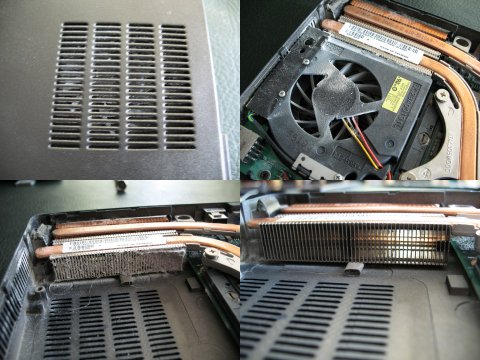
Step 1 – Rule Out Dust and Verify Actual Temperatures
- Download HWMonitor (free) and check CPU temperature at idle. A healthy idle on the Inspiron 14 5000 is 35–50°C. Sustained idle temperatures above 65°C with no load indicate dust blockage in the heatsink fins or fan intake.
- If temperatures are elevated, power off and use compressed air through the exhaust vent (the narrow slot near the hinge) in short 2-second bursts. Do not spray air directly into the bottom intake — this pushes debris onto the heatsink rather than through it.
- After cleaning, recheck temperatures. If idle temps drop below 55°C, the fan will run less aggressively without any BIOS changes.
Step 2 – Change Windows Power Plan to Balanced
- Open Control Panel → Power Options. If the active plan is High Performance or Dell Recommended Performance, switch to Balanced.
- Click Change plan settings → Change advanced power settings → Processor power management.
- Set Maximum processor state to 80% for plugged-in use. This prevents the CPU from boosting to full TDP during light tasks that do not require maximum performance, directly reducing heat and fan speed.
- Set Minimum processor state to 5% (default) to allow deep idle throttling.
Step 3 – Adjust BIOS Thermal Management
- Restart and press F2 at the Dell logo to enter BIOS Setup.
- Navigate to Performance → Thermal Management or Power Management → Fan Control (label varies by BIOS version).
- Change the thermal profile from Optimized or Performance to Quiet or Cool. The Quiet profile raises the temperature threshold at which the fan ramps to maximum speed, resulting in lower RPM at moderate loads.
- Save and exit. The new profile takes effect immediately on next boot.
Per Dell’s BIOS documentation for Inspiron 14 5000 series, “Thermal management profiles control fan speed thresholds and CPU power limits. The Quiet profile prioritizes lower fan noise by allowing slightly higher steady-state temperatures (within safe operating limits) before increasing fan speed.”
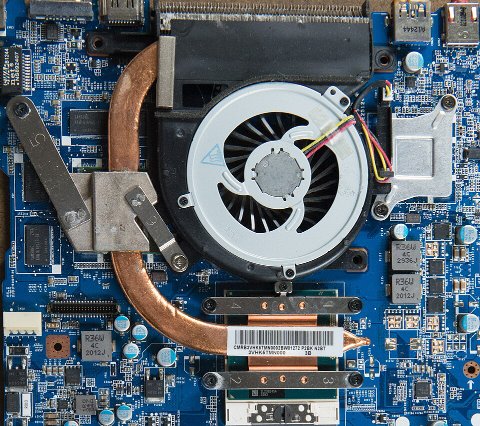
Step 4 – Use Dell Power Manager for Per-App Thermal Control
- Open Dell Power Manager (installed by default on Inspiron 14 5000 or available from the Microsoft Store).
- Navigate to Thermal Management. Select Quiet for everyday tasks, or Ultra Performance only when doing sustained rendering or gaming and fan noise is acceptable.
- Enable Battery Extender mode when on battery — this caps CPU performance to reduce heat generation significantly during office and browser workloads.
Step 5 – Update the BIOS for Improved Fan Curve
- Go to dell.com/support, enter your service tag, and check the BIOS update history. Release notes for newer versions often mention improved thermal management or fan behavior fixes.
- If a newer BIOS is available and its release notes mention fan or thermal improvements, install it via SupportAssist or by running the downloaded .exe on AC power.
- After updating, re-enter BIOS and reapply the Quiet thermal profile — BIOS updates sometimes reset thermal settings to defaults.
Frequently Asked Questions
The fan runs at maximum speed immediately on boot even before Windows loads.
This indicates the BIOS thermal sensor is reading high CPU temperature before the OS loads. The most common cause is dust on the heatsink or a dried-out thermal paste layer. If compressed air cleaning does not resolve it, reapplying thermal paste (removing the heatsink and replacing the compound) is the next hardware-level fix.
Setting maximum processor state to 80% — will this slow down my Inspiron 14 5000?
For office tasks, web browsing, and video playback, the difference is not perceptible. For sustained CPU-heavy work (video encoding, compilation), performance will be reduced. The setting can be changed back to 100% when needed and reverted for quiet use afterward.
After changing the BIOS to Quiet mode, the laptop feels warm to the touch but the fan is quiet — is this safe?
Yes. The Quiet profile allows slightly higher steady-state temperatures while keeping fan speed low. The laptop surface may reach 40–45°C during moderate loads. Dell sets thermal throttling limits in firmware to prevent damage — the CPU automatically reduces clock speed if it approaches unsafe temperatures regardless of the fan profile chosen.
Conclusion
Loud fan behavior on the Dell Inspiron 14 5000 is typically solved by a combination of cleaning dust from the heatsink exhaust, switching Windows power plan to Balanced with an 80% processor cap, and setting the BIOS thermal profile to Quiet. Dell Power Manager provides the same profile selection from within Windows without requiring a reboot. For persistent noise, a BIOS update may include improved fan curve tuning — check the release notes on dell.com/support before updating.
Leave a Reply