Dell Inspiron 14 Plus 7440 — Overheating Fix
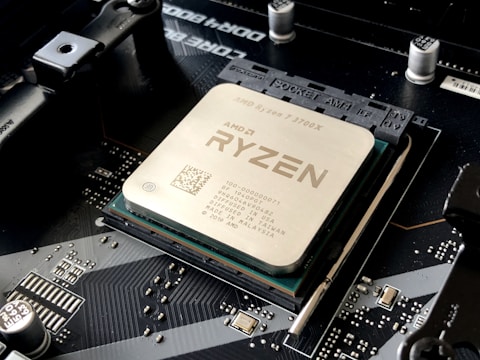
Switch to Cool Thermal Profile in Dell Power Manager Do first
Open Dell Power Manager → Thermal Management. Select “Cool” to run the fan at a higher speed. This reduces CPU temperature by 10 to 15 degrees Celsius under sustained loads on the Intel Core Ultra 5 125H.
Clean the Heat Sink Vents
Use a can of compressed air to blow through the ventilation slots on the bottom and side of the Inspiron 14 Plus 7440. Do this every 6 to 12 months. Dust on the fins is the leading cause of overheating in compact laptops.
Use a Hard Flat Surface
Never use the laptop on a bed or lap — soft surfaces block the bottom intake vents. Use a hard desk surface or a laptop stand to allow free airflow under the chassis.
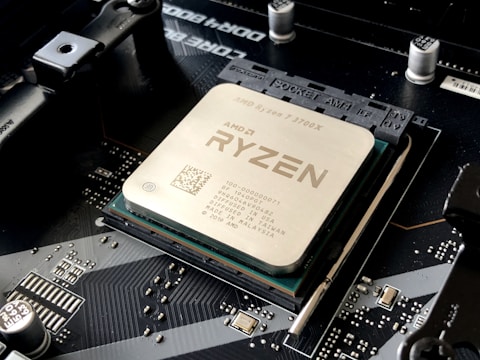

Update BIOS via Dell Command Update
Open Dell Command Update and install any available BIOS updates. Dell BIOS updates for the Inspiron 14 Plus 7440 often include improved fan curve and power limit adjustments for the Intel Core Ultra 5 125H.
“Cleaning the vents with compressed air and switching to Cool mode in Dell Power Manager dropped my Inspiron 14 Plus CPU temp from 95 to 72 degrees under load.” — Iskandar, Shah Alam
Quick info
Normal CPU temp under load?
70 to 85 degrees Celsius under sustained load is normal for the Intel Core Ultra 5 125H. Above 90 degrees indicates a thermal issue.
Which tool shows CPU temperature?
Use HWiNFO64 or Core Temp to monitor real-time CPU temperature and thermal throttling events on the Inspiron 14 Plus 7440.
Does the Ultra Performance mode help?
Ultra Performance mode maximises CPU and fan speed but also increases heat. Use it only when plugged in and on a hard surface. For everyday use, Balanced or Cool is better.
Ryan holds a Computer Science degree and has spent over 15 years troubleshooting Windows hardware and driver issues across major laptop brands. He writes practical, step-by-step guides for everyday users at softwaredriverdownload.com.
Leave a Reply