System Slow After Windows 11 Update Fix

Wait and Restart After Update Finishes
Open Task Manager and watch CPU and Disk usage. If Windows Update or Antimalware Service Executable is running above 50%, let it complete. Close unnecessary apps. After all processes drop below 10%, restart the laptop to clear any residual slowness.
Set Windows Update Active Hours
Settings → Windows Update → Advanced options → Active hours. Define your active hours so Windows 11 schedules update activity outside those times. This prevents background update tasks from competing with normal work on the Ryzen 7 5700U.
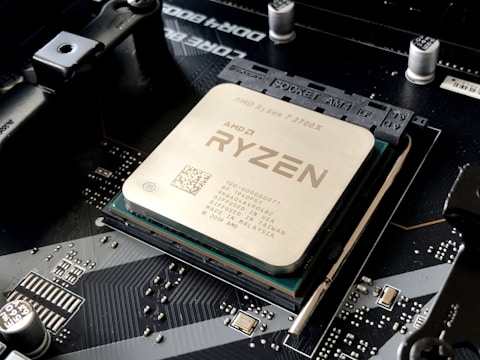
Disable Startup Apps That Launch After Update
After a Windows 11 update, some startup apps are re-enabled. Task Manager → Startup apps tab. Disable any items you do not need at startup to reduce post-update boot load on the Ryzen 7 5700U.
Check Disk Health if Slowness Persists
If the IdeaPad 3 Gen 7 remains slow days after the update, the hard disk may be failing. Open CrystalDiskInfo (free tool) to check disk health. A failing HDD shows reallocated sectors or pending sectors in the health status.
“My IdeaPad 3 Gen 7 was very slow for 90 minutes after a Windows update. Waiting for TiWorker and Defender to finish in Task Manager before doing any work was the answer.” — Amira, Selayang

Ryan holds a Computer Science degree and has spent over 15 years troubleshooting Windows hardware and driver issues across major laptop brands. He writes practical, step-by-step guides for everyday users at softwaredriverdownload.com.
Leave a Reply