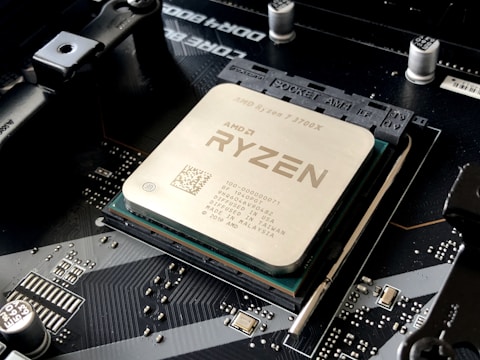
The ASUS TUF Gaming A16 FA617 fan runs loudly during normal tasks like web browsing or video playback. The AMD Ryzen 7 7745HX is a high-performance processor and ASUS sets the TUF Gaming A16 to Performance mode by default, which keeps the fans at high speed regardless of actual thermal need. Switching modes resolves this quickly.
Switch to Balanced or Silent Mode
Open ASUS Armoury Crate. In the Scenario Profile section, switch from Performance to Balanced for everyday tasks or Silent for quiet work. Balanced mode reduces fan RPM by 30 to 50 percent during light workloads.
Clean the Heat Sink Vents
Hold the TUF Gaming A16 FA617 sideways and use compressed air to blow through the bottom vent grilles in 3-second bursts. Dust on the dual heatsink fins forces the fans to spin faster to compensate.
Enable Fan Xpert Custom Curve
In ASUS Armoury Crate, go to GPU Tweak or Fan Xpert (if available for the TUF A16). Create a custom fan curve that only ramps up the fans when the CPU exceeds 70 degrees Celsius. This keeps the fan quiet during idle and light use.
Check for Rattling Fan Bearing
If the fan noise is more of a rattle or grinding than a whoosh, the fan bearing may be worn. This is different from normal fan noise and usually requires a fan replacement. Contact ASUS Support for service options.
“Switching from Performance to Balanced mode in Armoury Crate made my TUF Gaming A16 quiet enough to use in a library during normal work.” — Firdaus, Kota Kinabalu

Ryan holds a Computer Science degree and has spent over 15 years troubleshooting Windows hardware and driver issues across major laptop brands. He writes practical, step-by-step guides for everyday users at softwaredriverdownload.com.
Leave a Reply