Dell Inspiron 14 5440 — Keyboard Backlight Not Working Fix
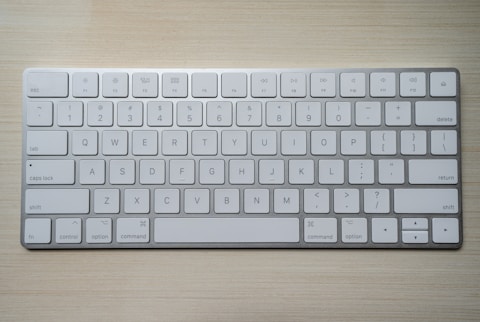
Try Fn + F10 Shortcut Try first
Hold the Fn key and press F10 to cycle the backlight through off, medium, and full brightness. If the backlight light indicator on the F10 key does not light up, the keyboard controller driver may be missing.
Install Dell Keyboard Controller Driver
Go to Dell Support and search for Inspiron 14 5440 using your service tag. Under Input, download the Dell Keyboard Controller Driver. Install it and restart. This driver enables the Fn key shortcuts including backlight control.
Update BIOS via Dell Command Update
Open Dell Command Update and install any available BIOS updates for the Inspiron 14 5440. Some BIOS versions have a known keyboard backlight bug that a BIOS update corrects.


“Installing the Dell Keyboard Controller Driver from Dell Support was all it took to get the backlight shortcut working again on my Inspiron 14 5440.” — Razman, Shah Alam
Quick info
Which key controls backlight?
Fn + F10 cycles the backlight on the Dell Inspiron 14 5440. Look for a backlight icon on the F10 key cap to confirm your model supports this function.
Does the backlight turn off automatically?
Yes. The Dell Inspiron 14 5440 backlight turns off after a period of keyboard inactivity as set by the BIOS. This is normal and not a fault.
Does backlight work in BIOS setup?
If the keyboard backlight works when you enter BIOS setup (F2 at boot) but not in Windows, the problem is a Windows driver issue, not hardware.
Ryan holds a Computer Science degree and has spent over 15 years troubleshooting Windows hardware and driver issues across major laptop brands. He writes practical, step-by-step guides for everyday users at softwaredriverdownload.com.
Leave a Reply