On this page
OverviewFix 1 — NVIDIA Control PanelFix 2 — Armoury Crate ModeFix 3 — Driver UpdateFix 4 — GPU Verify
Games run at unusually low frame rates on the ASUS TUF Gaming F17 FX707, or GPU-Z shows the NVIDIA GPU is idle during gaming. The Intel Core i7 12700H model has both Intel Iris Xe integrated graphics and an NVIDIA discrete GPU. If the system defaults to the iGPU for games, performance is a fraction of what the NVIDIA GPU delivers.
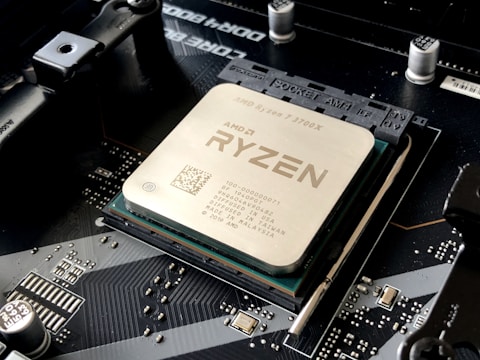
Fix 1 — Force NVIDIA GPU in Control Panel
Right-click the desktop → NVIDIA Control Panel → Manage 3D settings → Program Settings. Click Add, select your game .exe. Set “Select the preferred graphics processor for this program” to “High-performance NVIDIA processor.” Click Apply. Launch the game and verify with GPU-Z or Task Manager that the NVIDIA GPU load increases during play.
Fix 2 — Switch Armoury Crate to Performance or Turbo Mode
Open ASUS Armoury Crate → click the system mode icons at the top. Select Performance (fan icon) or Turbo. Silent and Windows modes throttle the GPU and CPU TDP to save power, which dramatically reduces gaming frame rates on the TUF Gaming F17.

Fix 3 — Update NVIDIA Game Ready Driver
Download the latest NVIDIA Game Ready Driver from ASUS Support for TUF Gaming F17 FX707, or from NVIDIA.com by searching for your specific GPU. Install and restart. New drivers often include performance optimisations and boost clock fixes.
Fix 4 — Verify GPU Activity in Task Manager
Open Task Manager → Performance tab → GPU 0 (Intel) and GPU 1 (NVIDIA). During gaming, the NVIDIA GPU (GPU 1) should show high utilisation. If GPU 0 (Intel) is the only one with load, the game is running on the wrong GPU. Apply Fix 1 to redirect it.
“Switching Armoury Crate to Performance mode and forcing the NVIDIA GPU in Control Panel doubled my frame rates on the TUF Gaming F17 FX707.” — Amirrudin, Subang
Ryan holds a Computer Science degree and has spent over 15 years troubleshooting Windows hardware and driver issues across major laptop brands. He writes practical, step-by-step guides for everyday users at softwaredriverdownload.com.
Frequently Asked Questions
Why is the GPU underperforming on ASUS TUF Gaming F17 FX707?
The ASUS TUF Gaming F17 FX707 uses an NVIDIA RTX 3070/4070 GPU. If Windows 11 games are running on the Intel integrated graphics instead of the NVIDIA dGPU, performance drops dramatically. Use the NVIDIA Control Panel to set the NVIDIA GPU as the preferred graphics processor for games.
How do I force games to use the NVIDIA GPU on ASUS TUF Gaming F17?
Open the NVIDIA Control Panel → Manage 3D Settings → Program Settings tab. Click Add and select the game executable. Set the preferred graphics processor to “High-performance NVIDIA processor.” Apply and launch the game to confirm the GPU is active.
Does ASUS Armoury Crate affect GPU performance on TUF Gaming F17?
Yes. ASUS Armoury Crate performance mode determines how aggressively the GPU and CPU can boost. Switch to Performance or Turbo mode in Armoury Crate before gaming to lift the TDP limits and allow the NVIDIA GPU to reach its rated clock speeds.
Can an outdated NVIDIA driver cause GPU underperformance on TUF Gaming F17?
Yes. Outdated NVIDIA drivers sometimes have power management bugs that limit GPU boost clocks. Download the latest NVIDIA Game Ready Driver from ASUS Support or the NVIDIA website for the specific GPU in your TUF Gaming F17.
Leave a Reply