Why it stays on Intel
NVIDIA Optimus prefers the Intel iGPU for everyday apps to save power, so the RTX GPU stays idle
The application is not assigned to High performance in the Windows Graphics settings
A generic NVIDIA driver from Windows Update lacks the Precision profile that engages the RTX GPU for pro apps
BIOS switchable graphics is locked in a mode that does not expose the discrete GPU correctly
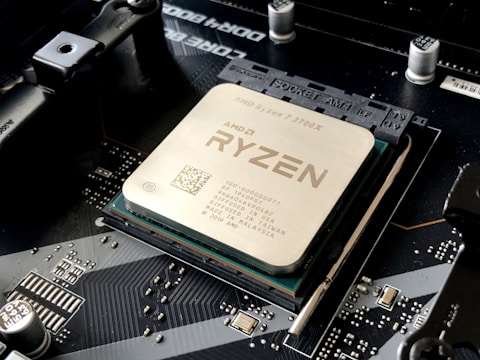
How to engage the RTX GPU
Settings → System → Display → Graphics. Add your app and set it to High performance to force the NVIDIA RTX GPU on the Precision 5680.
Install the NVIDIA RTX Enterprise or Studio driver from Dell Support for Precision 5680 so the discrete GPU is certified for your professional software.
In NVIDIA Control Panel → Manage 3D settings, set Preferred graphics processor to High-performance NVIDIA processor for a global override.
If a pro app must always use the RTX GPU, set BIOS switchable graphics to Discrete, accepting the lower battery life. Verify the active GPU in Task Manager.
“Setting my render app to High performance and installing the Dell RTX Enterprise driver finally engaged the discrete GPU on my Precision 5680.” — Azman, Putrajaya

Ryan holds a Computer Science degree and has spent over 15 years troubleshooting Windows hardware and driver issues across major laptop brands. He writes practical, step-by-step guides for everyday users at softwaredriverdownload.com.
Leave a Reply