Windows 11
The number pad on the ASUS Vivobook 15 X1504 types nothing or moves the cursor instead of entering digits. The Intel Core i5 1335U laptop has a full physical numpad, and an off Num Lock, Mouse Keys, or a keyboard driver glitch is usually behind it.
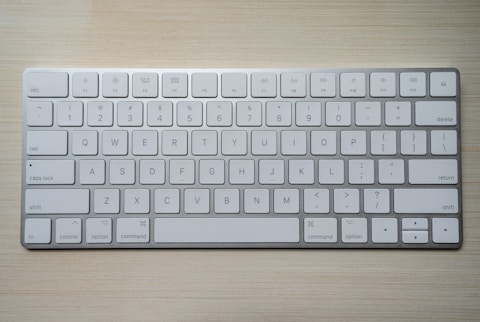
Fix 1 — Press Num Lock
Tap the Num Lock key at the top of the numpad. With Num Lock off, the keys act as arrows and Home/End navigation rather than numbers. One press switches the Vivobook 15 X1504 numpad back to typing digits.
Fix 2 — Turn Off Mouse Keys and Filter Keys
- Settings → Accessibility → Mouse → turn off Mouse Keys
- Settings → Accessibility → Keyboard → turn off Filter Keys
- Both can hijack the numpad keys
- Test the numbers again

Fix 3 — Reinstall the Keyboard Driver
Device Manager → Keyboards → right-click the standard keyboard → Uninstall device → restart so Windows reinstalls it. Then install the latest ASUS keyboard and chipset drivers from the Vivobook 15 X1504 support page to restore full numpad function.
Fix 4 — Test in BIOS
Restart and press F2 to enter BIOS, then try the numpad keys. If they work in BIOS but not in Windows, the cause is software. If they fail in BIOS too, the keyboard hardware on the Vivobook 15 X1504 needs service.
“Num Lock was simply off. One press and the numpad on my Vivobook 15 X1504 started typing numbers again.” — Salmah, Ipoh

Ryan holds a Computer Science degree and has spent over 15 years troubleshooting Windows hardware and driver issues across major laptop brands. He writes practical, step-by-step guides for everyday users at softwaredriverdownload.com.
Leave a Reply