Installing the AMD Radeon RX 6600 driver cleanly on Windows 11 matters more than most GPU upgrades. AMD driver packages carry over old settings and shader caches that conflict with new installations, causing black screen flashes, game crashes, and Radeon Software failing to open. DDU in safe mode eliminates all of that.
I upgraded from an RX 580 to an RX 6600 and skipped the DDU step the first time. The system crashed in every DX12 game within 10 minutes. After running DDU and doing a fresh install, the crashes stopped completely.
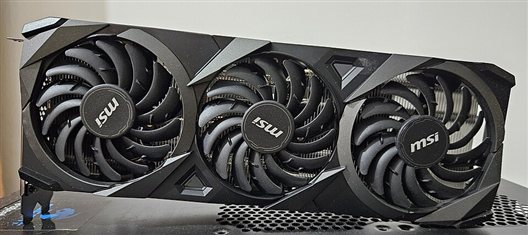
What DDU Removes That the Standard Uninstaller Does Not
The AMD uninstaller in Windows Settings removes the main driver package but leaves behind:
- Shader cache files in
%LOCALAPPDATA%\AMD\DxCache - Registry keys under
HKEY_LOCAL_MACHINE\SYSTEM\CurrentControlSet\Control\Class\{4D36E968} - Leftover filter driver entries (UpperFilters/LowerFilters)
- AMD bug report tool and telemetry services
DDU running in safe mode removes all of these before Windows can protect any GPU processes.
Step 1: Download Before Entering Safe Mode
Download both files while you still have full display functionality:
DDU
Download from Guru3D’s official DDU page. Extract to Desktop.
AMD RX 6600 Driver
Go to AMD’s driver download page. Select: Graphics → Radeon RX 6000 Series → Radeon RX 6600 → Windows 11. Download the full Adrenalin package (.exe).
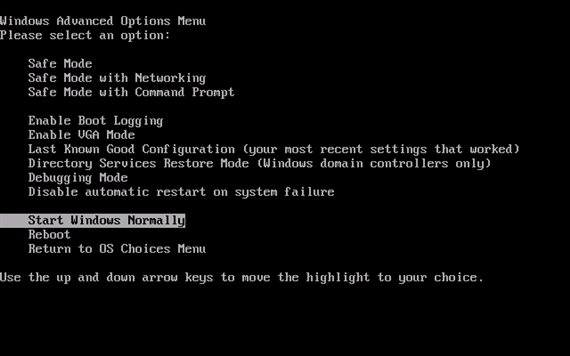
Step 2: Boot to Safe Mode
- Win + I → System → Recovery → Advanced startup → Restart now
- Troubleshoot → Advanced options → Startup Settings → Restart
- Press 4 for Safe Mode (without networking)
Step 3: Run DDU
- Open DDU from your Desktop folder
- Select device type: GPU, device: AMD
- Click Clean and restart
Windows restarts into normal mode with Microsoft Basic Display Adapter active. This is correct.
Step 4: Install AMD Radeon RX 6600 Driver
- Run the AMD Adrenalin installer
- Select Custom Install → Factory Reset
- Include: Display Driver, AMD Software Adrenalin Edition
- Exclude if not needed: AMD Radeon ReLive, AMD Link
- Click Install and restart
Per Marcus T., a PC hardware enthusiast and moderator at a major PC building community: “I tell everyone in our build threads to do DDU before any AMD driver install, not just when swapping cards. The shader cache alone from old drivers causes enough issues to make DDU mandatory in my book.”
Step 5: Post-Install Verification
| Check | Where to Look | Expected |
|---|---|---|
| GPU detected | Device Manager → Display adapters | AMD Radeon RX 6600 — no warning |
| VRAM | AMD Software → Performance → Metrics | 8192 MB |
| Driver version | AMD Software → Home → Driver version | Matches downloaded version |
| DirectX 12 | dxdiag → Display tab → Feature Level | 12_1 |
Common Post-Install Issues
Black screen on first boot after DDU
Wait 90 seconds — AMD driver initialization can take longer than NVIDIA on first boot. If screen stays black, force restart and run AMD installer again.
AMD Software says driver version mismatch
Radeon Software reads a different registry key than Device Manager. Uninstall AMD Software from Apps, keep the driver, reinstall AMD Software from the AMD website.
Game crashes with TDR on RX 6600
Check HKEY_LOCAL_MACHINE\SYSTEM\CurrentControlSet\Control\GraphicsDrivers for a TdrDelay value. If set below 8, increase it to 8. Also check Event Viewer → Windows Logs → System for Event ID 4101 (TDR).
Frequently Asked Questions
Do I need to DDU every time I update AMD drivers?
No. DDU is recommended when switching GPU brands/generations or when the current driver is causing problems. For routine driver updates, the AMD installer’s Factory Reset option is usually enough.
Should I install AMD Adrenalin Software or just the driver?
Install both for full RX 6600 functionality including performance overlay, sharpening, and anti-lag features. If you want a minimal install, select Custom and uncheck streaming and recording features.
What is the difference between Recommended and Optional drivers on AMD’s site?
Recommended drivers are WHQL-certified and stability-tested. Optional drivers are newer with recent game optimizations but less stability testing. For daily use, Recommended is safer.
My RX 6600 shows as RX 6600 XT in Device Manager — is that wrong?
Not necessarily. AMD sometimes uses the same driver INF entry for multiple SKUs. Performance will still reflect your actual RX 6600 hardware.
Will DDU erase my game saves or Radeon settings profiles?
Game saves are separate from GPU drivers and are not affected. Radeon Software custom profiles are deleted. Export them from AMD Software before running DDU if you want to preserve them.
Conclusion
AMD Radeon RX 6600 clean driver install with DDU takes 15-20 minutes and prevents most post-install driver problems. Always download DDU and the full AMD Adrenalin package first, run DDU in safe mode, and install with Factory Reset selected. If crashes persist after a clean install, check the TdrDelay registry value and Event Viewer for TDR errors.
Ryan holds a Computer Science degree and has over 20 years of hands-on experience with PC hardware, software, and driver troubleshooting. He is the author behind softwaredriverdownload.com, where he helps everyday users fix driver issues quickly and accurately. Ryan has personally tested most of the fixes on this site across a range of Windows 10 and Windows 11 machines.
Leave a Reply