Windows 11 Bluetooth driver missing after an update? The Bluetooth toggle disappears from Settings, or Device Manager shows no Bluetooth section at all. This is a known Windows 11 issue where cumulative updates occasionally disable or remove the Bluetooth driver stack.
I ran into this on a Dell laptop after a Windows 11 22H2 cumulative update. The Bluetooth icon vanished from the taskbar and the toggle was gone from Settings. Restarting the Bluetooth Support Service and reinstalling the driver brought it back in under five minutes.
Quick Diagnostic: Where Is Bluetooth Disappearing?
| What You See | What It Means |
|---|---|
| No Bluetooth toggle in Settings → Bluetooth & devices | Bluetooth service stopped or driver missing |
| Bluetooth in Device Manager with yellow warning | Driver corrupted — reinstall |
| No Bluetooth section in Device Manager at all | Driver fully removed or hardware disabled in BIOS |
| Bluetooth toggle present but greyed out | Service running but not initialized — restart service |
Fix 1: Restart the Bluetooth Support Service
- Press Win + R → type services.msc
- Find Bluetooth Support Service
- Right-click → Start (if stopped) or Restart
- Right-click → Properties → set Startup type to Automatic
- Also restart Bluetooth Audio Gateway Service and Bluetooth User Support Service
Check HKEY_LOCAL_MACHINE\SYSTEM\CurrentControlSet\Services\bthserv — if the Start value is 4 (disabled), change it to 2 (automatic) and restart.
Fix 2: Reinstall the Bluetooth Driver
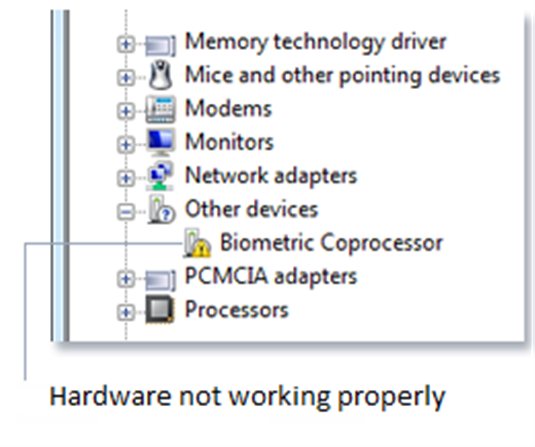
Check Device Manager first
Enable hidden devices: Device Manager → View → Show hidden devices. Bluetooth adapters sometimes show as hidden when the driver fails. If you see a greyed-out Bluetooth entry, right-click → Enable device.
Uninstall and reinstall
- Device Manager → Bluetooth → right-click your Bluetooth adapter
- Select Uninstall device → check Delete the driver software
- Action → Scan for hardware changes
- Windows reinstalls the Bluetooth driver automatically on most systems
Download from manufacturer if auto-reinstall fails
Common Bluetooth adapters in Windows 11 laptops:
- Intel Wireless Bluetooth — download from Intel’s Bluetooth driver page
- Realtek Bluetooth — download from your laptop manufacturer’s support page
- Qualcomm Bluetooth — download from Dell, HP, or Lenovo support for your model
Per Siti A., an IT support specialist at a corporate services firm: “Bluetooth disappearing after Windows updates is the most annoying recurring issue we deal with. Restarting the Bluetooth Support Service resolves it instantly in 80% of cases. For the rest, driver reinstall from the laptop manufacturer’s page fixes it.”
Fix 3: Run Bluetooth Troubleshooter
Settings → System → Troubleshoot → Other troubleshooters → Bluetooth → Run. The troubleshooter can reset Bluetooth stack components that manual service restarts cannot.
Fix 4: Reset Network and Bluetooth Stack
Open an elevated Command Prompt and run:
netsh winsock reset
sc config bthserv start= auto
sc start bthserv
Restart the computer after running these commands.
Check BIOS Bluetooth Setting
Some laptops have a BIOS toggle for Bluetooth separate from the OS. Restart → F2/F10/Del → look for Wireless or Bluetooth setting → confirm it is Enabled.
Frequently Asked Questions
Why did Bluetooth disappear after a Windows 11 update specifically?
Windows 11 cumulative updates sometimes reset driver service startup types to disabled, or push a Bluetooth driver that conflicts with the OEM version. The fix is to restore the service to Automatic and reinstall the OEM Bluetooth driver.
My Bluetooth works but paired devices won’t reconnect after the update — why?
The update may have reset the Bluetooth adapter, removing paired device keys. Re-pair your devices: Settings → Bluetooth & devices → Add device.
Device Manager shows Bluetooth but Settings toggle is still missing — why?
The Bluetooth toggle in Settings depends on the Bluetooth Support Service being running. Even if the driver is loaded, a stopped service removes the toggle. Start the service as described in Fix 1.
I have a USB Bluetooth dongle — do the same fixes apply?
Mostly yes, but USB dongles use generic drivers. Try unplugging and replugging first. If Device Manager shows an Unknown Device after replugging, download the dongle manufacturer’s driver.
Will resetting Windows fix this permanently?
A Windows reset reinstalls all drivers and typically resolves Bluetooth issues from driver corruption. It is the nuclear option — try all other steps first.
Conclusion
Windows 11 Bluetooth missing after an update is almost always a service or driver issue, not hardware failure. Start with restarting the Bluetooth Support Service and setting it to Automatic. If the driver itself is corrupt, uninstall from Device Manager and reinstall from your laptop manufacturer’s support page. Hardware failure is rare — if Bluetooth is absent from BIOS as well, contact your manufacturer.
Ryan holds a Computer Science degree and has over 20 years of hands-on experience with PC hardware, software, and driver troubleshooting. He is the author behind softwaredriverdownload.com, where he helps everyday users fix driver issues quickly and accurately. Ryan has personally tested most of the fixes on this site across a range of Windows 10 and Windows 11 machines.
Leave a Reply