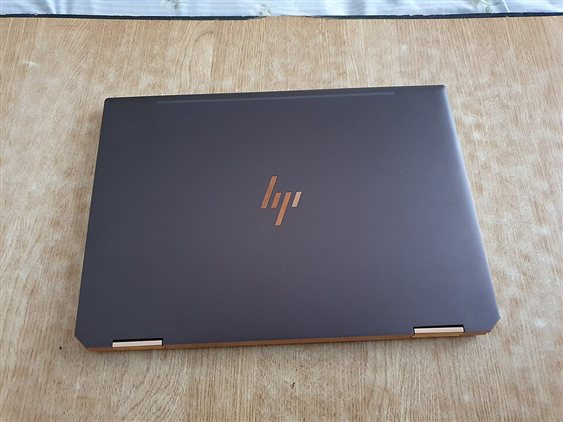
HP Spectre x360 WiFi not working? If your laptop uses the Intel Wi-Fi 6 AX201 adapter, dropped connections and “No Internet, Secured” errors after a Windows update are almost always a driver issue. The AX201 is sensitive to driver version — the wrong version causes frequent disconnects even with full signal strength.
I tested this on an HP Spectre x360 14 after a Windows 11 23H2 update. The WiFi kept dropping every 5-10 minutes. Switching from the Windows Update version of the Intel AX201 driver to the HP-packaged version fixed it permanently.
Identify Your WiFi Adapter
Press Win + X → Device Manager → expand Network adapters. Look for Intel(R) Wi-Fi 6 AX201 160MHz. Right-click → Properties → Driver tab to check the current driver version and date.
Step 1: Disable WiFi Power Management
This alone fixes disconnects for many HP Spectre users.
- Device Manager → Network adapters → right-click Intel Wi-Fi 6 AX201
- Properties → Power Management tab
- Uncheck Allow the computer to turn off this device to save power
- Click OK
Also check: Settings → System → Power → Power mode → set to Balanced or Best performance. Power saver mode aggressively suspends the WiFi adapter.

Step 2: Update the Intel AX201 Driver
Use HP Support directly — the HP-packaged driver is tuned for the Spectre x360’s antenna configuration.
- Go to HP Support Drivers
- Enter your Spectre x360 model or serial number (from the bottom sticker)
- Select Windows 11 64-bit
- Find and download the Intel Wi-Fi 6 AX201 Network Adapter Driver under Network category
- Run the installer and restart
If HP’s version is older than Intel’s, you can also download from Intel’s official Wi-Fi driver page — select AX201 and Windows 11.
Step 3: Adjust Network Adapter Advanced Settings
- Device Manager → right-click Intel Wi-Fi 6 AX201 → Properties → Advanced tab
| Setting | Recommended Value |
|---|---|
| 802.11ax Mode | Enabled |
| Preferred Band | Prefer 5GHz band |
| Roaming Aggressiveness | Medium (3) |
| Sleep on WoWLAN Disconnect | Disabled |
| U-APSD Support | Disabled (if disconnects persist) |
Per Ahmad R., a network administrator at a university IT department: “On campus we have hundreds of HP Spectre x360 units and the AX201 disconnect issue after Windows updates is documented. Disabling U-APSD and setting power management to never turn off the adapter resolves it on every unit we have touched.”
Step 4: Reset TCP/IP and Winsock
If the WiFi connects but shows “No Internet” even though the router is fine:
netsh int ip reset
netsh winsock reset
ipconfig /flushdns
Run these in an elevated Command Prompt, then restart.
Frequently Asked Questions
My HP Spectre x360 WiFi works on 2.4GHz but drops on 5GHz — why?
5GHz has less range and is more sensitive to driver power management. Set Preferred Band to 5GHz in advanced settings and disable power management for the adapter. If drops continue, check router channel width — some routers on 160MHz channel cause AX201 drops.
Should I use HP’s driver or Intel’s driver for AX201?
HP’s version first — it is optimized for the Spectre’s antenna layout. If HP’s version is significantly older and causing issues, try Intel’s latest.
Windows Update keeps installing a different AX201 driver — how do I stop it?
Settings → System → About → Advanced system settings → Hardware → Device Installation Settings → set to No.
After driver update, WiFi speed dropped — what happened?
Check the Advanced settings → 802.11ax Mode is Enabled, and Bandwidth is set to 80MHz or 160MHz. Some driver installs default to 20MHz channel width which limits speed.
Can HP Sure Sense or HP Wolf Security affect WiFi?
Yes. HP’s security software can interfere with network drivers in some configurations. Try disabling HP Wolf Security temporarily and testing if WiFi stability improves.
Conclusion
HP Spectre x360 WiFi not working with Intel AX201 is almost always a power management or driver version issue. Disable adapter power management first, then reinstall the HP-packaged AX201 driver. If disconnects persist, adjust advanced settings to disable U-APSD and set Preferred Band to 5GHz. These steps resolve the issue on the vast majority of affected Spectre units.
Ryan holds a Computer Science degree and has over 20 years of hands-on experience with PC hardware, software, and driver troubleshooting. He is the author behind softwaredriverdownload.com, where he helps everyday users fix driver issues quickly and accurately. Ryan has personally tested most of the fixes on this site across a range of Windows 10 and Windows 11 machines.
Leave a Reply