Dell XPS 15 Thunderbolt 4 port not recognized on Windows 11? Devices plugged into the Thunderbolt port show as USB only, or the port doesn’t charge at rated wattage, or external GPUs fail to connect. This is almost always a missing or corrupted Thunderbolt driver stack, not hardware failure.
I ran into this on a Dell XPS 15 9520 where a CalDigit Thunderbolt dock was detected as a USB hub only — no Thunderbolt bandwidth, no DisplayPort, charging at USB speeds. Installing the Intel Thunderbolt driver from Dell’s support page fixed it in one restart.
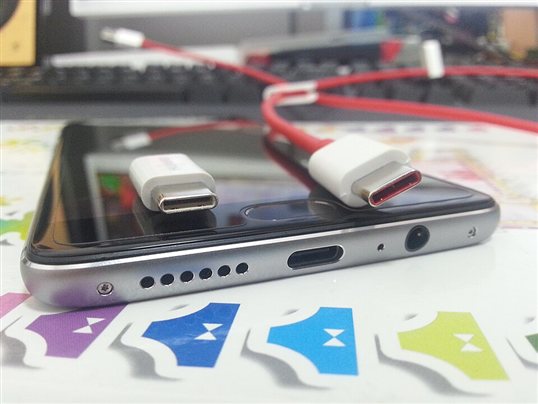
Thunderbolt 4 vs USB-C: What’s the Difference on XPS 15
The XPS 15’s Thunderbolt 4 ports handle four protocols simultaneously:
- Thunderbolt 4: 40Gbps data, up to two 4K displays, eGPU support
- USB4 Gen 3: 40Gbps USB data
- DisplayPort 1.4: video output
- Power Delivery: up to 100W charging input
Without the Thunderbolt driver, Windows only uses the USB-C protocol — so a Thunderbolt dock appears as a basic USB hub and video output may not work.
Step 1: Check the Thunderbolt Driver Status
Device Manager → expand System devices. Look for:
- Intel Thunderbolt 4 USB Controller — should have no warning
- Thunderbolt(TM) Controller – 9A1F or similar — no warning
If these entries show yellow warnings or are missing, the Thunderbolt driver stack is incomplete. Also check Universal Serial Bus controllers — you should see Thunderbolt(TM) USB Hub entries when a device is connected.
Step 2: Download and Install the Dell Thunderbolt Driver
- Go to Dell Support
- Enter your XPS 15 service tag (from the bottom sticker)
- Navigate to Drivers & Downloads
- Filter by Thunderbolt category
- Download Intel Thunderbolt Controller Driver
- Also download Thunderbolt Firmware Update if available
- Install the driver, then the firmware update, and restart
Step 3: Enable Thunderbolt in BIOS
- Restart → F2 at Dell logo → BIOS Setup
- Navigate to Connection → Thunderbolt Adapter Configuration
- Set Thunderbolt Boot Support to Enabled
- Set Security Level to No Security (for testing) or User Authorization (normal use)
- Save and exit
Per Wan Ahmad, a hardware integration specialist at an enterprise IT firm: “On Dell XPS fleet deployments, Thunderbolt BIOS settings are often shipped at No Security for compatibility testing and then someone changes it to full security mode without telling users. This causes third-party docks and devices to stop working — not a driver issue at all.”
| BIOS Security Level | Behavior |
|---|---|
| No Security | All Thunderbolt devices connect automatically |
| User Authorization | First connection requires user approval in Windows |
| Secure Connect | Only pre-authorized devices connect |
| Display Port and USB | Thunderbolt devices only get USB/DP speeds — no TB4 bandwidth |
Step 4: Authorize the Thunderbolt Device
When security level is User Authorization, a notification appears on first connection: “A new Thunderbolt device has been connected. Do you want to approve?” Click Always Connect. If you missed this notification, open Intel Thunderbolt Software from the system tray and authorize devices from there.
Frequently Asked Questions
My XPS 15 Thunderbolt port charges other devices but won’t charge the laptop via dock — why?
The XPS 15 requires a dock with 90W+ Power Delivery over Thunderbolt. Some docks only provide 60W through USB-C, which is not enough for the XPS 15 under load. The Dell WD19TB dock provides 130W and is the recommended choice.
eGPU works when connected but drops during gaming — is that a driver issue?
Check HKEY_LOCAL_MACHINE\SYSTEM\CurrentControlSet\Control\GraphicsDrivers for PCIe stability settings. Also ensure BIOS Thunderbolt security is set to No Security — User Authorization can cause Thunderbolt devices to briefly disconnect during screen lock.
After Thunderbolt driver install, Device Manager shows two display adapters — is that normal?
Yes. When an eGPU or display adapter is connected via Thunderbolt, Windows shows both the internal iGPU/dGPU and the external device. This is correct behavior.
Does Thunderbolt 4 support two 4K monitors on XPS 15?
Yes. XPS 15 supports up to two 4K displays via Thunderbolt using a compatible dock (Dell WD19TB, CalDigit TS4, etc.) using DisplayPort 1.4 Multi-Stream Transport.
Intel Thunderbolt Software shows my device as “Not Authorized” — how do I fix it?
Open Intel Thunderbolt Software from the system tray → Devices tab → right-click the device → Always Connect. If the option is greyed out, check BIOS security level — Secure Connect mode prevents authorization via software.
Conclusion
Dell XPS 15 Thunderbolt 4 not recognized is almost always a driver or BIOS security level issue. Install the Intel Thunderbolt Controller driver from Dell Support, check BIOS Thunderbolt security settings, and authorize the device in Intel Thunderbolt Software. Hardware failure is uncommon — if the port does not respond at all after software fixes, contact Dell Support with your service tag.
Ryan holds a Computer Science degree and has over 20 years of hands-on experience with PC hardware, software, and driver troubleshooting. He is the author behind softwaredriverdownload.com, where he helps everyday users fix driver issues quickly and accurately. Ryan has personally tested most of the fixes on this site across a range of Windows 10 and Windows 11 machines.
Leave a Reply