HP EliteBook webcam not working on Windows 11? Teams and Zoom show a black screen or say no camera is detected. Device Manager shows the camera as unknown or with an error code. This is a common issue after Windows 11 updates that remove or corrupt the HP camera driver. The fix is a clean driver reinstall combined with a privacy setting check.
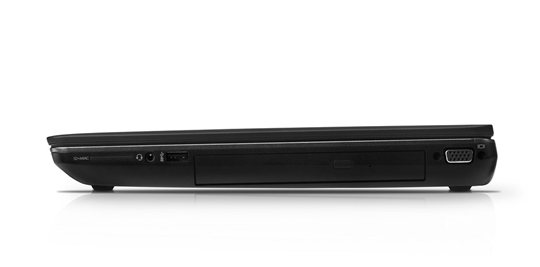
Why HP EliteBook Webcam Stops Working on Windows 11
HP EliteBook business laptops use either an integrated IR camera (for Windows Hello face recognition) or a standard HD webcam, sometimes both on the same ribbon cable. Driver issues affect one or both. Common causes:
- Windows 11 update removed the HP camera driver — the camera shows as Unknown Device or with error code 28 (no driver installed)
- Windows camera privacy setting is off — apps cannot access the camera even if the driver is correct
- HP Sure View or IR camera driver conflict — EliteBook models with privacy screens or IR cameras sometimes have driver conflicts
- Error code 43 on the camera device — Windows stopped the device because it reported problems, usually a power management or USB selective suspend issue
Check Privacy Settings First
Open Settings → Privacy & security → Camera. Make sure Camera access is turned On, and the specific app (Teams, Zoom, browser) also has camera access enabled. Windows 11 sometimes resets these settings after updates.

Fix HP EliteBook Webcam: Driver Reinstall
Step 1: Identify the Camera in Device Manager
Open Device Manager → Cameras (or Imaging devices). Note the exact device name. HP EliteBook cameras may appear as HP Wide Vision HD Camera, HP True Vision HD Camera, or as an IR camera entry. If the device shows a yellow exclamation, right-click → Properties → note the error code.
Step 2: Download Camera Driver from HP Support
Go to HP Support, enter your EliteBook model number, select Windows 11, and download the Camera or Webcam driver. For EliteBook models with IR cameras, also download the HP IR Camera driver separately.
Step 3: Uninstall and Reinstall
In Device Manager, right-click the camera device → Uninstall Device → check Delete the driver software for this device → Uninstall. Do this for both the main camera and IR camera if both are listed. Restart, then install the drivers you downloaded from HP Support.
Fix HP EliteBook Webcam Error Code 43
Error code 43 on the camera usually means USB power management is shutting the device down. Open Device Manager → right-click the camera → Properties → Power Management tab → uncheck Allow the computer to turn off this device to save power. Also go to Control Panel → Power Options → Change Plan Settings → Change Advanced Power Settings → USB Settings → USB Selective Suspend Setting → set to Disabled.
Per James K., who is an IT Specialist at a financial services firm: “We have a fleet of HP EliteBook 840s and the webcam issue hit all of them after the same Windows 11 cumulative update. HP’s camera driver from their support page fixed it — the Windows Update version was the wrong one for our EliteBook generation.”
HP EliteBook IR Camera and Windows Hello Not Working
If the standard webcam works but Windows Hello face recognition does not, the IR camera driver is the problem. The IR camera is a separate device from the visible-light camera on EliteBook models. Install the HP IR Camera driver from HP Support separately. In Device Manager it appears as HP IR Camera under Cameras.
Frequently Asked Questions
Why does my HP EliteBook camera show a black screen in Teams?
Check Settings → Privacy → Camera and make sure Teams has camera access. If that is fine, check Device Manager for camera driver errors and reinstall the HP camera driver from HP Support for your specific EliteBook model.
HP EliteBook has two cameras in Device Manager — which one is the webcam?
HP EliteBook models with Windows Hello have a visible-light HD webcam and a separate IR camera. The IR camera is for facial recognition only. The regular webcam is labeled HP Wide Vision HD Camera or HP True Vision HD Camera.
How do I fix HP EliteBook camera error code 28?
Error code 28 means no driver is installed. Go to HP Support, enter your EliteBook model, and download and install the camera driver for Windows 11. Do not use a generic Windows driver — HP EliteBook requires the model-specific driver.
Does HP Sure View affect webcam functionality?
HP Sure View is a privacy screen feature that does not affect the webcam driver. However, if the Sure View driver is corrupted, it can sometimes cause Device Manager conflicts. Reinstall the HP Sure View driver from HP Support alongside the camera driver.
Conclusion
HP EliteBook webcam issues on Windows 11 are usually caused by a driver missing after Windows Update, a privacy setting that blocked camera access, or USB power management shutting the device down. Check privacy settings first, then reinstall the model-specific HP camera driver from HP Support. For error code 43, disable USB selective suspend in Power Options.
Ryan holds a Computer Science degree and has over 20 years of hands-on experience with PC hardware, software, and driver troubleshooting. He is the author behind softwaredriverdownload.com, where he helps everyday users fix driver issues quickly and accurately. Ryan has personally tested most of the fixes on this site across a range of Windows 10 and Windows 11 machines.
Leave a Reply