ASUS ZenBook HDMI not working on Windows 11? The external monitor stays black, the HDMI port is not detected, or the display flickers and goes off. ASUS ZenBook uses Intel Iris Xe integrated graphics (and on some models NVIDIA discrete GPU) routed through the HDMI port. The fix is usually an Intel display driver update or a display output setting in NVIDIA Control Panel.
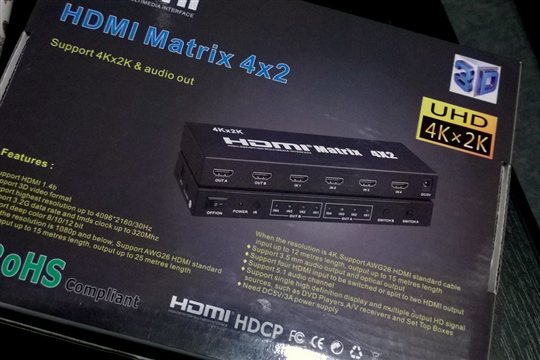
Why ASUS ZenBook HDMI Output Fails on Windows 11
ASUS ZenBook 13 and 14 models route the HDMI port through Intel integrated graphics, not through NVIDIA (if present). This means even if the NVIDIA driver is fine, HDMI output depends on the Intel display driver. Common causes:
- Intel display driver incompatible after Windows 11 update — a bad Intel driver version disables HDMI output or causes flicker
- HDMI cable or port issue — ASUS ZenBook HDMI ports are thin and worn connectors cause intermittent signal loss
- NVIDIA Optimus routing changed — on dual-GPU ZenBook models, some driver versions route HDMI through NVIDIA instead of Intel, breaking compatibility
- Monitor input not set to HDMI — the monitor’s own input selector must be set to the HDMI input source
Test With a Different Cable and Monitor First
Before touching drivers, test the HDMI port with a different cable. HDMI cables that work at 1080p may fail at 4K. Also test with a different monitor. If a different setup works, the issue is the cable or the monitor’s HDMI port, not the driver.
Fix ASUS ZenBook HDMI: Intel Display Driver Update
Step 1: Download Intel Driver from ASUS Support
Go to ASUS Support, enter your ZenBook model, go to Drivers & Tools → Display. Download the Intel Graphics Driver. Install it. Do not use Intel’s own driver download page — ASUS customizes the Intel driver for ZenBook’s display configuration and HDMI routing. The generic Intel driver can break HDMI on some ZenBook models.
Step 2: Set Display Output in Windows Settings
Press Win + P to open the display projection menu. Select Extend or Duplicate. If the external monitor appears in this menu but shows no signal, right-click the desktop → Display Settings → Multiple Displays → select the HDMI display → set it to Extend or Duplicate → Apply.
Step 3: Check Intel Graphics Command Center
Open Intel Graphics Command Center (installed with the Intel driver). Go to Display → Multiple Display. Verify the HDMI display is detected here. If it is detected in Intel Graphics Command Center but not in Windows Display Settings, there is a Windows graphics stack conflict — try running sfc /scannow from an elevated command prompt.
ASUS ZenBook HDMI Not Working on NVIDIA Models
On ASUS ZenBook 15 and Pro models with NVIDIA GPU, open NVIDIA Control Panel → Manage 3D Settings → Global Settings → Preferred Graphics Processor → set to Integrated Graphics. Then go to Display → Set Up Multiple Displays — both Intel and NVIDIA outputs should appear. On some dual-GPU ZenBook models, the HDMI port is physically connected to only one GPU and will not work when the other is active.
Per Chen H., who is a Graphic Designer using an ASUS ZenBook 14: “My ZenBook HDMI stopped working after a Windows 11 feature update. The Intel Graphics driver from ASUS Support (not from Intel directly) fixed it. The version numbers looked similar but the ASUS build had a specific patch for ZenBook’s HDMI routing.”
Frequently Asked Questions
Why does ASUS ZenBook not detect external monitor via HDMI?
The Intel display driver may be outdated or replaced by Windows Update with a generic version. Download the ASUS-specific Intel Graphics driver from ASUS Support for your ZenBook model and reinstall. Also test the HDMI cable and press Win + P to select Extend or Duplicate.
ASUS ZenBook HDMI worked before but stopped after Windows 11 update — how to fix?
Windows 11 updates sometimes push a generic Intel driver that lacks ASUS customizations for HDMI routing. Roll back the Intel display driver in Device Manager to the previous version, or download the correct driver from ASUS Support.
How do I know if my ZenBook HDMI port is broken or a driver issue?
If the HDMI port works in BIOS (during POST) or on a different OS (Linux live USB), the hardware is fine and it is a driver issue. If no signal appears at all even before Windows loads, the port hardware may be damaged.
Does ASUS ZenBook 13 HDMI work through the USB-C port?
Some ASUS ZenBook 13 models have HDMI output only through the USB-C port using a USB-C to HDMI adapter. Check your ZenBook’s specifications to confirm whether the HDMI port is a full-size port or requires an adapter.
Conclusion
ASUS ZenBook HDMI issues on Windows 11 are most often caused by the Intel display driver being replaced by a generic Windows version. Always reinstall the ASUS-specific Intel Graphics driver from ASUS Support, not from Intel’s website directly. Press Win + P to configure multi-monitor output, and on dual-GPU models check NVIDIA Control Panel for display routing settings.
Ryan holds a Computer Science degree and has over 20 years of hands-on experience with PC hardware, software, and driver troubleshooting. He is the author behind softwaredriverdownload.com, where he helps everyday users fix driver issues quickly and accurately. Ryan has personally tested most of the fixes on this site across a range of Windows 10 and Windows 11 machines.
Leave a Reply