Keyboard Backlight Not Working Fix
AMD Ryzen 5 7530U • Windows 11
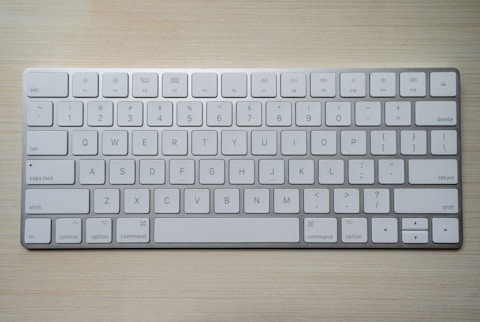
Why the Keyboard Backlight Stops Working
The Lenovo ThinkBook 16 Gen 6 includes an optional backlit keyboard with two brightness levels. When the backlight does not turn on despite pressing the backlight key, common causes are the backlight being disabled in Lenovo Vantage, an Fn key behavior change after a driver update, or a BIOS setting.
Press Space + Fn to Toggle Backlight Check first
On the Lenovo ThinkBook 16 Gen 6, the keyboard backlight is toggled using Fn + Space. Pressing this combination cycles through Off, Low, and High brightness. Some ThinkBook configurations also use Fn + F9. Try both combinations to confirm the backlight key shortcut on your specific keyboard layout before proceeding to driver-level fixes.

Check Lenovo Vantage Keyboard Settings
Open Lenovo Vantage > Hardware Settings > Input. Look for keyboard backlight settings. If the backlight intensity is set to zero or the backlight feature is disabled, it will not respond to Fn key presses. Adjust the brightness slider in Lenovo Vantage to confirm the backlight hardware is functional.
Reinstall Lenovo Hotkey Driver
Visit Lenovo Support, search for the ThinkBook 16 Gen 6, and download the Hotkey Features Integration driver. Install and restart. The Fn key backlight toggle is managed by the Hotkey driver, not the standard HID keyboard driver. Without the Lenovo Hotkey driver, Fn + Space has no effect on backlight state.
Check BIOS Backlight Timeout Setting
Restart and press F2 to enter BIOS Setup. Navigate to Configuration > Keyboard Backlight. The ThinkBook BIOS includes a keyboard backlight timeout setting that turns off the backlight after a period of inactivity. If set to a very short timeout, the backlight may appear non-functional. Set the timeout to a longer interval or disable the auto-off feature.
“My ThinkBook 16 Gen 6 keyboard backlight stopped working after the Hotkey driver was removed by Windows Update. Reinstalling the Lenovo Hotkey Features Integration driver from Lenovo Support restored the Fn + Space backlight toggle immediately.”
— Badrul Hisham Zain, business analyst
Frequently Asked Questions
Ryan holds a Computer Science degree and has spent over 15 years troubleshooting Windows hardware and driver issues across major laptop brands. He writes practical, step-by-step guides for everyday users at softwaredriverdownload.com.
Why is the keyboard backlight not working on the Lenovo ThinkBook 16 Gen 6?
The most common cause is the Lenovo Hotkey Features Integration driver being missing or corrupted, which disables Fn key functions including the keyboard backlight toggle. Download and install the Hotkey driver from Lenovo Support. Also verify the backlight shortcut: Fn + Space on ThinkBook 16 Gen 6. Check Lenovo Vantage keyboard settings for backlight intensity settings.
Does every Lenovo ThinkBook 16 Gen 6 have a backlit keyboard?
No. The keyboard backlight is an optional feature on the ThinkBook 16 Gen 6 AMD and is not included in all configurations. Entry-level configurations without the backlit keyboard option will not have keyboard LEDs regardless of driver installation. Check your invoice or the Lenovo support page for your specific model to confirm whether your unit includes keyboard backlighting.
Can I set the keyboard backlight to turn on automatically on the Lenovo ThinkBook 16 Gen 6?
Yes via Lenovo Vantage. Open Lenovo Vantage > Hardware Settings > Input > Keyboard. Configure the backlight to turn on when the ambient light sensor detects a dark environment. The ThinkBook 16 Gen 6 includes an ambient light sensor that can trigger the keyboard backlight automatically in dim conditions.
What is the keyboard backlight shortcut on the Lenovo ThinkBook 16 Gen 6?
The keyboard backlight shortcut on the ThinkBook 16 Gen 6 is Fn + Space. Pressing this combination cycles through Off, Low brightness, and High brightness. The current state is indicated by a small LED icon on the Space bar or a status indicator in Lenovo Vantage. On some ThinkBook 16 Gen 6 keyboard layouts, Fn + F9 is the alternative backlight key.
Leave a Reply