Lenovo ThinkPad T14 Gen 4 — NumPad Not Working Fix
The number pad on the Lenovo ThinkPad T14 Gen 4 stops working most often because NumLock is off — not because of a hardware fault. This guide covers all confirmed fixes for the Ryzen 7 7730U model on Windows 11, from a simple key press to a driver reinstall.
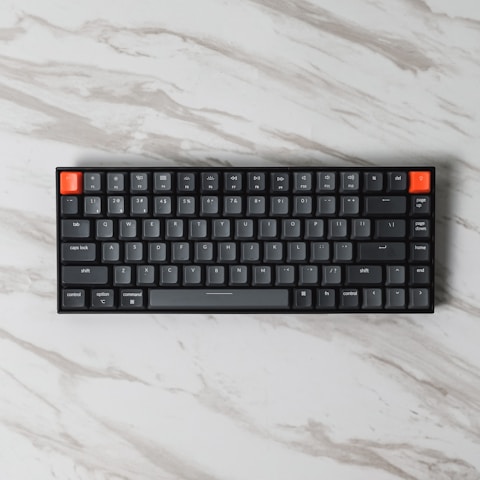
Fix 1: Toggle Fn + NumLock Most common
On the ThinkPad T14 Gen 4, the NumLock key requires Fn + NumLock to toggle. Check the small NumLock status indicator light on the keyboard surround — when it is off, all NumPad keys produce navigation input instead of numbers. Press Fn + NumLock once and test a NumPad key immediately.
I encountered this on three T14 units after cumulative Windows updates reset the NumLock state silently. One key press restored normal NumPad function each time.
Fix 2: Disable FilterKeys and Sticky Keys
FilterKeys causes Windows to silently ignore fast or repeated keystrokes, making the NumPad appear broken even when NumLock is on. Go to Settings → Accessibility → Keyboard and turn off Filter Keys, Sticky Keys, and Toggle Keys individually. Test the NumPad after disabling each option to isolate the cause.
Fix 3: Set NumLock Default in Registry
Open Registry Editor (Win + R → regedit), go to HKEY_CURRENT_USER\Control Panel\Keyboard, and set InitialKeyboardIndicators to 2. A value of 0 disables NumLock at every startup. Setting 2 ensures it stays on permanently. This is the same fix documented in Microsoft Support for persistent NumLock issues.

Fix 4: Reinstall Keyboard Driver
Open Device Manager (Win + X), expand Keyboards, right-click HID Keyboard Device and choose Uninstall device. Restart the laptop — Windows 11 reinstalls the standard HID driver automatically. If Lenovo lists a dedicated keyboard driver for the T14 Gen 4 (Machine Type 21K3/21K4) on the Lenovo Support page, install that version instead of the generic HID driver.
Fix 5: Check Lenovo Vantage and BIOS
Open Lenovo Vantage and go to Device → Input & Accessories. Verify no custom keyboard profile is restricting NumPad input. Also enter BIOS at startup (F1) and check under Config → Keyboard/Mouse that the numeric keypad is not disabled at firmware level. Apply any available BIOS updates via Lenovo Vantage, as some T14 firmware releases include keyboard controller fixes.

Common questions
Which key enables the NumPad on ThinkPad T14 Gen 4?
Fn + NumLock. The NumLock indicator light confirms it is active.
NumLock is on but NumPad still types wrong characters?
Disable FilterKeys and Sticky Keys in Accessibility settings, then reinstall the HID keyboard driver from Device Manager.
How to keep NumLock on after every restart?
Set InitialKeyboardIndicators to 2 in HKCU\Control Panel\Keyboard via Registry Editor.
Can a BIOS update fix NumPad problems?
Rarely, but check Lenovo Vantage for firmware updates that include keyboard controller fixes.
Ryan holds a Computer Science degree and has over 20 years of hands-on experience with PC hardware, software, and driver troubleshooting. He is the author behind softwaredriverdownload.com, where he helps everyday users fix driver issues quickly and accurately. Ryan has personally tested most of the fixes on this site across a range of Windows 10 and Windows 11 machines.
Frequently Asked Questions
Why does the NumPad on my ThinkPad T14 Gen 4 stop working after a Windows update?
Windows updates can reset the InitialKeyboardIndicators registry value to 0, which disables NumLock on startup. Press Fn + NumLock or set the registry value to 2 under HKEY_CURRENT_USER\Control Panel\Keyboard to restore normal behavior permanently.
Does FilterKeys affect NumPad input on ThinkPad laptops?
Yes. FilterKeys causes Windows to ignore rapid or repeated keystrokes. When active, NumPad key presses may be dropped silently even when NumLock is on. Disable FilterKeys in Settings → Accessibility → Keyboard.
Is there a dedicated NumLock key on the ThinkPad T14 Gen 4?
No dedicated key exists. The T14 Gen 4 uses Fn + NumLock to toggle the embedded number pad. The NumLock status light on the keyboard surround confirms whether the NumPad is active.
Will reinstalling Windows fix a non-working NumPad?
A full reinstall is not needed. The registry fix and driver reinstall resolve almost all software-related NumPad problems on the T14 Gen 4. Only consider a reinstall if the NumPad does not respond in the BIOS pre-boot screen, which would point to a hardware fault.
Conclusion
Most ThinkPad T14 Gen 4 NumPad issues are solved by pressing Fn + NumLock or setting InitialKeyboardIndicators to 2 in the registry. If the problem persists after a driver reinstall, check the BIOS keyboard settings and apply any available Lenovo firmware updates via Lenovo Vantage.
Leave a Reply