Acer Swift touchpad not working on Windows 11? The touchpad cursor does not move, tap-to-click does nothing, two-finger scroll is unresponsive, or the touchpad is not detected at all in Device Manager. Acer Swift laptops (Swift 3, Swift 5, Swift X, Swift Go) use Elan or Synaptics precision touchpad hardware. Windows 11 sometimes replaces these drivers with a generic HID-compliant touchpad driver that causes partial or total touchpad failure. The fix is reinstalling the correct Elan or Synaptics driver from Acer Support.
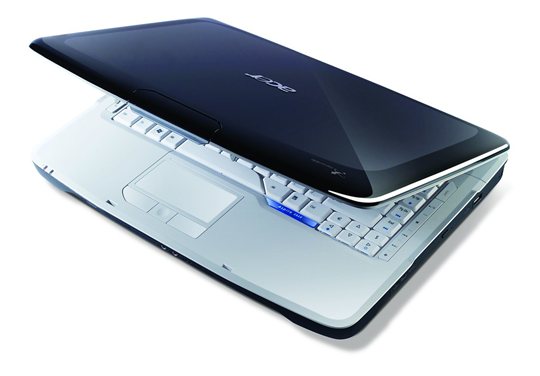
Why Acer Swift Touchpad Stops Working on Windows 11
Acer Swift touchpad issues on Windows 11 have several common causes depending on model and exact symptom:
- Generic HID touchpad driver active — Windows Update replaced the Elan or Synaptics driver with Microsoft’s generic HID-compliant touchpad driver, which lacks gesture support
- Touchpad disabled via Fn key toggle — Fn+F7 (or F6 on some Swift models) toggles the touchpad on and off; accidental press disables it
- Touchpad disabled in Windows Settings — Settings → Bluetooth & Devices → Touchpad switch toggled off
- Acer touchpad firmware update pending — on Swift X and Swift 5 with USB4, a firmware conflict can cause intermittent failure
- External mouse disables touchpad — Settings has an option to disable touchpad when a mouse is connected; may have been left enabled
Quick Check Before Driver Reinstall
Go to Settings → Bluetooth & Devices → Touchpad. If the toggle is off, turn it on. Also check Leave touchpad on when a mouse is connected — if this is unchecked, plugging in a USB mouse disables the touchpad. Try pressing Fn+F7 (check your Acer Swift keyboard — the touchpad icon is on one of the F-keys) to toggle the touchpad back on.
Fix Acer Swift Touchpad: Driver Reinstall Steps
Step 1: Identify Touchpad Make and Model
Open Device Manager → Mice and other pointing devices. If you see Elan Input Device or ELAN Touchpad, your Swift uses an Elan touchpad. If you see Synaptics SMBus TouchPad or Synaptics HID Touchpad, it uses Synaptics. If you see only HID-compliant mouse, the manufacturer driver has been replaced by the generic one — you still need to check the manufacturer from your Swift’s model spec page.
Step 2: Download Driver from Acer Support
Go to Acer Support, enter your Swift model number (check the sticker on the bottom of the laptop — e.g., SF314-56, SF514-55T, SFX14-41G). Go to Drivers & Manuals → Windows 11 64-bit. Download the Touchpad driver — it will be labeled Elan Touchpad Driver or Synaptics Touchpad Driver depending on your model. Run the installer.
Step 3: Uninstall Generic Driver First (if present)
If Device Manager shows HID-compliant mouse under Mice and other pointing devices and no Elan or Synaptics entry, right-click the HID-compliant mouse entry → Uninstall Device → check Delete driver → Uninstall. Restart. Then run the Acer touchpad driver installer from Step 2. The manufacturer driver will install and appear correctly in Device Manager after restart.

Per Carlos M., who is a Software Developer using an Acer Swift 3 SF314-59: “After Windows 11 23H2, my touchpad was recognized as HID-compliant mouse and two-finger scroll stopped working. Found the Elan Touchpad driver on Acer’s support site for my exact model. After installing and restarting, the touchpad showed up as Elan Input Device and all gestures including pinch-to-zoom came back.”
Frequently Asked Questions
Acer Swift touchpad suddenly stopped working — first thing to check?
Press Fn+F7 (or check which F-key has the touchpad icon on your Swift keyboard) to toggle the touchpad. Also check Settings → Bluetooth & Devices → Touchpad and make sure the switch is on. These are the two most common causes of sudden touchpad failure without any driver change.
Acer Swift touchpad cursor moves but gestures do not work — why?
Windows Update replaced the Elan or Synaptics driver with a generic HID touchpad driver. Cursor movement works with the generic driver but precision touchpad gestures (two-finger scroll, pinch-to-zoom, three-finger swipe) require the manufacturer driver. Install the Elan or Synaptics driver from Acer Support.
Acer Swift touchpad not showing in Device Manager at all — what to do?
Go to View → Show hidden devices in Device Manager. If the touchpad appears under Hidden Devices, right-click → Enable Device. If it does not appear at all, try restarting with the Acer Swift powered off completely (hold power for 5 seconds), then boot fresh. If still missing, perform a BIOS reset at F2 → Advanced → restore defaults, as the touchpad can be disabled there.
Acer Swift touchpad works but is too sensitive or too slow — how to adjust?
Go to Settings → Bluetooth & Devices → Touchpad → scroll down to find Cursor speed slider. For Elan driver users, the Elan Smart Pad app (installed alongside the Elan driver) provides additional sensitivity, tap timing, and gesture customization options.
Conclusion
Acer Swift touchpad not working on Windows 11 is most often caused by Windows Update replacing the Elan or Synaptics driver with a generic HID driver, or the touchpad being toggled off via Fn key or Settings. Check Settings → Bluetooth & Devices → Touchpad first, then try Fn+F7. If the issue persists, download the Elan or Synaptics touchpad driver from Acer Support for your exact Swift model number and reinstall it. All gestures including two-finger scroll and pinch-to-zoom will return once the correct driver is active.
Ryan holds a Computer Science degree and has over 20 years of hands-on experience with PC hardware, software, and driver troubleshooting. He is the author behind softwaredriverdownload.com, where he helps everyday users fix driver issues quickly and accurately. Ryan has personally tested most of the fixes on this site across a range of Windows 10 and Windows 11 machines.
Leave a Reply