On this page
Overview
Fn Lock Key
Dell Hotkey
Driver Update
BIOS Setting
FAQ
Dell Inspiron 16 Plus 7630 — Hotkeys Not Working Fix
Dell · i7-13700H · Windows 11
Function key hotkeys (F1–F12 media controls, brightness, volume, Wi-Fi toggle) not working on the Dell Inspiron 16 Plus 7630 is commonly caused by the Fn Lock being enabled (swapping Fn key behavior), the Dell Optimizer or SupportAssist hotkey service not running, or the Dell Hotkey Service driver being missing or corrupted. The Core i7-13700H model uses Dell's standard HID-based hotkey driver framework which requires the Dell Hotkey Service to function correctly.
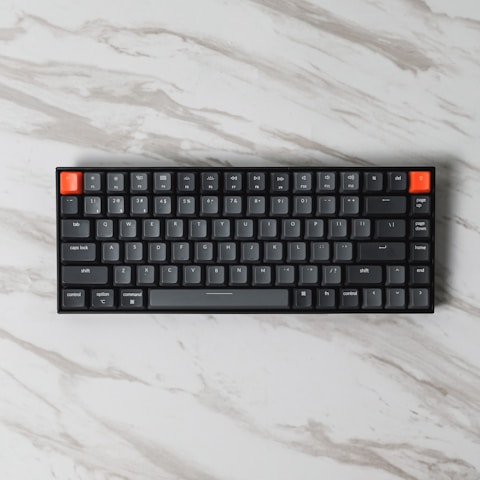
Fix 1 — Toggle Fn Lock
Press Fn + Esc to toggle the Fn Lock state. When Fn Lock is on, pressing F1–F12 triggers the media or hardware function (volume, brightness, etc.) directly without holding the Fn key, and holding Fn gives the F1–F12 keystroke. When Fn Lock is off, the reverse applies: F1–F12 gives the keystroke and Fn + F-key triggers the hardware function. The Fn Lock LED indicator on the Esc key is lit when Fn Lock is active. Check the current Fn Lock state first before investigating driver or software causes.
Fix 2 — Reinstall Dell Hotkey Service
Download Dell Hotkey Service from the Dell Support page for the Inspiron 16 Plus 7630 (Model P96F). The Dell Hotkey Service is a Windows service that intercepts HID hotkey scan codes from the keyboard hardware and translates them into the correct Windows actions. Without it running, the keyboard hardware sends the scan codes but Windows does not process them as the intended hotkey actions. After installing, open Services (services.msc) and confirm the Dell Hotkey Service is running and set to Automatic start.
Per Fairus Shamsul, business user on Dell Inspiron 16 Plus 7630: “The brightness and volume hotkeys stopped working after a Windows update removed the Dell Hotkey Service. Reinstalling it from Dell Support fixed all function key hotkeys in under five minutes.”
Fix 3 — Check Function Key Behavior in BIOS
Restart and press F2 to enter BIOS setup. Navigate to Main → Function Key Behavior. Set it to Multimedia Key (hotkeys primary) or Function Key depending on your preferred default behavior. The BIOS setting determines which mode takes priority without pressing Fn. This BIOS setting and the Windows Fn Lock state interact: if they are set consistently, hotkeys work as expected. If they conflict, hotkeys may appear to not respond or to trigger the wrong action.
Fix 4 — Update Dell Inspiron BIOS and Chipset Driver
Open SupportAssist and run a full system update check, or download the BIOS update for the Inspiron 16 Plus 7630 P96F from Dell Support. BIOS updates for this model include fixes for Intel 13th Gen HX platform hotkey interrupt handling. Also download and install the Intel Chipset Device Software from Dell Support, as the chipset driver registers the correct device IDs for the Dell Hotkey Service to attach to on the i7-13700H platform.
Frequently Asked Questions
Why are hotkeys not working on Dell Inspiron 16 Plus 7630?
The most common causes are Fn Lock being enabled (inverting Fn key behavior), the Dell Hotkey Service not running, or the service being removed by a Windows update. Press Fn + Esc to check Fn Lock first, then check if the Dell Hotkey Service is installed and running in Windows Services.
How do I know if Fn Lock is on for Dell Inspiron 16 Plus?
The Fn Lock LED on the Esc key is lit when Fn Lock is active. When active, pressing F1 to F12 directly triggers volume, brightness, and media functions. Pressing Fn + F1 through F12 sends the standard F-key input to applications. Press Fn + Esc once to toggle between the two behaviors.
Where do I find the Dell Hotkey Service download?
Go to Dell Support and enter the Inspiron 16 Plus 7630 service tag or model P96F. Under Drivers and Downloads, filter by Windows 11 and look in the System Management or Input categories. The file is named Dell Hotkey Service and is a small installer that registers the hotkey translation service in Windows.
Does Dell Optimizer affect function key hotkeys on Inspiron 16 Plus 7630?
Yes. Dell Optimizer provides additional function key customizations including the ability to remap hotkeys. If Dell Optimizer is installed and has the Fn key behavior configured to custom settings, it can override the standard hotkey actions. Open Dell Optimizer and check the Keyboard section for any custom Fn key mappings that may be blocking the default hotkey behavior.
Conclusion
Hotkeys not working on the Dell Inspiron 16 Plus 7630 i7-13700H are most often caused by Fn Lock being active or the Dell Hotkey Service not running. Press Fn + Esc to toggle Fn Lock and check the Esc key LED indicator. Download and install the Dell Hotkey Service from Dell Support for the Inspiron 16 Plus 7630 P96F. Confirm the BIOS Function Key Behavior setting matches your preferred hotkey mode, and keep the BIOS updated via SupportAssist for Intel 13th Gen HX platform hotkey compatibility.

Ryan holds a Computer Science degree and has over 20 years of hands-on experience with PC hardware, software, and driver troubleshooting. He is the author behind softwaredriverdownload.com, where he helps everyday users fix driver issues quickly and accurately. Ryan has personally tested most of the fixes on this site across a range of Windows 10 and Windows 11 machines.
Leave a Reply