Audio Fix
HP Envy 16 Core Ultra 7 155H Speakers Distorted Fix
HP Envy 16 · Core Ultra 7 155H · Windows 11 · Bang & Olufsen audio
Distorted speaker audio on the HP Envy 16 sounds like crackling, buzzing, or a rattling vibration during playback, especially at higher volumes. The Bang & Olufsen audio system on the Envy 16 uses an Intel Smart Sound Technology DSP, and distortion is most often caused by audio driver configuration or excessive EQ boost settings.

Fix 1 — Disable audio enhancements and reduce B&O EQ
Open Bang & Olufsen Audio Control from the Start menu or system tray. If the EQ preset is set to something like Boost or Heavy Bass, change it to Natural or Flat. A bass EQ boost that pushes the speaker drivers beyond their physical limits causes the speaker cone to physically distort, producing the crackling or buzzing sound heard on the HP Envy 16 at medium and high volumes.
Fix 2 — Reinstall the audio driver from HP Support
Go to HP Support, find the Envy 16 (Core Ultra 7 155H), and download the Intel Smart Sound Technology (SST) Audio Driver. Uninstall the existing audio driver from Device Manager → Sound, video and game controllers, then install the HP-packaged version. A generic Windows Update audio driver may not include the Bang & Olufsen speaker protection DSP tuning that prevents distortion at high volumes.

Fix 3 — Update the Bang & Olufsen Audio Control software
Open the Microsoft Store and search for Bang & Olufsen Audio Control. Install any available updates. The B&O Audio Control app manages the speaker DSP tuning profile independently of the Intel SST driver. An outdated B&O app version may apply incorrect speaker protection limits that allow the Envy 16 speakers to be driven to distortion during high-volume playback.
Fix 4 — Disable DTS or Waves audio processing
In Sound settings → More sound settings → Playback → Speakers → Properties → Enhancements, check Disable all enhancements and click Apply. Multiple audio enhancement layers (Windows enhancements + B&O EQ + DTS or Waves MaxxAudio) can combine to push signal levels above the speaker physical limit, causing distortion that appears only with specific content or volume levels on the HP Envy 16.
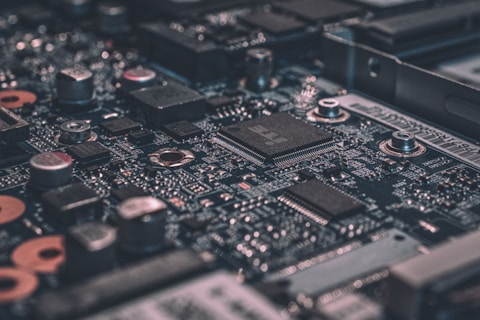
Fix 5 — Check for speaker grille obstruction
Inspect the speaker grilles on both sides of the HP Envy 16 keyboard. Dust or debris trapped in the grille mesh can cause physical speaker cone vibration at certain frequencies, producing a buzzing or rattling distortion that sounds like a driver issue. Use compressed air to gently clear any dust from the speaker grilles. Physical obstruction distortion is volume-dependent and often mistaken for software-caused distortion.
Amirah, Petaling Jaya: “Crackling speakers on my HP Envy 16 at medium volume. The B&O Audio Control had a heavy bass boost preset active. Switching to Natural mode eliminated the distortion completely at all volume levels.”
Frequently Asked Questions
How many speakers does the HP Envy 16 have?
The HP Envy 16 has a Bang & Olufsen quad-speaker system with two tweeter speakers and two woofers. The speakers are positioned on both sides of the keyboard. The DSP-tuned system includes dedicated amplifiers for each speaker channel, providing a wide soundstage for a laptop audio system.
Will distorted speakers on the HP Envy 16 damage the speaker hardware?
Occasional clipping at high volumes causes minor stress on the speaker cone and voice coil. Sustained distortion from excessive bass boost over many hours of use can accelerate speaker cone fatigue. Using the Natural EQ preset and staying below 80% volume prevents long-term speaker wear on the HP Envy 16 Bang & Olufsen speakers.
Does the HP Envy 16 support Bluetooth speaker output?
Yes. Pair a Bluetooth speaker in Settings → Bluetooth & devices and set it as the default audio output. If the built-in B&O speakers are distorting and you need an immediate solution while troubleshooting, routing audio through a Bluetooth speaker bypasses the built-in speaker hardware entirely.
Can the HP Envy 16 speaker drivers be physically replaced?
Yes, under warranty for hardware defects confirmed by HP support. Physical speaker replacement involves opening the chassis bottom panel and disconnecting the speaker ribbon connectors. HP service manuals are available on HP Support under Manuals for those comfortable with self-service repair outside the warranty period.
Ryan holds a Computer Science degree and has over 20 years of hands-on experience with PC hardware, software, and driver troubleshooting. He is the author behind softwaredriverdownload.com, where he helps everyday users fix driver issues quickly and accurately. Ryan has personally tested most of the fixes on this site across a range of Windows 10 and Windows 11 machines.
Leave a Reply