ASUS ExpertBook touchpad gestures not working on Windows 11? The cursor moves correctly but two-finger scroll does not work, three-finger swipe does nothing, tap-to-click requires excessive pressure, or the touchpad sensitivity is different from expected. ASUS ExpertBook B9, B7, B5, P2, and B1 series laptops use Elan or Synaptics precision touchpad hardware. Windows 11 updates can replace the precision driver with a generic HID-compliant mouse driver that supports basic pointer movement but strips out all gesture functionality.
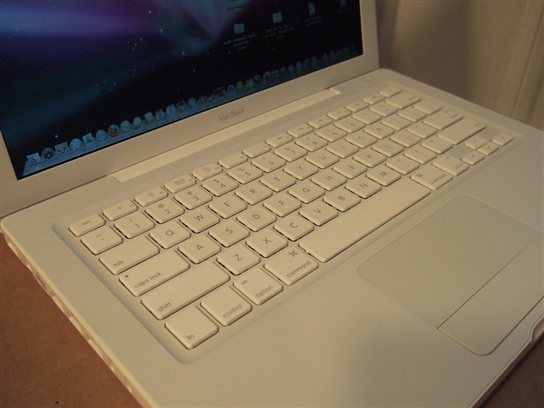
Why ASUS ExpertBook Touchpad Gestures Stop Working on Windows 11
Gesture-specific touchpad failures on ASUS ExpertBook have causes distinct from full touchpad failure:
- Generic HID mouse driver active instead of Elan precision driver — cursor moves but no gestures; Settings does not show “Your PC has a precision touchpad” confirmation
- Windows 11 gesture settings reset — Windows 11 updates can reset touchpad gesture settings; three-finger and four-finger gestures may have been changed to unrecognized assignments
- ASUS System Control Interface missing — SCI V2 or V3 provides the ACPI layer between Fn key input and touchpad gesture control; without it gesture shortcuts do not function
- Elan Smart Pad app uninstalled — on some ExpertBook models, the Elan Smart Pad companion app provides additional gesture configuration that the driver alone does not expose
Check Precision Touchpad Confirmation
Go to Settings → Bluetooth & Devices → Touchpad. At the top of the touchpad section, it should say Your PC has a precision touchpad. If this text is absent, the Elan precision driver is not installed — only the generic HID driver is active. Installing the Elan driver from ASUS Support will add this confirmation and restore all gestures.
Fix ASUS ExpertBook Touchpad Gestures on Windows 11
Step 1: Install Elan Touchpad Driver from ASUS Support
Go to ASUS Support, enter your ExpertBook model (e.g., B9400CEA, B7402FEA). Go to Drivers & Tools → Windows 11 64-bit → Touchpad. Download and install the Elan Touchpad Driver. If Device Manager shows only HID-compliant mouse, uninstall it with Delete driver before running the Elan installer. Restart after install and verify the precision touchpad confirmation appears in Settings.
Step 2: Configure Gestures in Touchpad Settings
Settings → Bluetooth & Devices → Touchpad. Under Scrolling and zooming, confirm Scroll direction and Pinch to zoom are enabled. Under Three-finger gestures and Four-finger gestures, confirm each swipe direction is assigned to a function. These gesture assignments can be reset by Windows 11 updates — reassign them after confirming the precision driver is installed.
Step 3: Install ASUS System Control Interface and Elan Smart Pad
From the ASUS Support page for your ExpertBook model, also download and install ASUS System Control Interface V2 or V3 and Elan Smart Pad if listed. ASUS SCI enables the Fn+F6 touchpad toggle and other keyboard shortcuts. Elan Smart Pad provides palm rejection sensitivity and tap configuration options that are not available in the basic Windows touchpad settings panel.
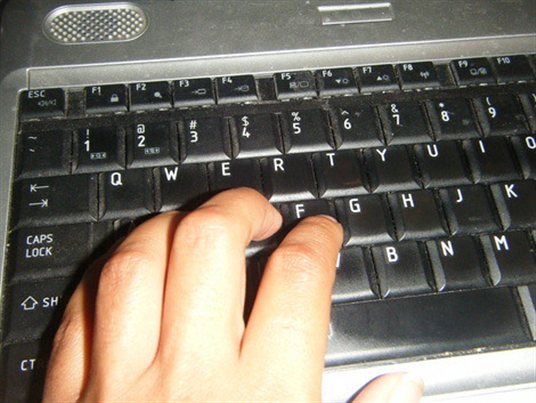
Per Richard O., who is a Corporate Lawyer using an ASUS ExpertBook B9 B9400CEA: “After Windows 11 24H2, all my touchpad gestures disappeared. Two-finger scroll worked but three-finger swipes did nothing. The Settings page did not show the precision touchpad message. ASUS Support had the Elan driver and System Control Interface. After installing both, Settings confirmed the precision touchpad and all gestures came back. I also configured palm rejection in Elan Smart Pad which removed accidental inputs while typing.”
Frequently Asked Questions
ASUS ExpertBook touchpad cursor moves but no gestures — fix?
Generic HID driver is active. Go to Settings, Bluetooth and Devices, Touchpad and check if Your PC has a precision touchpad appears. If not, install the Elan Touchpad Driver from ASUS Support for your exact ExpertBook model. Uninstall HID-compliant mouse driver first in Device Manager.
ASUS ExpertBook two-finger scroll not working — fix?
Settings, Bluetooth and Devices, Touchpad, Scrolling and zooming — confirm Scroll with two fingers is enabled and Scroll direction is set to your preference. If these options are greyed out or missing, the Elan precision driver is not active. Install from ASUS Support.
ASUS ExpertBook three-finger gestures not working — fix?
Settings, Bluetooth and Devices, Touchpad, Three-finger gestures — check each swipe direction assignment. Windows 11 updates can reset these to Nothing. Also confirm ASUS System Control Interface is installed — without it, three-finger shortcut functionality may not respond to the Elan driver events.
ASUS ExpertBook touchpad too sensitive or too slow — how to adjust?
Settings, Bluetooth and Devices, Touchpad, Cursor speed slider for basic sensitivity. For advanced adjustment, open Elan Smart Pad app from the system tray or Start menu. Elan Smart Pad provides separate control over tap sensitivity, two-finger tap, palm rejection threshold, and pointer speed curves that the Windows settings panel does not expose.
Conclusion
ASUS ExpertBook touchpad gestures not working on Windows 11 is fixed by installing the Elan Touchpad Driver and ASUS System Control Interface from ASUS Support for your specific ExpertBook model. Confirm the Settings page shows Your PC has a precision touchpad — this confirms the correct driver is active. Reinstall gestures in Settings after driver install and use Elan Smart Pad for advanced sensitivity and palm rejection configuration.
Ryan holds a Computer Science degree and has over 20 years of hands-on experience with PC hardware, software, and driver troubleshooting. He is the author behind softwaredriverdownload.com, where he helps everyday users fix driver issues quickly and accurately.
Leave a Reply