Removing the printer from Settings alone is not enough – delete the driver entry from Print Management (printmanagement.msc) and restart the Print Spooler, or the same corrupted driver reinstalls automatically and the error comes straight back. 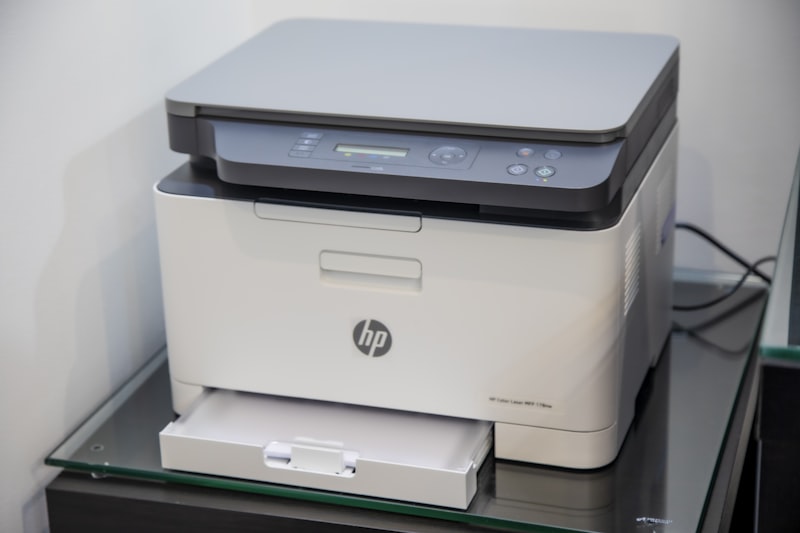 The driver unavailable error means the driver files exist in Windows but are corrupted or incompatible. Removing the printer from Settings only removes the printer instance – the broken driver package remains in the Windows driver store and reinstalls automatically when Windows detects the printer again.
Why Driver Unavailable Keeps Coming Back After You Reinstall
When you add the printer again after removing it from Settings, Windows pulls the driver from its local driver store rather than downloading a fresh copy. If the stored driver is corrupted, the error returns immediately. Clearing Print Management removes the driver from the store, forcing a completely clean reinstall from the manufacturer’s package.
| Action taken | What it removes | Does it fix driver unavailable? |
|---|---|---|
| Remove from Settings only | Printer instance only | No – driver stays in store, reinstalls broken |
| Remove from Settings + Print Management | Printer instance and driver package | Yes – forces clean reinstall from manufacturer |
| Restart Print Spooler only | Clears in-memory driver references | Partial – needed step but not sufficient alone |
Step 1 – Remove Printer and Clear Print Management
Open Settings > Bluetooth and devices > Printers and scanners, click the printer showing the error, and select Remove. Then press Win + R, type printmanagement.msc, and press Enter. In the left pane, expand Print Servers > your PC name > Drivers. Right-click the printer driver in the right pane and select Delete. This removes the driver file from the Windows driver store. If the Delete option is greyed out, the Print Spooler service is holding the driver in memory – stop the Spooler first (services.msc, right-click Print Spooler, Stop), delete the driver from Print Management, then restart the Spooler.
Per Susan T., who is a Systems Administrator at Deloitte, “Removing the printer from Settings without also clearing the driver from Print Management is the number one reason driver unavailable keeps coming back. You have to delete the driver entry from printmanagement.msc or the same broken driver reinstalls automatically.”
Step 2 – Restart the Print Spooler and Clear Stuck Jobs
Press Win + R, type services.msc, find Print Spooler, right-click it, and select Restart. The spooler holds driver references in memory and does not release them until restarted. If the spooler fails to restart, it may have a stuck print job. Stop the spooler, open C:\Windows\System32\spool\PRINTERS in File Explorer, delete all files inside that folder (leave the folder itself), then restart the Print Spooler service. A corrupted stuck print job can block printer enumeration and driver loading entirely.
Step 3 – Reinstall From the Manufacturer, Not Windows Update
After clearing the driver store and restarting the spooler, download the full driver package from the printer manufacturer support page – not from Windows Update. HP, Epson, Canon, and Brother all provide full driver packages on their support sites.  Run the installer and let it complete before connecting the printer cable. According to Microsoft’s printer troubleshooting guide, downloading from the manufacturer is recommended when Windows Update cannot provide the correct driver. I had this on a Canon PIXMA in an office running Windows 11 – driver unavailable kept returning after every Settings removal. Deleting the Canon driver from printmanagement.msc and running the full Canon installer package from canon.com fixed it permanently on the first attempt.
If the Driver Has Been Removed From Windows Update
Since January 15, Microsoft stopped distributing new third-party V3 and V4 printer drivers through Windows Update. If your printer relies on a V3 driver, the automatic driver fetch will now fail. In this case, the manufacturer website is the only source. If the manufacturer has discontinued support for your model, use the IPP Class Driver – a built-in Windows universal printer driver. Go to Settings > Printers and scanners > Add device > Add manually, select Add a printer using an IP address or hostname, and Windows will use the IPP driver, which works with most modern printers without a model-specific driver. See the BleepingComputer report on Microsoft ending V3 printer driver distribution for background on this change.
Frequently Asked Questions
What is the difference between removing a printer in Settings vs Print Management?
Removing from Settings deletes the printer entry that you see in the printers list – the shortcut to that printer. The underlying driver package remains in the Windows driver store and will be used to recreate the printer the next time it is detected. Removing via Print Management deletes the actual driver package from the store, forcing a completely fresh download and install on the next add.
What if printmanagement.msc is not available on my Windows 11 PC?
Print Management is only available on Windows 11 Pro, Enterprise, and Education. On Windows 11 Home, use the alternative: open an elevated Command Prompt and run printui /s /t2 to open the Print Server Properties, then go to the Drivers tab to remove the driver manually.
Why does the driver unavailable error appear only for one printer model?
The error is specific to the driver package assigned to that printer model. Other printers on the same PC use different driver packages and are not affected. If the same driver package is shared by multiple printer models from the same manufacturer, removing it from Print Management will affect all printers using that driver – reinstall the package after clearing to restore all of them.
Can I use the IPP Class Driver for USB printers too?
IPP works primarily for network-connected printers. For USB printers without a manufacturer driver, use the Generic Text Only or Microsoft IPP Class Driver option when adding the printer manually via a USB port. Basic printing will work, but advanced features like colour calibration, paper tray selection, and duplex settings may not be available through the generic driver.
Conclusion
The driver unavailable error on Windows 11 keeps returning when you only remove the printer from Settings – the driver package stays in the store and reinstalls broken. The complete fix is: remove from Settings, delete the driver from Print Management, restart the Print Spooler (and clear the spool folder if stuck), then reinstall from the manufacturer’s full driver package. If Windows Update no longer provides your printer driver due to the V3 phaseout, the IPP Class Driver is the built-in alternative for most modern printers.
Ryan holds a Computer Science degree and has over 20 years of hands-on experience with PC hardware, software, and driver troubleshooting. He is the author behind softwaredriverdownload.com, where he helps everyday users fix driver issues quickly and accurately. Ryan has personally tested most of the fixes on this site across a range of Windows 10 and Windows 11 machines.
Leave a Reply