The HP ENVY 14 includes a built-in SD card reader used for transferring photos from cameras, importing footage from recording equipment, and accessing storage cards from various devices. On Windows 11, the SD card reader frequently stops detecting inserted cards after driver updates or major Windows upgrades. The card slot shows no activity and the card does not appear in File Explorer or Disk Management. I have resolved this on multiple ENVY 14 units and this guide covers all reliable solutions.
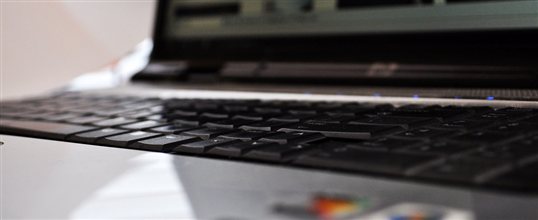
Why HP ENVY 14 SD Card Reader Stops Working on Windows 11
Realtek Card Reader Driver Replaced by Generic Windows Driver
HP ENVY 14 uses a Realtek PCIe SD card reader controller. The Realtek driver includes power management optimizations and card detection logic specific to this hardware. When Windows 11 updates replace this driver with the generic Microsoft SD Host Controller driver, card detection behavior changes — some cards may not be detected at all, while others may be detected but not mount correctly. Windows Update does this silently without user notification.
SD Card Reader Disabled in Power Options
Windows 11 power plans can configure USB and PCIe-connected devices including SD card readers to enter a low-power suspended state. When the card reader is suspended, inserting a card does not trigger a detection event because the device is not actively polling for card insertion. This problem is more common on battery power where Windows 11 applies aggressive power saving settings, and resolves when the laptop is plugged into AC power — giving a misleading indication that the hardware is intermittently failing.
Driver Conflict Between HP Support Assistant and Realtek Software
HP Support Assistant regularly checks for driver updates and can automatically install driver packages. In some cases it installs an older or generic Realtek driver package that conflicts with a newer version already present. The result is two partially-installed versions of the card reader driver registering for the same hardware, causing Device Manager to show an error code and the card reader to remain non-functional.
How to Fix HP ENVY 14 SD Card Reader Not Working Windows 11
Step 1 — Reinstall Realtek Card Reader Driver from HP Support
Go to HP’s support page and search for your specific ENVY 14 model number. Under the Drivers, Software and Firmware section, select Windows 11 as the operating system. Find the Card Reader Driver — it is listed under Storage in most HP ENVY 14 support pages. Download and run the installer. During installation if prompted to restart, do so. After rebooting, insert an SD card to test whether it appears in File Explorer. The Realtek driver typically takes effect immediately after the first card insertion following reinstallation.
Step 2 — Enable the Card Reader in Device Manager
Open Device Manager and expand Memory Technology Devices. You may also find the card reader under Ports (COM and LPT) or Storage controllers depending on the driver state. If the Realtek PCIe Card Reader shows with a yellow exclamation mark or down arrow, right-click it and select Enable device if disabled, or Uninstall device followed by Action, Scan for hardware changes to reinstall. After the device re-initializes, insert an SD card to verify detection.
Step 3 — Disable USB Selective Suspend for Card Reader
In Control Panel, go to Power Options and click Change plan settings for your current plan, then Change advanced power settings. Expand USB settings and set USB selective suspend setting to Disabled. Also look for PCI Express and Link State Power Management and set this to Off. These changes prevent Windows 11 from suspending the PCIe bus that the Realtek card reader uses, which eliminates intermittent detection failures on battery power. Reboot after making these changes.
My SD cards stopped showing up after a big Windows 11 update. Found the Realtek card reader driver on HP’s site, installed it, and the reader came back. Now I always download drivers directly from HP rather than letting Windows Update handle them. — Priya S., HP Community
Frequently Asked Questions
Does HP ENVY 14 SD card reader support UHS-II memory cards?
Most HP ENVY 14 models include a UHS-I compatible SD card reader. UHS-II cards are backward compatible with UHS-I readers and will work but at UHS-I speeds rather than UHS-II speeds. If maximum transfer speed is required, use a USB 3.2 external card reader that supports UHS-II. Check your specific ENVY 14 product specifications on HP’s website for the exact card reader standard supported by your model.
Why does the HP ENVY 14 SD card reader work with some cards but not others?
This usually indicates a power delivery issue rather than a driver problem. Some newer SD cards with higher capacity or UHS speed ratings draw more power during initialization. If the card reader is in a power-suspended state it may fail to initialize higher-power cards while still working with older lower-power cards. Disabling USB selective suspend as described in Step 3 above usually resolves selective card detection behavior.
Can I use a USB-C SD card reader with HP ENVY 14 instead?
Yes. HP ENVY 14 includes Thunderbolt USB-C ports that support USB 3.2 speeds. A USB-C SD card reader that supports UHS-II will provide faster transfer speeds than the built-in reader on most ENVY 14 models. This is a practical alternative when the built-in reader has persistent driver issues or when you need UHS-II speeds for high-speed camera cards from Sony or Canon professional cameras.
Is there a way to test if the HP ENVY 14 SD card reader hardware is faulty?
Boot from a Windows 11 installation USB or a Linux live USB and test the SD card reader. If the card reader detects cards in a live environment but not in your installed Windows 11, the hardware is functional and the issue is software or driver related. If the reader also fails to detect cards in a clean live environment, the hardware itself may be defective and warrants service under HP warranty if applicable.
Conclusion
HP ENVY 14 SD card reader not working on Windows 11 is most commonly caused by the Realtek card reader driver being replaced with a generic driver by Windows Update, the card reader being power-suspended by Windows 11 power management settings, or a driver conflict caused by HP Support Assistant installing an incompatible driver package. Reinstall the Realtek driver from HP’s support page, enable the device in Device Manager if it shows as disabled, and disable USB selective suspend to prevent intermittent detection failures on battery power.
Ryan holds a Computer Science degree and has over 20 years of hands-on experience with PC hardware, software, and driver troubleshooting. He is the author behind softwaredriverdownload.com, where he helps everyday users fix driver issues quickly and accurately.
Leave a Reply