Acer TravelMate P6 is a business-class laptop with an integrated fingerprint reader used for Windows Hello biometric authentication. When the fingerprint reader stops working on Windows 11, the reader either does not respond to touches, rejects all enrolled fingerprints with a try again or fingerprint not recognized error, or disappears from Device Manager entirely. I have fixed fingerprint authentication on TravelMate P6 units and this guide explains the driver and Windows Hello re-enrollment steps that reliably restore function.
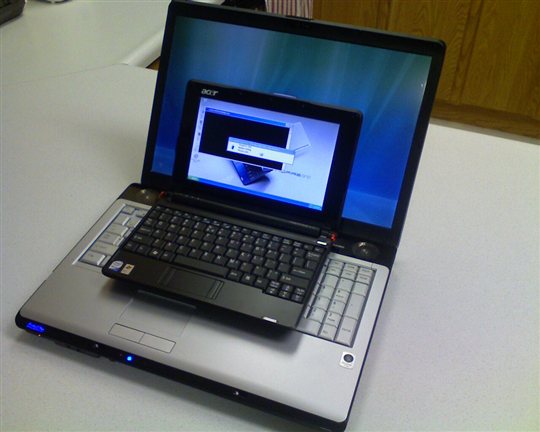
Why Acer TravelMate P6 Fingerprint Login Fails on Windows 11
Windows Hello Fingerprint Data Corrupted After Windows Update
Windows Hello stores biometric data in a secure enclave tied to the specific driver version and hardware configuration. When Windows 11 updates change the fingerprint driver or the Windows Hello service components, previously enrolled fingerprint templates can become invalid. The fingerprint reader hardware remains functional but the stored biometric data is no longer compatible with the new driver version, causing all enrolled fingerprints to be rejected. Re-enrolling fingerprints after the driver update resolves this.
Synaptics or Goodix Fingerprint Driver Not Loading Correctly
Acer TravelMate P6 uses either a Synaptics or Goodix fingerprint controller depending on the manufacturing batch. Both controllers require specific Windows 11 drivers to enable the Windows Hello biometric interface. If the driver fails to load after a Windows update — shown as an error code in Device Manager under Biometric devices — the fingerprint reader appears to be physically inactive and does not respond to touches. The device may also not appear in the Windows Hello setup screen as an available authentication method.
Secure Boot or TPM State Change Invalidating Windows Hello
Windows Hello biometric authentication is cryptographically linked to the system’s TPM (Trusted Platform Module) and is protected by Secure Boot state. If the BIOS is updated, Secure Boot settings are changed, or the TPM is cleared as part of a system maintenance procedure, Windows Hello fingerprint enrollment is automatically invalidated as a security measure. The fingerprint reader hardware continues working but Windows requires all biometric data to be re-enrolled after TPM state changes.
How to Fix Acer TravelMate P6 Fingerprint Not Working Windows 11
Step 1 — Remove and Re-Enroll Fingerprints in Windows Hello
Go to Settings, Accounts, Sign-in options. Under Windows Hello Fingerprint, click Remove to delete all stored fingerprint data. After removing, click Set up to begin fresh enrollment. Follow the on-screen instructions, placing your finger on the reader multiple times from different angles to build a complete fingerprint profile. Windows 11 requires at least four to six successful reads during enrollment to create an accurate template. After completing enrollment, lock the screen and test the fingerprint reader for login before proceeding to driver fixes.
Step 2 — Reinstall Fingerprint Driver from Acer Support
Go to Acer’s support page and search for TravelMate P6 followed by your specific model number. Under Drivers and Manuals, select Windows 11 and find the Fingerprint Reader Driver or Biometric Driver in the Security or Other Hardware category. Download and run the installer. Open Device Manager and expand Biometric devices to confirm the fingerprint controller shows without error codes. After reinstalling the driver, go back to Windows Hello settings and re-enroll your fingerprints again as the driver reinstall typically clears existing enrollment data.
Step 3 — Verify TPM is Enabled and Windows Hello Compatible
Press Windows+R and type tpm.msc to open the TPM Management Console. Verify that TPM 2.0 is shown as ready and active. If the TPM shows as not ready or cleared, the BIOS may need configuration. Restart the TravelMate P6 and enter BIOS by pressing F2 at the Acer logo. In the Security section, ensure TPM Device is set to Enabled and Secure Boot is turned on. Save and exit. Return to Windows Hello settings and enroll fingerprints again. TPM must be active for Windows Hello fingerprint authentication to function on Windows 11.
After a BIOS update on my TravelMate P6, fingerprint stopped working entirely. The TPM management console showed the TPM needed initialization. I enabled it in BIOS, let Windows re-initialize it, then re-enrolled my fingerprints in Windows Hello and login worked again. — Robert F., Acer Business Community
Frequently Asked Questions
How many fingerprints can Acer TravelMate P6 store for Windows Hello?
Windows Hello on Windows 11 supports enrollment of up to 10 fingerprints per user account. Acer TravelMate P6 hardware supports this limit. Enrolling multiple fingers — including fingers from both hands — provides flexibility and backup when one hand is occupied. To add additional fingers after initial enrollment, go to Settings, Accounts, Sign-in options, Windows Hello Fingerprint and click Add another to add more fingerprint templates.
Why does Acer TravelMate P6 fingerprint reader work for other users but not my account?
Windows Hello fingerprint data is stored per user account. If the fingerprint reader works for the administrator account or another user but not yours, the issue is with the stored fingerprint template for your specific account — not the hardware or driver. Go to Settings, Accounts, Sign-in options and remove then re-enroll your fingerprints. Also check that your account has a PIN set up as Windows Hello requires a PIN backup before fingerprint enrollment is permitted.
Does Acer TravelMate P6 fingerprint work to unlock at startup?
The fingerprint reader on TravelMate P6 authenticates at the Windows login screen. It does not unlock the laptop at the pre-boot stage before Windows loads — that requires entering a BIOS or disk encryption password with the keyboard. Once Windows 11 loads and the login screen appears, the fingerprint reader activates and waiting for finger placement enables fingerprint login. For fastest boot-to-desktop with fingerprint, ensure fast startup is enabled in Power Options.
Can Acer TravelMate P6 fingerprint reader be used with third-party password managers?
Yes. Windows Hello biometric authentication is accessible to applications through the Windows Credential Manager API and the Windows Hello SDK. Password managers like 1Password and Bitwarden that support Windows Hello can use the TravelMate P6 fingerprint reader for vault authentication rather than requiring a master password each time. Enable Windows Hello in the password manager’s settings after confirming fingerprint works for Windows login.
Conclusion
Acer TravelMate P6 fingerprint login failing on Windows 11 is caused by Windows Hello biometric data becoming invalid after a driver update, the Synaptics or Goodix fingerprint driver failing to load after a Windows update, or TPM state changes from BIOS updates invalidating existing enrollment. Remove all stored fingerprint data and re-enroll, reinstall the fingerprint driver from Acer’s support page and re-enroll again, and verify TPM 2.0 is enabled and active in the BIOS security settings. Testing with both fingerprint removal and re-enrollment after each step quickly identifies which factor is preventing authentication.
Ryan holds a Computer Science degree and has over 20 years of hands-on experience with PC hardware, software, and driver troubleshooting. He is the author behind softwaredriverdownload.com, where he helps everyday users fix driver issues quickly and accurately.
Leave a Reply