ASUS · ProArt PX13 HN7306 · Windows 11
GPU Not Engaging in Apps Fix
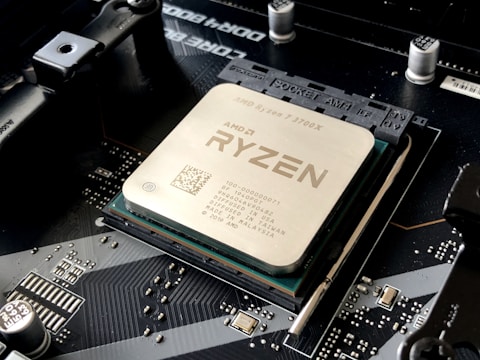
Creative apps on the ASUS ProArt PX13 HN7306 run slowly because they use the AMD iGPU instead of the NVIDIA RTX GPU. The AMD Ryzen AI 9 HX 370 model switches GPUs automatically, and an unassigned app or an outdated Studio driver is the usual reason the discrete GPU stays idle.
Fix 1 — Assign the App to High Performance
Settings → System → Display → Graphics. Add your creative app and set it to High performance so it runs on the NVIDIA RTX GPU. This is the most direct way to engage the discrete GPU on the ProArt PX13 HN7306.
Fix 2 — Install the NVIDIA Studio Driver
- Download the NVIDIA Studio driver from the ASUS PX13 HN7306 page
- Install it and restart
- The Studio driver is certified for creative software
- It ensures the RTX GPU engages for rendering and export
Fix 3 — Set a Global Preference
Right-click the desktop → NVIDIA Control Panel → Manage 3D settings → Preferred graphics processor → High-performance NVIDIA processor. Confirm the engagement in Task Manager while the ProArt PX13 HN7306 runs a heavy task.
“Assigning my editor to High performance and installing the Studio driver finally engaged the RTX GPU on my ProArt PX13 HN7306.” — Hazman, Subang Jaya

Ryan holds a Computer Science degree and has spent over 15 years troubleshooting Windows hardware and driver issues across major laptop brands. He writes practical, step-by-step guides for everyday users at softwaredriverdownload.com.
Leave a Reply