ASUS ROG Zephyrus Duo 16 GX650 • AMD Ryzen 9 7945HX • Windows 11
ROG ScreenPad Plus (Second Screen) Not Working Fix

The ASUS ROG Zephyrus Duo 16 GX650 features a 14-inch ROG ScreenPad Plus secondary display above the keyboard. This secondary screen is controlled through Armoury Crate and ROG ScreenPad software. When it goes blank, freezes, or fails to display content, the issue is almost always a driver or software conflict rather than a hardware failure.
Fix 1: Check Windows Display Settings
Go to Settings > System > Display. The ROG ScreenPad Plus appears as a second display. If it shows as Disconnected, click Detect. If it shows as disabled, click it and change the Multiple displays dropdown from Show desktop only on 1 to Extend these displays. Apply and confirm.
Fix 2: Reinstall Armoury Crate and ScreenPad Software
Uninstall Armoury Crate and ROG ScreenPad from the Microsoft Store or Programs list. Restart. Download fresh versions from the ASUS Support page for the GX650. Install Armoury Crate first, then let it install ScreenPad as a component. The install order matters — ScreenPad depends on Armoury Crate services.
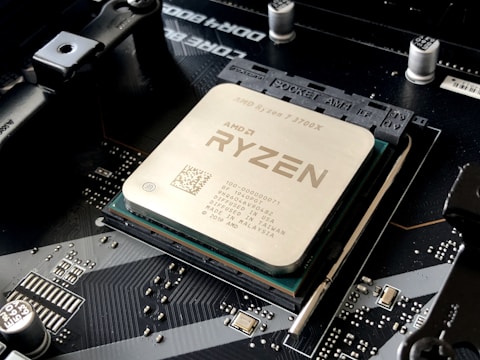
Fix 3: Update AMD GPU Driver
The ScreenPad Plus is driven by the AMD Radeon 780M integrated GPU. Updating the AMD Adrenalin driver to the latest version resolves ScreenPad display corruption and black screen issues that affect the secondary panel. Download from ASUS Support to get the GX650-validated driver version.
- Do not use AMD Auto-Detect for this model — ASUS validates specific driver versions for the ScreenPad Plus
- After driver installation, check Armoury Crate to re-enable ScreenPad content routing
Fix 4: Update BIOS
ASUS releases BIOS updates that fix ScreenPad Plus initialization and display management bugs on the Zephyrus Duo 16. Check MyASUS or ASUS Support for the latest firmware and install it while the laptop is plugged in.
“My ScreenPad Plus on the Duo 16 went blank after an Armoury Crate update. Uninstalling and reinstalling AC plus the ScreenPad software in the right order fixed it. The install order really matters.” — Irfan Hamidon, motion graphics artist

Frequently Asked Questions
Ryan holds a Computer Science degree and has spent over 15 years troubleshooting Windows hardware and driver issues across major laptop brands. He writes practical, step-by-step guides for everyday users at softwaredriverdownload.com.
Why is the ROG ScreenPad Plus blank on the Zephyrus Duo 16 GX650?
The most common causes are the second display being disabled in Windows Display settings, outdated or corrupted Armoury Crate or ScreenPad software, or an incompatible AMD GPU driver. Check Windows Display settings first, then reinstall Armoury Crate followed by ROG ScreenPad software.
How do I enable the ROG ScreenPad Plus on the Zephyrus Duo 16?
Go to Settings > System > Display and ensure the ScreenPad Plus (shown as a second monitor) is set to Extend or Duplicate. Then open Armoury Crate and configure which content to show on the secondary display, including app shortcuts, audio controls, or browser tabs.
Can I use the ROG ScreenPad Plus as a drawing tablet on the Zephyrus Duo 16 GX650?
Yes. The ScreenPad Plus supports stylus input on the Zephyrus Duo 16. It works with most Windows Ink-compatible styluses. Enable ScreenPad drawing mode in Armoury Crate and calibrate touch input via Windows touchscreen calibration settings.
Does the ScreenPad Plus affect gaming performance on the Zephyrus Duo 16?
Yes, slightly. The ScreenPad Plus is driven by the integrated AMD GPU, and displaying active content on it draws some GPU resources. For maximum gaming performance, set the ScreenPad Plus to a static image or turn it off temporarily via Settings > Display > Disconnect.
Leave a Reply