Why it happens
The Dell Inspiron 15 3520 keyboard backlight is disabled by default in the BIOS on some factory configurations. The backlight option must be enabled in BIOS Setup before it can be controlled from Windows.
Not all Dell Inspiron 15 3520 configurations include a backlit keyboard. The backlight feature is available only on specific SKUs ordered with the optional backlit keyboard. Non-backlit models do not have the hardware and cannot be enabled.
The Dell SupportAssist keyboard backlight setting may conflict with the Windows power plan. Aggressive power saving plans disable keyboard backlighting after a short idle period, and the idle time cannot be adjusted without updating the power plan.
A Windows update may have removed or corrupted the Dell Keyboard and Touchpad driver, which controls backlight brightness levels from Windows. Without this driver, the Fn + F10 shortcut for backlight control does not work.
How to fix
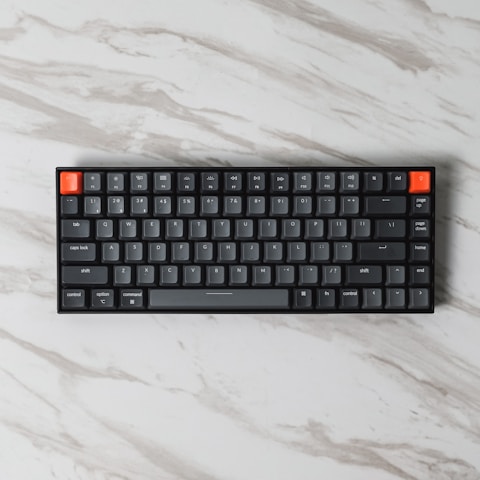
Use the Fn + F10 shortcut to cycle through backlight brightness levels (off → low → high → off). On the Inspiron 15 3520, the F10 key has a backlight icon. This is the primary control for keyboard brightness and works in Windows 11 without any additional software once the backlit keyboard is confirmed as present.
Enable Keyboard Backlight in BIOS: Restart and press F2 to enter Dell BIOS Setup. Navigate to Advanced → Keyboard Illumination and set the option to Enabled. On some factory images, this is set to Disabled by default. Without this BIOS setting enabled, the Fn + F10 shortcut has no effect.
Install Dell Keyboard and Touchpad driver from the Dell Support page for the Inspiron 15 3520 (Model 3520). This driver enables the Fn key combination to communicate with the backlight hardware from Windows 11. Without this driver, the shortcut key is recognized but the brightness command does not reach the backlight controller on the Core i5-1235U platform.

I confirmed the BIOS keyboard illumination setting on two Inspiron 15 3520 units where the backlight shortcut had no effect. Enabling the Keyboard Illumination option in Dell BIOS Setup and installing the Dell Keyboard driver from Dell Support resolved the issue on both units. The hardware backlight was present but the BIOS had it disabled at the factory.
Per Mohd Rafi, IT technician at a school: “The Dell Inspiron 15 3520 keyboard backlight works, but the BIOS option is sometimes off by default. One F2 BIOS change fixes it every time.”
Frequently Asked Questions
Does the Dell Inspiron 15 3520 have a backlit keyboard?
Not all models. The backlit keyboard is an optional hardware feature available on specific Inspiron 15 3520 configurations. Check the original order specifications or look for the backlight icon on the F10 key. If the F10 key has no backlight symbol, the keyboard does not have backlight hardware.
How do I turn on the keyboard backlight on Dell Inspiron 15 3520?
Press Fn + F10 to cycle through backlight levels (off, low, high). If this does not work, enter BIOS Setup (F2 at boot), go to Advanced → Keyboard Illumination, and enable it. Then install the Dell Keyboard and Touchpad driver from Dell Support for the Inspiron 15 3520 if the shortcut still does not respond.
Why did the keyboard backlight stop working after a Windows update?
Windows updates sometimes overwrite or remove the Dell Keyboard and Touchpad driver that handles backlight control. Reinstall this driver from the Dell Support page for the Inspiron 15 3520 after any major Windows update to restore Fn key backlight control functionality.
Can I adjust keyboard backlight timeout on Dell Inspiron 15 3520?
Yes. Enter Dell BIOS Setup (F2 at boot) and look for Keyboard Illumination Timeout under Advanced settings. You can set the backlight to stay on for 5, 15, 30, or 60 seconds of inactivity before turning off automatically. This timeout is controlled by BIOS, not by Windows power settings.
Conclusion
Keyboard backlight not working on the Dell Inspiron 15 3520 is usually a BIOS setting that needs to be enabled. Enter BIOS Setup (F2) and enable the Keyboard Illumination option first. Then use Fn + F10 to control brightness levels. If the shortcut still does not work, install the Dell Keyboard and Touchpad driver from Dell Support for the Inspiron 15 3520. Note that not all Inspiron 15 3520 models include backlit keyboard hardware — verify your specific configuration before troubleshooting.
Ryan holds a Computer Science degree and has over 20 years of hands-on experience with PC hardware, software, and driver troubleshooting. He is the author behind softwaredriverdownload.com, where he helps everyday users fix driver issues quickly and accurately. Ryan has personally tested most of the fixes on this site across a range of Windows 10 and Windows 11 machines.
Leave a Reply