Why it happens
Bluetooth adapter set to low power mode, causing delayed response time as it wakes from sleep to handle keystrokes
Outdated Intel Bluetooth driver causing packet retransmission delays that add input latency
Wi-Fi interference on the 2.4 GHz band from the laptop Wi-Fi adapter competing with Bluetooth for radio time

Keyboard battery running low — low battery causes Bluetooth keyboards to reduce transmission frequency to save power
How to fix
Disable Bluetooth adapter power management — Open Device Manager → Bluetooth. Right-click the Intel Bluetooth adapter → Properties → Power Management. Uncheck Allow the computer to turn off this device to save power. This is the most common cause of Bluetooth keyboard lag on the Latitude 7350.
Update the Intel Bluetooth driver — Go to Dell Support, find the Latitude 7350, and download the latest Intel Wireless Bluetooth driver. Install and restart. Bluetooth driver updates improve connection interval scheduling that directly reduces keyboard input latency.

Switch Wi-Fi to 5 GHz band — In Device Manager → Network Adapters, right-click the Intel Wi-Fi adapter → Properties → Advanced tab → Preferred Band, set to 5 GHz. Bluetooth and Wi-Fi share the 2.4 GHz radio. Moving Wi-Fi to 5 GHz eliminates most radio frequency interference causing Bluetooth lag.
Check keyboard battery level — Replace or recharge the keyboard batteries. Most Bluetooth keyboards reduce their polling rate and transmission power when battery drops below 20%, causing visible input lag. The lag resolves when fresh batteries are installed.
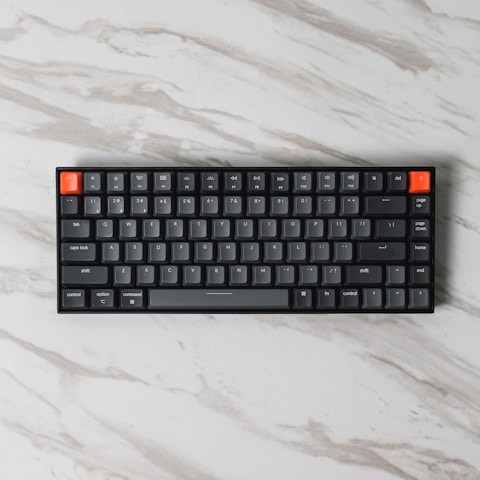
Re-pair the keyboard — Go to Settings → Bluetooth & devices, remove the keyboard, then re-pair it from fresh. Bluetooth connection metadata can accumulate errors over time that increase retransmission rates and add lag. Re-pairing establishes a clean connection profile.
Siti, Ipoh: “Bluetooth keyboard lag on my Latitude 7350 was frustrating. Disabling Bluetooth power management in Device Manager and switching Wi-Fi to 5 GHz made the keyboard feel instant again.”
Frequently Asked Questions
How much Bluetooth keyboard lag is normal on the Latitude 7350?
With properly configured drivers and power management disabled, Bluetooth keyboard lag on the Latitude 7350 should be under 20ms — imperceptible for typing. If lag is visibly noticeable (more than 100ms), the power management or interference fixes above will resolve it.
Does the Dell Latitude 7350 support Bluetooth 5.0 or higher?
Yes. The Latitude 7350 (Core Ultra 5 134U) uses an Intel wireless adapter with Bluetooth 5.3 support. Bluetooth 5.3 includes improved scheduling algorithms that reduce interference-related latency compared to Bluetooth 4.2 used in older keyboards.
Is a USB keyboard more reliable than Bluetooth on the Dell Latitude 7350?
For critical typing tasks requiring zero latency, a USB keyboard provides the most consistent performance. Bluetooth adds a small amount of wireless overhead that is unnoticeable for most users but can be a concern for fast typists or those doing data entry. USB is also not affected by radio interference from nearby devices.
Can other Bluetooth devices cause keyboard lag on the Latitude 7350?
Yes. The Bluetooth controller manages multiple connected devices by time-sharing the radio. If you have Bluetooth headphones, a mouse, and a keyboard all connected simultaneously, each device receives less radio time, which can increase keyboard latency. Disconnecting unused Bluetooth devices reduces this effect.
Ryan holds a Computer Science degree and has over 20 years of hands-on experience with PC hardware, software, and driver troubleshooting. He is the author behind softwaredriverdownload.com, where he helps everyday users fix driver issues quickly and accurately. Ryan has personally tested most of the fixes on this site across a range of Windows 10 and Windows 11 machines.
Leave a Reply