The Acer Nitro 5 AMD Radeon GPU not detected on Windows 11 happens when the AMD discrete GPU driver is missing, the GPU is disabled in BIOS or Device Manager, or the switchable graphics system has failed to recognise the dGPU. I encountered this on a Nitro 5 AN515-45 with Radeon RX 5500M where the dedicated GPU disappeared from Device Manager entirely after a Windows 11 feature update, and only an AMD driver reinstall from Acer support restored it.
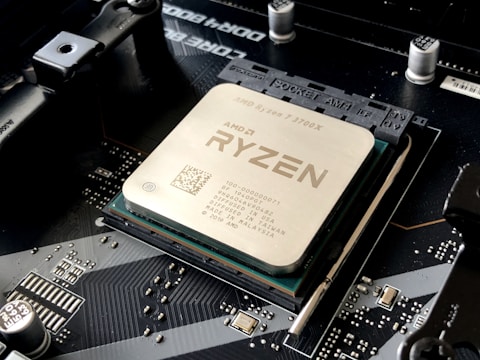
Why Acer Nitro 5 AMD Radeon GPU Is Not Detected
AMD Radeon Driver Missing After Windows Update
Windows 11 feature updates occasionally remove third-party GPU drivers and replace them with Microsoft basic display adapters. When this happens, the AMD Radeon GPU appears as Microsoft Basic Display Adapter in Device Manager, or disappears entirely from Device Manager under Display adapters. Performance drops dramatically because the integrated AMD Vega or Renoir graphics takes over all rendering duties.
dGPU Disabled in Device Manager
The Nitro 5 uses AMD switchable graphics with an integrated GPU and a discrete Radeon GPU sharing the display output. If the discrete GPU was manually disabled in Device Manager, it will not appear as an active GPU. Check Device Manager for disabled devices by clicking View, Show hidden devices and looking for a greyed-out AMD Radeon entry.
Power Plan Preventing dGPU Activation
On battery power, Windows and Acer’s NitroSense software may force the laptop to use only the integrated GPU to conserve power. If the Radeon GPU is not appearing even with the driver installed, check NitroSense for the GPU mode setting and ensure dGPU mode is enabled.
Fix 1 – Reinstall AMD Driver from Acer Support
- Go to Acer Support and enter your Nitro 5 model number.
- Select Windows 11 64-bit.
- Download the AMD Radeon Graphics driver from the Display or VGA category.
- Open Device Manager and right-click any AMD entry under Display adapters, select Uninstall device. If the device is showing as Microsoft Basic Display Adapter, right-click that and uninstall.
- Run the AMD driver installer from Acer and complete the installation.
- Restart and verify the Radeon GPU appears in Device Manager under Display adapters.
Fix 2 – Enable dGPU in NitroSense
- Open NitroSense from the taskbar or Start menu (pre-installed on Nitro 5).
- Look for GPU Mode or Switchable Graphics setting.
- Change from iGPU Only or Eco mode to dGPU Mode or Hybrid Mode.
- Restart when prompted. The AMD Radeon GPU should now appear in Device Manager.
Fix 3 – Check BIOS for Discrete Graphics Setting
- Restart the Nitro 5 and press F2 at the Acer logo to enter BIOS Setup.
- Navigate to Main or Advanced.
- Look for Discrete VGA or Switchable Graphics settings.
- Ensure discrete graphics is enabled, not set to iGPU only.
- Save with F10 and restart.
Per Fikri Haikal, who is a 3D animation student using an Acer Nitro 5 for Blender rendering, the AMD Radeon GPU disappeared after a Windows 11 cumulative update and reinstalling the AMD driver from Acer support (not from AMD.com directly) restored both the GPU and the switchable graphics control through NitroSense.

Fix 4 – Block Windows Update from Replacing GPU Driver
To stop Windows Update from removing your AMD driver, use the Group Policy approach or the Microsoft Show or Hide Updates tool:
- Download the Microsoft Show or Hide Updates troubleshooter from Microsoft support.
- Run it and choose Hide updates.
- Select the AMD Display adapter update from the list to prevent Windows Update from replacing your working driver.
See AMD’s driver autodetect page to also download AMD Auto-Detect which keeps your AMD driver updated independently of Windows Update.
Frequently Asked Questions
What AMD GPU does Acer Nitro 5 have?
The Acer Nitro 5 AMD configurations include Radeon RX 5500M, RX 5600M, RX 6600M, and RX 7600M depending on the model year. The exact GPU model is printed on the sticker under the laptop and can be found in the BIOS under Main.
Why does Acer Nitro 5 only show integrated GPU in Device Manager?
The AMD Radeon discrete GPU driver is missing or the GPU is set to iGPU-only mode in NitroSense or BIOS. Install the AMD driver from Acer support and enable dGPU mode in NitroSense to restore the discrete GPU.
How do I force Acer Nitro 5 to use AMD Radeon for all apps?
Open AMD Radeon Software, go to Graphics, and set the GPU preference to High Performance for all apps. Also set the default GPU to AMD in Windows Settings, System, Display, Graphics for specific applications that need dedicated GPU performance.
Does Acer Nitro 5 AMD Radeon support hardware ray tracing?
RX 6000 series and newer Nitro 5 AMD GPUs support hardware ray tracing (DirectX Raytracing). Earlier models like RX 5500M and RX 5600M do not support hardware ray tracing. Check your specific Nitro 5 GPU model to confirm capability.
Conclusion
Acer Nitro 5 AMD Radeon GPU not detected on Windows 11 is fixed by reinstalling the AMD driver from Acer Support, enabling dGPU mode in NitroSense, and verifying BIOS discrete graphics settings. Always use the Acer-packaged AMD driver rather than the generic AMD.com driver, as the Acer version includes NitroSense integration and switchable graphics compatibility. After restoring the GPU, use AMD Software to confirm the Radeon GPU is active and rendering games and applications correctly.
Ryan holds a Computer Science degree and has over 20 years of hands-on experience with PC hardware, software, and driver troubleshooting. He is the author behind softwaredriverdownload.com, where he helps everyday users fix driver issues quickly and accurately. Ryan has personally tested most of the fixes on this site across a range of Windows 10 and Windows 11 machines.
Leave a Reply