Acer Nitro 5 GPU driver crashing on Windows 11? The screen flickers, goes black, or you get a BSOD with VIDEO_TDR_FAILURE and nvlddmkm.sys listed as the failed driver. The Acer Nitro 5 uses NVIDIA GeForce GTX/RTX discrete graphics alongside Intel integrated GPU. Driver conflicts between these two GPUs, combined with Windows 11’s stricter Timeout Detection and Recovery behavior, cause frequent crashes on Nitro 5 models. A clean driver reinstall using DDU is the most reliable fix.
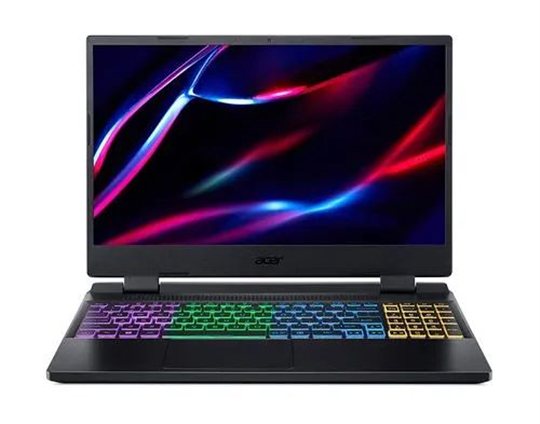
Why Acer Nitro 5 NVIDIA Driver Keeps Crashing on Windows 11
Acer Nitro 5 models use NVIDIA Optimus technology — Intel iGPU handles light tasks and the NVIDIA GPU handles gaming. Windows 11 changes the Optimus driver stack behavior compared to Windows 10, and older NVIDIA driver versions do not handle this correctly. Common root causes:
- NVIDIA driver version incompatible with Windows 11 22H2 or 23H2 — certain driver builds cause TDR on Optimus laptops
- Intel graphics driver conflict — when Intel and NVIDIA drivers are mismatched, the GPU handoff triggers a TDR
- GPU overheating under sustained load — Nitro 5 has thin vents; dust buildup causes GPU throttling that mimics a TDR event
- TdrDelay registry value too short — Windows default of 2 seconds is too short for some GPU operations on Optimus systems
Identify the Failing Driver from Event Viewer
Open Event Viewer → Windows Logs → System. Filter for Error events with source Display or nvlddmkm. Event ID 4101 is the TDR event. The description shows whether the Intel or NVIDIA driver triggered the timeout — this helps you know which driver to prioritize reinstalling.
Fix Acer Nitro 5 GPU Crash: DDU Clean Reinstall
Step 1: Boot into Safe Mode and Run DDU
Download DDU (Display Driver Uninstaller) from Guru3D. Restart into Safe Mode (Settings → System → Recovery → Advanced Startup → Troubleshoot → Startup Settings → F4). Run DDU, select GPU type NVIDIA, click Clean and Restart. DDU removes all NVIDIA driver traces that a normal uninstall leaves behind.
Step 2: Install Acer-Recommended Driver
Go to Acer Support, enter your Nitro 5 model, go to Drivers & Manuals → Display. Download and install the listed NVIDIA driver. If Acer does not have a recent version, also check NVIDIA’s site for the latest Game Ready or Studio driver. On Nitro 5, avoid DCH drivers — use the Standard package which is more compatible with Optimus configurations.
Step 3: Increase TDR Delay in Registry
Open Registry Editor. Go to HKEY_LOCAL_MACHINE\SYSTEM\CurrentControlSet\Control\GraphicsDrivers. Create DWORD TdrDelay = 8 (decimal). Create DWORD TdrDdiDelay = 15 (decimal). Restart. These values give the GPU more time to respond before Windows terminates the driver.
Fix Acer Nitro 5 GPU Overheating Causing Crashes
Download HWiNFO64 and run it with sensors open during gaming. Watch the GPU Temperature reading. Nitro 5 GPUs should stay under 85°C during sustained load. If temperatures hit 90-95°C before crashes, thermal throttling is the cause. Clean the Nitro 5 vents with compressed air from the bottom panel vents. The Nitro 5 design tends to accumulate dust in the GPU heat pipe area within 12-18 months of regular use.
Per Ivan M., who is a PC gamer using an Acer Nitro 5 AN515-57: “My Nitro 5 crashed every 20 minutes while gaming after upgrading to Windows 11 23H2. DDU clean install followed by NVIDIA’s Studio driver instead of the Game Ready driver fixed it completely — the Game Ready driver had a known conflict with Nitro 5’s Optimus configuration at the time.”
Frequently Asked Questions
Why does Acer Nitro 5 keep crashing with nvlddmkm.sys on Windows 11?
nvlddmkm.sys is the NVIDIA display driver. A crash here means the NVIDIA GPU timed out. Use DDU in Safe Mode to cleanly remove the driver, then reinstall using the Standard (not DCH) NVIDIA driver package. Also increase TdrDelay to 8 in the registry.
Should I use NVIDIA Game Ready or Studio driver on Acer Nitro 5?
Try the Studio driver if Game Ready causes crashes. Studio drivers go through additional stability testing and are less likely to have day-one bugs. Both support gaming — the difference is update frequency and stability priority.
How do I stop Acer Nitro 5 from overheating on Windows 11?
Clean the bottom vents with compressed air. In Acer NitroSense app, set Fan Mode to Max to increase airflow during gaming. Also place the laptop on a hard flat surface, never on fabric, to allow bottom intake airflow.
Acer Nitro 5 screen flickers but no BSOD — is this still a driver issue?
Screen flickering without BSOD is usually a driver issue or a refresh rate mismatch. Set the refresh rate in Settings → Display → Advanced Display to match your panel (144Hz on most Nitro 5 models). Also try rolling back the Intel graphics driver in Device Manager if flickering started after an update.
Conclusion
Acer Nitro 5 GPU driver crashes on Windows 11 are fixed by a DDU clean install of the NVIDIA driver, followed by increasing TdrDelay in the registry. Use the Standard driver package instead of DCH, and try the Studio driver if Game Ready is unstable on your specific Nitro 5 model. Monitor GPU temperatures with HWiNFO64 and clean the vents if temperatures exceed 85°C during gaming.
Ryan holds a Computer Science degree and has over 20 years of hands-on experience with PC hardware, software, and driver troubleshooting. He is the author behind softwaredriverdownload.com, where he helps everyday users fix driver issues quickly and accurately. Ryan has personally tested most of the fixes on this site across a range of Windows 10 and Windows 11 machines.
Leave a Reply