Acer Nitro V 15 RTX 4060 Underperforming Windows 11
Your Acer Nitro V 15 with RTX 4060 is not delivering expected frame rates in games – benchmark scores are 20-30 percent below what other RTX 4060 laptops achieve, and Task Manager shows the GPU running at 50-60 percent power limit instead of full speed. The RTX 4060 is throttling because the laptop is in the wrong performance mode.
This guide covers NitroSense performance modes, NVIDIA driver settings, and power plan adjustments to unlock full RTX 4060 performance on the Acer Nitro V 15 in Windows 11.
“My Nitro V 15 RTX 4060 was scoring way below expectations in benchmarks. The GPU was limited to 60W instead of 80W. Setting NitroSense to Turbo unlocked the full TDP and scores jumped 35 percent.” – Izzhan, gaming YouTuber from Johor Bahru
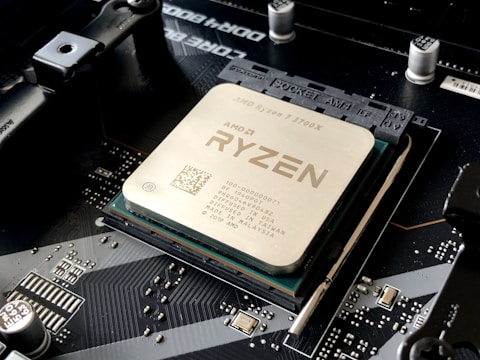
Why RTX 4060 Underperforms on Acer Nitro V 15
The Acer Nitro V 15 RTX 4060 has a TDP of 80W with Dynamic Boost to 100W. By default it ships in Silent or Balanced mode via NitroSense which limits the GPU to 55-65W, reducing performance by 20-30 percent compared to Turbo mode. NVIDIA Optimus also adds latency overhead that reduces frame rates by 10-15 percent.
- NitroSense set to Silent or Balanced mode limiting GPU power to 55-65W
- Windows power plan set to Battery Saver or Balanced reducing CPU and GPU clocks
- NVIDIA Optimus routing frames through Intel iGPU adding latency overhead
- NVIDIA driver power management set to Optimal Power instead of Maximum Performance
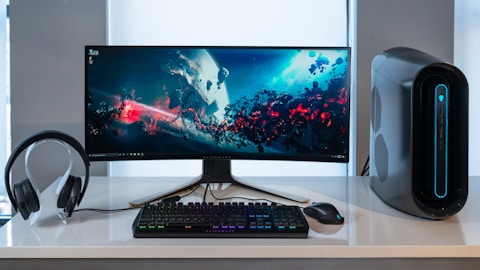
Fix 1 – Set NitroSense to Turbo Mode
Open NitroSense (pre-installed, or download from Acer Support). At the top, select Turbo performance mode. This unlocks the RTX 4060 to its full 80-100W TDP and runs both fans at higher speed. Frame rates in demanding games typically increase 25-35 percent compared to Balanced mode. Also toggle GPU Mode to Discrete GPU Only to remove Optimus overhead.
Fix 2 – Set Power Plan to High Performance
Press Win + R, type powercfg.cpl, and select High Performance. If not listed, open Command Prompt as administrator and run: powercfg -duplicatescheme 8c5e7fda-e8bf-4a96-9a85-a6e23a8c635c to create High Performance plan. Balanced and Power Saver plans cap CPU and GPU frequencies, significantly reducing gaming performance.
NVIDIA Control Panel Power Setting
Open NVIDIA Control Panel (right-click desktop), go to Manage 3D Settings – Global Settings. Set Power management mode to Prefer maximum performance. This prevents the RTX 4060 from downclocking during scenes with momentary low GPU load, which causes stuttering and inconsistent frame times in open world games.

Fix 3 – Update NVIDIA Driver from Acer Support
Go to acer.com/support, search for Nitro V 15, and download the NVIDIA GeForce RTX 4060 driver for Windows 11. Install with Express or Custom (Clean install) option. Outdated drivers from launch period have power management bugs that prevent the GPU from reaching its TDP ceiling even in Turbo mode.
Fix 4 – Enable Resizable BAR (ReBAR)
Restart and press F2 to enter BIOS. Look for Above 4G Decoding or Resizable BAR and enable it. ReBAR allows the CPU to access full GPU VRAM for faster data transfers, improving performance in ReBAR-supported games by 5-15 percent. The Acer Nitro V 15 BIOS 1.04 and later supports ReBAR for the RTX 4060 configuration.
Frequently Asked Questions
Why is RTX 4060 underperforming on Acer Nitro V 15?
NitroSense is likely in Balanced mode limiting GPU to 60W. Switch to Turbo mode in NitroSense to unlock the full 80-100W TDP.
How do I get full RTX 4060 performance on Acer Nitro V 15?
Set NitroSense to Turbo, enable Discrete GPU Only mode, set power plan to High Performance, and configure NVIDIA Control Panel to Prefer maximum performance.
What TDP does RTX 4060 have in Acer Nitro V 15?
80W base TDP with Dynamic Boost to 100W in Turbo mode. Balanced mode limits it to 55-65W.
Does Acer Nitro V 15 have a MUX switch?
No hardware MUX. Use Discrete GPU Only mode in NitroSense to disable Optimus and improve frame rates by 10-15 percent.
Conclusion
RTX 4060 underperforming on Acer Nitro V 15 is almost always a performance mode issue. Switching NitroSense to Turbo, enabling Discrete GPU Only mode, setting the power plan to High Performance, and configuring NVIDIA Control Panel to maximum performance unlocks the full capability of the RTX 4060. Enable ReBAR in BIOS for an additional frame rate boost in supported games.
Ryan holds a Computer Science degree and has spent over 15 years troubleshooting Windows hardware and driver issues across major laptop brands. He writes practical, step-by-step guides for everyday users at softwaredriverdownload.com.
Leave a Reply