ASUS motherboard USB ports stopped working after a BIOS update? All USB ports dead, only specific ports affected, or the keyboard and mouse lose power on boot. BIOS updates on ASUS boards sometimes reset USB power delivery settings, disable legacy USB support, or push an incompatible USB controller configuration.
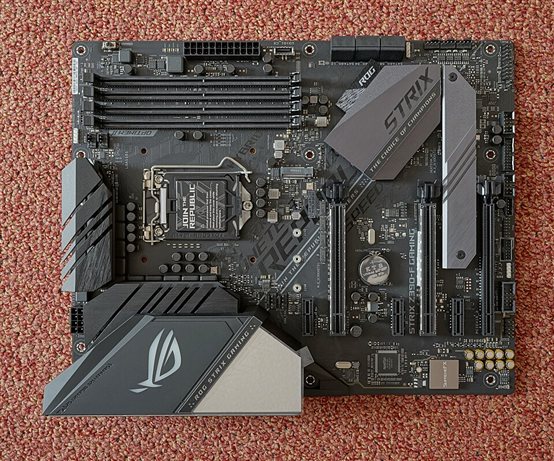
I fixed this on an ASUS PRIME Z790-P after a BIOS update where all front panel USB 3.0 ports stopped working while rear ports remained functional. The cause was a reset USB power setting in BIOS that disabled front panel header power.
Immediate Check: Which Ports Are Affected
| Affected Ports | Most Likely Cause |
|---|---|
| All USB ports dead (keyboard/mouse lost) | Legacy USB support disabled in BIOS |
| Front panel USB dead, rear OK | USB header power setting reset in BIOS |
| USB 3.x ports dead, USB 2.0 OK | Intel USB 3.x controller driver issue post-BIOS |
| Specific port dead after physical inspection | Hardware — connector damage |
Fix 1: Restore BIOS USB Settings
Restart → Del key at POST to enter BIOS → navigate to Advanced → USB Configuration:
- Legacy USB Support: set to Enabled (restores keyboard/mouse before OS loads)
- USB Mass Storage Driver Support: Enabled
- XHCI Hand-off: Enabled (required for some USB 3.x devices)
Also check Advanced → Onboard Devices Configuration → USB Power Delivery in Soft Off State (S5) — if this was toggled off by the update, front panel USB may lose power.
Save and exit. Test USB ports before booting into Windows.
Fix 2: Clear CMOS to Reset BIOS
If BIOS settings are inconsistent after the update, clearing CMOS restores factory defaults:
- Shut down and unplug the PC from the wall
- Locate the CLRTC jumper on the ASUS motherboard (labeled CLRTC or CLRCMOS on the PCB)
- Move the jumper from pins 1-2 to pins 2-3 for 5-10 seconds
- Return the jumper to pins 1-2
- Power the PC back on — BIOS loads with factory defaults
Alternatively, many ASUS boards support clear CMOS via a button on the rear I/O panel. After clearing, reconfigure BIOS settings (XMP/EXPO profile, boot order, fan curves) before re-enabling.
Fix 3: Reinstall Intel USB Controller Drivers in Windows
After BIOS restore, if specific USB ports still don’t work in Windows, the Intel USB controller drivers may need updating.
- Device Manager → Universal Serial Bus controllers
- Look for any entries with yellow warnings
- Right-click → Update driver → Search automatically
- If not found: download the Intel chipset driver from Intel’s chipset INF page and reinstall
Also check: HKEY_LOCAL_MACHINE\SYSTEM\CurrentControlSet\Services\USBXHCI — if the Start value is 4 (disabled), change it to 3 and restart.
Per Tan Wei, an IT technician at a PC assembly workshop: “ASUS BIOS updates resetting USB power settings is something I see at least twice a month. It’s almost always the XHCI Hand-off or Legacy USB setting. Takes 30 seconds to fix in BIOS. The mistake is spending an hour reinstalling Windows before checking BIOS first.”
Fix 4: Flash BIOS to Previous Version
If the new BIOS version introduced a bug affecting USB stability, roll back to the previous version.
- Go to ASUS Support and find your motherboard’s BIOS download page
- Download the previous stable BIOS version
- Copy to a FAT32-formatted USB drive as a
.CAPfile - In BIOS: Tool → ASUS EZ Flash → select the file from the USB drive
- Confirm and wait for the flash to complete — do not power off during this process
Frequently Asked Questions
All USB ports are dead including the keyboard — how do I enter BIOS?
Try a PS/2 keyboard if you have one — PS/2 is not affected by USB BIOS settings. Alternatively, use the CLRTC jumper to reset BIOS to defaults, which re-enables Legacy USB Support automatically.
Only my USB-A 3.0 ports are dead but USB-C and 2.0 work — why?
USB 3.x ports use a separate xHCI controller. The BIOS update may have reset xHCI Hand-off to disabled. Enable it in BIOS → Advanced → USB Configuration → XHCI Hand-off: Enabled.
ASUS AI Overclock or DOCP/XMP reset after BIOS update — is that normal?
Yes. BIOS updates often reset all settings to defaults as a safety measure. Re-enable your XMP/EXPO profile in BIOS → AI Tweaker → XMP after the update.
After CMOS clear, the time and date reset — do I need to set it again?
Yes. CMOS clear removes all saved BIOS settings including date/time. Set the correct time in BIOS or let Windows sync it via internet after booting.
My ASUS board has a BIOS Flashback feature — can I use it to roll back?
Yes. BIOS FlashBack lets you flash a BIOS file from USB even without a CPU or RAM installed, using only the USB FlashBack port and power. Rename the BIOS file to the required format (check your board’s manual) and press the FlashBack button.
Conclusion
ASUS motherboard USB ports not working after a BIOS update is almost always caused by BIOS settings being reset to defaults that disable Legacy USB, XHCI Hand-off, or front panel USB power. Check these settings in BIOS first before touching Windows drivers. If BIOS settings look correct and USB still fails in Windows, reinstall the Intel chipset driver. Rolling back the BIOS is a last resort but is straightforward using EZ Flash.
Ryan holds a Computer Science degree and has over 20 years of hands-on experience with PC hardware, software, and driver troubleshooting. He is the author behind softwaredriverdownload.com, where he helps everyday users fix driver issues quickly and accurately. Ryan has personally tested most of the fixes on this site across a range of Windows 10 and Windows 11 machines.
Leave a Reply