The color profile on your ASUS ProArt Studiobook 16 AMD Ryzen 9 7945HX OLED display is incorrect – colors appear oversaturated, washed out, or mismatched compared to external reference monitors. ProArt Creator Hub color profile selection and color calibration restore accurate professional color reproduction on the ProArt Studiobook 16 OLED.
This guide covers ProArt Creator Hub color profiles, Windows ICC profile management, and OLED color calibration for the ASUS ProArt Studiobook 16 AMD Ryzen 9 7945HX in Windows 11.
“ProArt Studiobook 16 AMD OLED looked oversaturated for web design work. Was set to DCI-P3 mode – correct for video but makes sRGB web content look overly vivid. Switched to sRGB color profile in ProArt Creator Hub for web design. Colors matched client sRGB monitors perfectly after switch.” – Hafeeza, UX designer from KLCC area
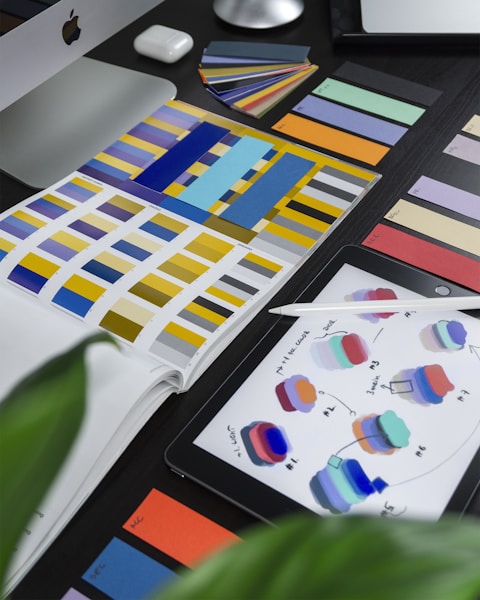
Why ProArt Studiobook 16 OLED Color Looks Incorrect
The ASUS ProArt Studiobook 16 AMD OLED covers 100 percent DCI-P3 and 100 percent Adobe RGB color gamuts – much wider than the sRGB color space used for standard web content and most digital photographs. When the display is set to its native wide gamut mode without a color profile, sRGB-intended content (web pages, standard photos) appears oversaturated because the colors are expanded from sRGB to the wider display gamut without proper conversion. Matching the display color profile to the content type is essential for professional accuracy: sRGB profile for web and screen design, Adobe RGB for print photography, DCI-P3 for film and HDR video work.
- DCI-P3 color profile active while working with sRGB content – oversaturation of web/photo colors
- No ICC profile active – display in native wide gamut mode expanding all colors beyond sRGB
- AMD Radeon driver color settings overriding ICC profile with display vibrance enhancement
- ProArt Creator Hub color profile incorrectly configured after AMD driver update

Fix 1 – Set Color Profile in ProArt Creator Hub
Open ProArt Creator Hub (preinstalled, also downloadable from ASUS Support). Navigate to Color Profile section. Available profiles include: sRGB (standard for web, UI design, general photography), DCI-P3 (for cinema/film color grading and HDR content), Adobe RGB (for print-oriented photography and prepress work), Display P3 (for Apple device color-matched content), and Native (full display gamut without color management). Select the profile matching the primary work type. For web designers: sRGB. For video editors: DCI-P3. For photographers preparing print work: Adobe RGB. ProArt Creator Hub applies the profile as a system-level ICC color profile that Windows Color Management uses for all application color output on the ProArt Studiobook 16 OLED display.
Fix 2 – Verify Windows Color Management ICC Profile
Search Windows Color Management (or open via Control Panel – Color Management). Click on the Displays tab and select the ProArt Studiobook 16 OLED display. Click Add and browse to the ICC profile installed by ProArt Creator Hub (typically in C:\Windows\System32\spool\drivers\color folder). Select the appropriate profile (DCI-P3 or sRGB for the ProArt display model). Check Use my settings for this device and click Set as Default Profile. Color-managed applications (Photoshop, Lightroom, DaVinci Resolve) use this ICC profile for accurate soft proofing and display color rendering. Applications without color management (browsers without color profile setting, some video players) may still show uncorrected wide-gamut colors until the browser color management feature is enabled.
Disable AMD Radeon Display Enhancement
Open AMD Radeon Software – Display – Color settings. Set Hue, Saturation, and Color Temperature to default values (0 offset, 6500K color temperature). AMD Radeon Software display vibrance controls can override ICC profile color accuracy by applying additional saturation boost at the GPU driver level. For professional color work on the ProArt Studiobook 16 OLED, AMD display enhancement settings should be at neutral default so the ICC profile-managed color pipeline accurately represents the target color space without GPU-level saturation modification that would compromise Delta E color accuracy for client-matching work.
Fix 3 – Enable Browser Color Management
For web design work where browser color accuracy matters: in Google Chrome, navigate to chrome://flags and enable Color correct rendering with display color profiles. In Firefox, go to about:config and set gfx.color_management.mode to 1 (full ICC color management). Browser color management ensures that when Chrome or Firefox displays sRGB web content on the ProArt Studiobook 16 OLED (a DCI-P3/Adobe RGB display), the browser correctly converts sRGB colors to DCI-P3 display output values – preventing the oversaturation that occurs when an sRGB image is displayed full-gamut on a wide-gamut display without conversion. Browser color management is essential for web designers on wide-gamut displays to see colors as clients with sRGB displays will see them.
Fix 4 – Calibrate with Colorimeter
For maximum color accuracy on the ProArt Studiobook 16 OLED, calibrate with a hardware colorimeter (X-Rite i1Display Pro, Calibrite ColorChecker Display Pro, or similar). Open ProArt Creator Hub – ASUS ProArt Calibration and follow the instructions to connect the colorimeter. The calibration process measures actual display output versus target values and generates a custom ICC profile or updates the panel firmware LUT (Look Up Table) with correction values. Hardware calibration achieves Delta E less than 1 for color-critical professional work, surpassing the factory Delta E less than 2 specification. Recalibrate every 3-6 months as OLED panels can exhibit slight color drift over time that periodic hardware calibration corrects on the ProArt Studiobook 16 AMD.
Frequently Asked Questions
How do I set color profile on ASUS ProArt Studiobook 16 AMD Ryzen 9 7945HX?
ProArt Creator Hub – Color Profile – select sRGB for web/design, DCI-P3 for video, Adobe RGB for print photography. Verify in Windows Color Management that selected profile is set as default for the display.
Why does ASUS ProArt Studiobook 16 AMD OLED look washed out?
Mismatch between display color profile and content type. sRGB content in DCI-P3 mode = oversaturation. DCI-P3 content in sRGB mode = undersaturation. Match profile to work type for accurate colors.
Does ASUS ProArt Studiobook 16 AMD support hardware calibration?
Yes – ProArt Creator Hub ASUS ProArt Calibration with compatible colorimeter (X-Rite i1Display, Calibrite ColorChecker). Hardware calibration achieves Delta E less than 1 for color-critical professional work.
What color accuracy does ASUS ProArt Studiobook 16 AMD OLED achieve?
Factory: Delta E less than 2 (many units under 1). 100 percent DCI-P3 and Adobe RGB coverage. Recalibrate with colorimeter every 3-6 months to maintain accuracy over panel life.
Conclusion
ASUS ProArt Studiobook 16 AMD Ryzen 9 7945HX OLED color profile issues in Windows 11 are resolved by selecting the appropriate color profile in ProArt Creator Hub – sRGB for web and UI design, DCI-P3 for video, Adobe RGB for print photography. Windows Color Management ICC profile verification ensures the profile is active for color-managed applications. AMD Radeon display enhancement neutral settings prevent GPU-level saturation from compromising ICC profile accuracy. Browser color management enable ensures sRGB web content is correctly converted for the wide-gamut OLED display. Hardware colorimeter calibration via ProArt Creator Hub ASUS ProArt Calibration achieves Delta E under 1 for the highest color accuracy on the ProArt Studiobook 16 OLED professional display.
Ryan holds a Computer Science degree and has spent over 15 years troubleshooting Windows hardware and driver issues across major laptop brands. He writes practical, step-by-step guides for everyday users at softwaredriverdownload.com.
Leave a Reply